Settings
Section titled “Settings”Configure preferences, execution boundaries, command permissions, and tool telemetry across Antigravity surfaces.
Settings architecture
Section titled “Settings architecture”Antigravity features a hierarchical settings architecture designed to give you granular control over your development environment. Settings are split between global application preferences and isolated project-level boundaries to ensure robust security and flexible workspace configurations.
Accessing settings
Section titled “Accessing settings”You can open the Settings panel using any of the following methods:
- Keyboard shortcut: press Cmd + , on any active surface inside the application.
- Sidebar navigation: click Settings at the bottom of the left sidebar.
- Project settings: click the gear icon located next to a specific project.
The four settings categories
Section titled “The four settings categories”Settings are organized into four distinct scopes to keep configurations clean and isolated:
1. Global settings
Section titled “1. Global settings”Global settings apply across all workspaces:
- Account settings: manage authentication sessions and toggle Telemetry (enable or disable sharing interaction logs to improve models).
- Global permissions: centralized default tool boundaries that apply to all conversations.
- Appearance: customize visual themes and panel layouts.
- Browser integration: configure how the agent interacts with web surfaces.
- Model usage: choose and configure default reasoning models.
- Customizations: manage Model Context Protocol (MCP) servers, custom skills, and plugins.
2. Project settings
Section titled “2. Project settings”Project settings apply exclusively within the scope of a specific project:
- Folders: define the list of local folders associated with the project.
Antigravity automatically detects Git configurations for these folders to
handle conversation targets:
- Local: select this in the new conversation view to work directly in the existing folders.
- Worktree: select this to start a new worktree in the folders. If a folder does not have Git, the existing local folder is used instead.
- Agent settings: configure project-specific agent behaviors:
- Permission settings (macOS and Linux): choose the project’s permission preset — Inherit General, Default, Request Review, or Turbo — controlling how the agent runs shell commands, accesses files, and uses the Terminal Sandbox (refer to Agent Permissions).
- Terminal execution policy (Windows): control how the agent runs shell commands.
- Outside of folder file access policy (Windows): define how the agent accesses files outside the project boundary (Always Allow, Always Ask, or Always Deny).
- Sandbox mode (Windows): toggle the terminal sandbox container on or off within the custom security preset (refer to Terminal Sandbox).
- Project-level permissions: configure permissions at the project level. As you interact with an agent, you accumulate permission requests that can be automatically added to project permissions.
- Customizations: derived from both global and project-specific customizations. You can view all skills originating from each folder added to the project.
3. Standalone conversations
Section titled “3. Standalone conversations”You can also start conversations outside of a project:
- Behavior: standalone conversations do not have a configurable folder and instead run in a local scratch directory.
- Settings: they can have their own settings (such as terminal execution, file access policies, and permissions) similar to projects, but operate independently of any project structure.
4. Miscellaneous
Section titled “4. Miscellaneous”Access shortcuts and feedback tools:
- Shortcuts: view and customize keyboard shortcut configurations.
- Feedback: access the feedback form to send reports directly to the team.
Data collection settings
Section titled “Data collection settings”The Enable Telemetry setting is located in the Settings panel under the Account section. When toggled on, Antigravity collects interactions for use in evaluating, developing, and improving Antigravity and models that support Antigravity.
Configure persistent preferences, customize keyboard shortcuts, toggle terminal display buffers, and manage runtime CLI parameter overrides.
Setting up preferences
Section titled “Setting up preferences”Antigravity CLI stores user preferences in a minimal, forward-compatible JSON configuration profile.
Configuration file location
Section titled “Configuration file location”The persistent settings are saved in a plain JSON format:
~/.gemini/antigravity-cli/settings.jsonThe CLI leverages sparse persistence by writing only values to disk that differ from their system defaults. This keeps your configuration file clean, minimal, and fully forward-compatible with future updates.
The interactive settings panel
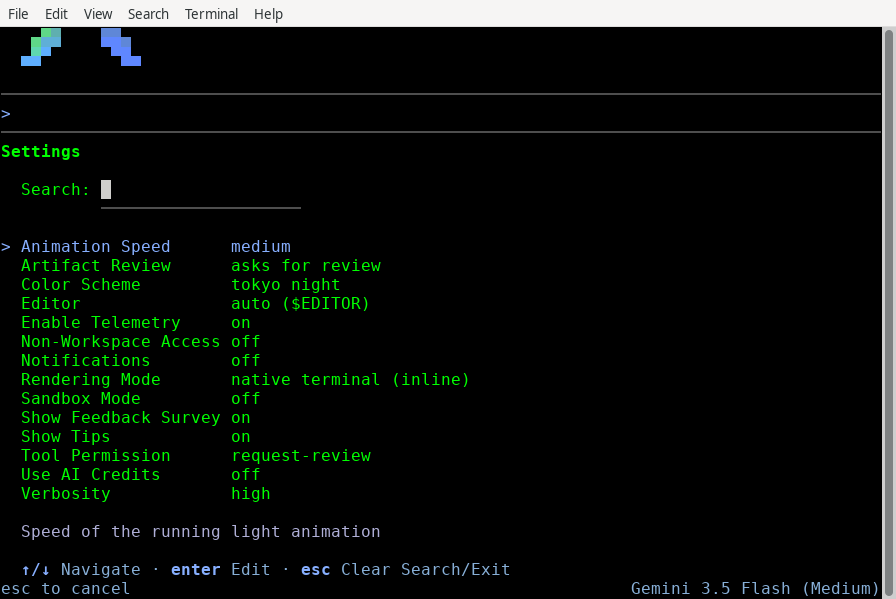
Section titled “The interactive settings panel”To edit settings directly inside your active terminal session without opening raw JSON files:
- Type
/config(or its alias/settings) inside the prompt panel and pressEnter. - The full-screen Settings Editor Overlay opens.
- Navigate between available options using
↑/↓. - Press
Enteron a highlighted parameter to toggle its state or open a text insertion field. - Press
Escto save your modifications and close the editor.
Command-line overrides
Section titled “Command-line overrides”You can temporarily override persistent preferences for individual terminal sessions using CLI command flags:
agy --sandbox --model="Gemini 3.5 Flash"When an override flag is active, the interactive /config menu displays a
warning indicator alongside the modified setting:
! Tool Permission: strict (overridden by command flag)You can still edit the persistent value on disk during these sessions, but the CLI enforces the active runtime flag override until you close the session.
Visual rendering modes
Section titled “Visual rendering modes”The TUI operates in one of two visual rendering modes depending on your terminal capability and connection latency.
Alt-screen mode (always)
Section titled “Alt-screen mode (always)”This mode opens a dedicated display screen using the terminal’s alternate buffer, creating an immersive, standalone app interface.
- Key features: integrated scrollback, mouse-wheel scrolling support, custom rendered scrollbar, and clean terminal state restoration on exit.
- Best used for: standard local development sessions in advanced terminal emulators (such as iTerm2, Ghostty, or WezTerm).
Inline mode (never)
Section titled “Inline mode (never)”This mode renders output sequentially directly within your terminal’s standard stdout pipeline.
- Key features: preserves entire session history inside your emulator’s native scrollback buffer, does not capture mouse inputs, and works seamlessly alongside standard command outputs.
- Best used for: remote SSH terminals, terminal multiplexers like
tmuxorscreen, and low-bandwidth remote sessions.
Configuration options reference
Section titled “Configuration options reference”The interactive settings panel (/config) and settings.json allow you to
customize the CLI’s behavior across several categories.
Safety and permissions
Section titled “Safety and permissions”Manage how the agent interacts with your system and codebase:
- Tool Permission (
toolPermission): controls the authorization flow for tools (such as running terminal commands).request-review(default): prompts for your approval before running write, bash, or web tools.proceed-in-sandbox: automatically runs terminal commands if they are sandboxed; otherwise prompts for review.strict: prompts for all non-read tools, ensuring maximum control.always-proceed: runs all tools without prompting (highest risk, use with caution).
- Artifact Review (
artifactReviewPolicy): controls when the agent prompts you to review generated artifacts (like code files) before writing them to disk.asks-for-review(default): always prompts you to review changes.agent-decides: the agent decides whether to prompt based on the complexity of the change.always-proceed: the agent writes changes directly without prompting (maximizes autonomy, but increases risk of overwriting code without review).
- Sandbox Mode (
enableTerminalSandbox): when enabled (on), restricts all agent-initiated terminal commands to a secure OS container. - Non-Workspace Access (
allowNonWorkspaceAccess): controls whether the agent can read or write files outside your active project directories. Set tooffby default for safety.
Display and rendering
Section titled “Display and rendering”Customize the visual experience of the TUI:
- Rendering Mode (
altScreenMode): controls how the TUI utilizes your terminal buffer.default: adaptive mode. Uses Alt-screen on advanced local terminals and degrades to inline mode over SSH.always: forces Alt-screen mode, providing an immersive, page-based interface with mouse support and scrollbars.never(configurable viasettings.json): forces inline mode, rendering output sequentially and preserving history in your emulator’s scrollback.
- Color Scheme (
colorScheme): selects the visual theme. Options includeterminal(inherits shell colors),dark,light,solarized dark/light,tokyo night, and colorblind-friendly variants. - Animation Speed (
runningLightSpeed): adjusts the speed of the progress indicator animation (fast,medium,slow, oroff). - Verbosity (
verbosity): controls detail level.highshows full agent thoughts and tool steps;lowshows only minimal progress indicators.
Editor and notifications
Section titled “Editor and notifications”Configure integrations with your host environment:
- Editor (
editor): the text editor used to view artifacts or compose prompts (via Ctrl + G). Defaults toauto(respects$EDITOR), but can be set tovim,emacs, or others. - Editor Mode (
editorMode): the editing model used inside the CLI prompt itself. Defaults todefault(flat text editing); set it tovimfor modal editing. Refer to Vim Editor Mode. This is independent of theeditorsetting above, which only selects an external program. - Notifications (
notifications): when enabled (on), triggers a system desktop notification and a terminal bell chime when a long-running task completes or requires your attention.
AI credits and feedback
Section titled “AI credits and feedback”Manage usage, tips, and telemetry:
- Use AI Credits (
useG1Credits): External builds only. When enabled (on), allows the CLI to use your personal AI credits for model calls if your plan’s standard quota is exhausted. - Enable Telemetry (
enableTelemetry): helps Google improve the tool by sending anonymous usage statistics and crash reports. - Show Tips (
showTips): toggles the display of helpful usage tips while the agent is generating responses. - Show Feedback Survey (
showFeedbackSurvey): enables periodic brief surveys after task completions to help improve the experience.
Custom status lines and terminal titles
Section titled “Custom status lines and terminal titles”For advanced TUI environment integrations, you can toggle active metrics or deploy custom scripts to generate dynamic status bars and modify your terminal window titles:
- Status Line Customization: learn how to manage the status indicator panel and construct custom formatted status line shell scripts.
- Terminal Title Customization: learn how to toggle window title outputs and pipe live agent states into your window headers.
Keybindings configuration
Section titled “Keybindings configuration”You can customize almost all keyboard shortcuts in the TUI by mapping keys to specific workspace commands.
Keybindings file location
Section titled “Keybindings file location”Custom maps are stored alongside your primary settings profile:
~/.gemini/antigravity-cli/keybindings.jsonFormat and customization
Section titled “Format and customization”The JSON structure maps a single TUI command action to an array of hotkey sequences:
{
  "cli.clear_screen": ["ctrl+l"],
  "prompt.insert_newline": ["shift+enter", "ctrl+j"],
  "edit.open_editor": ["ctrl+g"]
}
To completely disable a default hotkey, map its action to an empty array [].
If your JSON schema is malformed or invalid, the CLI falls back to system
defaults for those specific actions and loads the remaining valid mappings.
Restoring defaults
Section titled “Restoring defaults”To revert all keys back to system defaults, delete the keybindings profile:
rm ~/.gemini/antigravity-cli/keybindings.jsonNext steps
Section titled “Next steps”Now that you configured your environment, review security controls and extensibility options:
- Permissions & Sandbox: manage secure execution containment boundaries.
- Plugins & Skills: create your own custom skills and import legacy plugins.
- CLI Reference: access quick reference sheets listing all configuration options, commands, and default key maps.
Configure how the Antigravity agent interacts with your environment, executes commands, and secures your workspace.
Command execution and file access
Section titled “Command execution and file access”Terminal command auto execution
Section titled “Terminal command auto execution”Controls how the agent executes generated shell commands:
- Request Review: the agent always prompts for confirmation before executing any terminal command (except those explicitly added to your configurable allowlist).
- Always Proceed: the agent executes commands automatically without prompting (except those explicitly added to your configurable denylist). High autonomy, high risk.
Agent non-workspace file access
Section titled “Agent non-workspace file access”Allows the agent to view and edit files outside active project folders:
- By default, the agent only has access to the folders inside your project and
the local app data directory
~/.gemini/antigravity-ide/(which contains artifacts, knowledge items, and configuration files). - Enforcing this boundary protects your local sensitive data. Enable non-workspace access with caution.
Strict mode
Section titled “Strict mode”Strict mode provides enhanced security controls for the agent, allowing you to restrict its access to external resources and sensitive operations. When strict mode is enabled, several security measures are enforced to protect your environment.
Browser URL allowlist and denylist
Section titled “Browser URL allowlist and denylist”In strict mode, the agent’s ability to interact with external websites is governed by the browser’s allowlist and denylist. This applies to:
- External markdown images: the agent only renders images from URLs that are allowed.
- Read URL tool: the Read URL tool only auto-executes for allowed URLs.
Terminal, browser, and artifact review policies
Section titled “Terminal, browser, and artifact review policies”Strict mode enforces the following behavior for terminal, browser, and artifact interactions:
- Terminal auto execution: set to “Request Review”. The agent always prompts for permission before executing any terminal command. The terminal allowlist is ignored when strict mode is enabled.
- Browser JavaScript execution: set to “Request Review”. The agent always prompts for permission before executing JavaScript in the browser.
- Artifact review: set to “Request Review”. The agent always prompts for confirmation before acting on plans laid out in artifacts.
File system access
Section titled “File system access”Strict mode restricts the agent’s access to the file system to ensure it only interacts with authorized files:
- Respect .gitignore: the agent respects
.gitignorerules, preventing it from accessing ignored files. - Workspace isolation: access to files outside the workspace is disabled. The agent can only view and edit files within the designated workspace.
Terminal sandboxing
Section titled “Terminal sandboxing”Sandboxing provides kernel-level isolation for terminal commands executed by the agent. When enabled, commands run in a restricted environment with limited file system and network access, protecting your system from unintended modifications.
Sandboxing is currently disabled by default, but this may change in future
releases. It is supported on macOS and Linux. On macOS, it leverages Seatbelt
(sandbox-exec), Apple’s kernel-level sandboxing mechanism. On Linux, it uses
nsjail for process isolation.
Enabling sandboxing
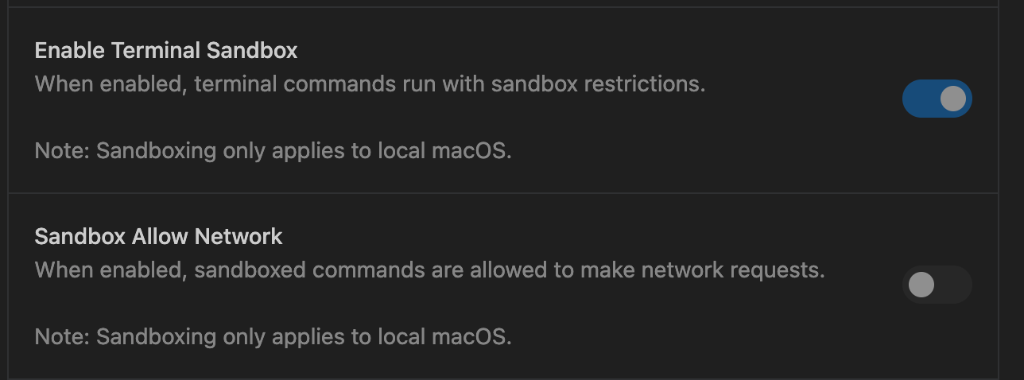
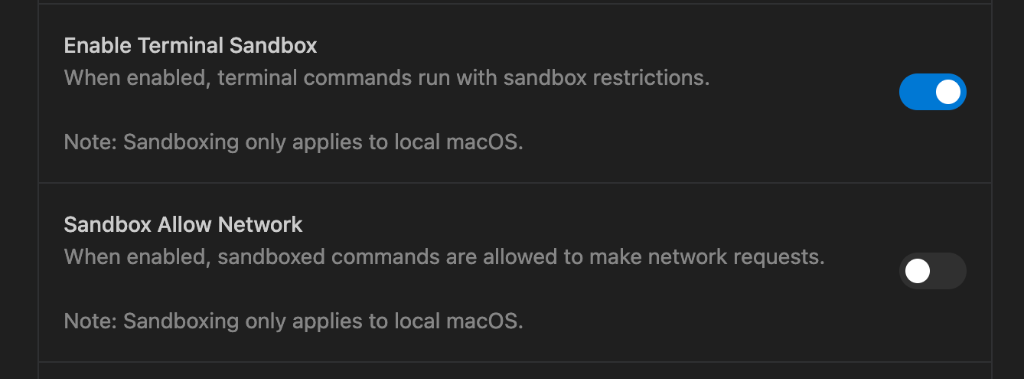
Section titled “Enabling sandboxing”You can enable or disable sandboxing in Antigravity user settings. Toggle “Enable Terminal Sandboxing” to turn sandboxing on or off. When enabled, you can also control network access separately using the “Sandbox Allow Network” toggle.
Restrictions
Section titled “Restrictions”When sandboxing is enabled, the agent’s terminal commands are subject to the following restrictions:
-
File system: commands can only write to your designated workspace directory and essential system locations. This prevents the agent from accidentally deleting or modifying files outside your project.

-
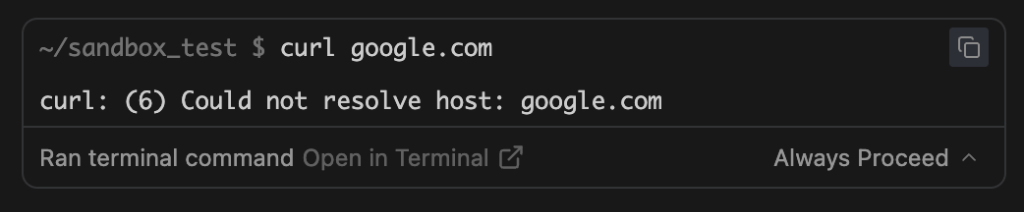
Network access: network connectivity can be independently controlled. Use the “Sandbox Network Access” toggle in Antigravity user settings to allow or deny network access while maintaining file system restrictions.
Here’s an example of a command being blocked due to network restrictions:
Interaction with strict mode
Section titled “Interaction with strict mode”When strict mode is enabled, sandboxing is automatically activated with network access denied. This ensures maximum protection when operating in a strict environment.