

Generative UI command (/generative_ui)
Section titled “Generative UI command (/generative_ui)”Have the agent show you an answer instead of only describing it. With
/generative_ui, the agent builds an interactive widget, such as a diagram,
chart, or step-by-step explainer, as an HTML artifact that you open in the side
panel. Compact widgets can also appear inline in the conversation.
Overview
Section titled “Overview”Some answers are easier to follow visually: how a request moves through middleware, how two database tables relate, or how changing a value affects a result. With generative UI, the agent answers with a widget that you can click through, alongside its explanation.
When you use /generative_ui, the agent:
- Builds a web page: each widget is a single HTML file with its own styles and JavaScript, saved as an artifact of the conversation.
- Chooses where to show it: by default, the widget is a standalone artifact that you open in the side panel. A compact widget, such as a small diagram or plot, can also appear inline in the agent’s response.
- Matches your theme: widgets use the Antigravity App’s theme colors, so they match your light or dark theme.
/generative_ui runs a built-in skill, so the agent can also
use generative UI without the command when a visual would help, for example
when you ask for “an interactive diagram I can click through.”
Create a widget
Section titled “Create a widget”Type /generative_ui in the message box, followed by what you want to see. You
can also type / and select generative_ui from the menu.
/generative_ui Show a simple left-to-right diagram of a request going from the client through requireApiKey and the bookmarks router to the database, with a toggle for a valid or invalid API key. Use icons, short labels, and no code.In this example, the agent reads the relevant code, builds a compact widget,
and embeds it in its response. The diagram shows each stage of the request,
from the client through requireApiKey and the bookmarks router to the
database. A toggle switches between a valid and an invalid API key. With a
valid key, the request reaches the database and gets a 200 OK response:
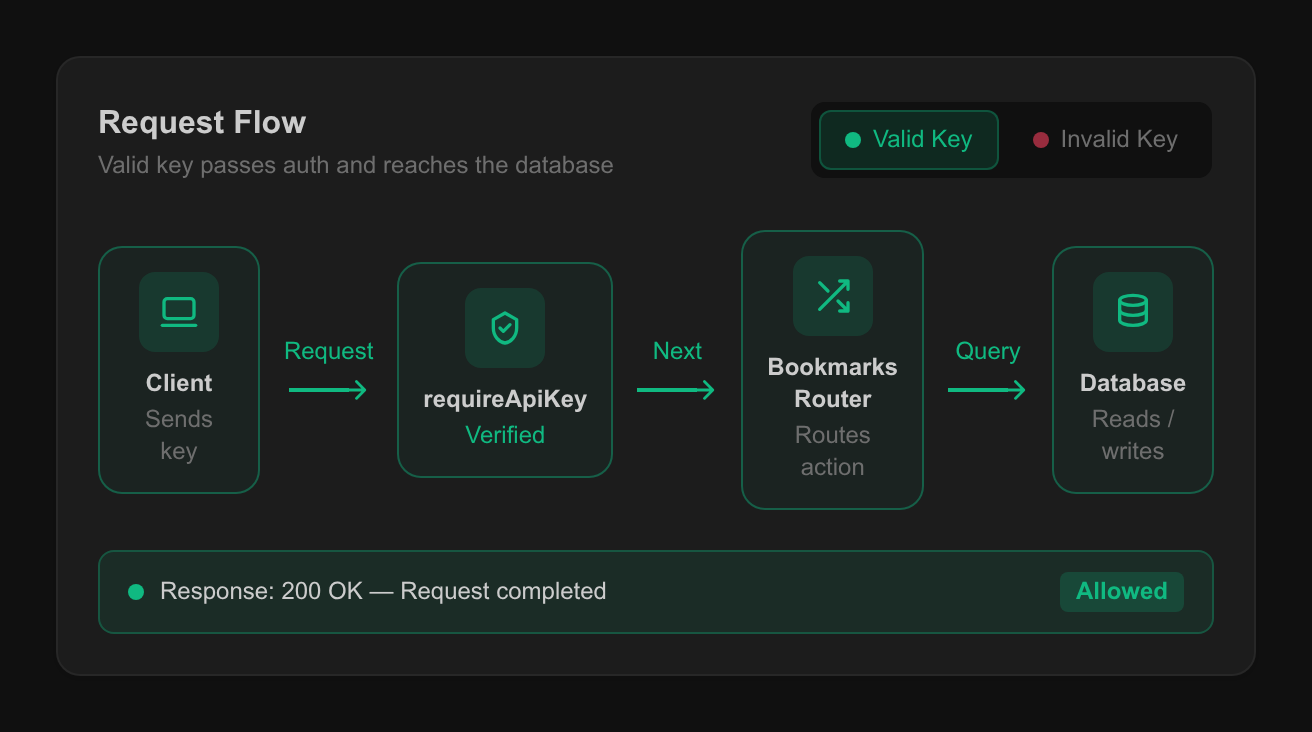
The response ends with a card for the widget’s artifact, which shows its title and a short summary.
Choose inline or standalone
Section titled “Choose inline or standalone”By default, the agent shares a widget as a standalone artifact. It embeds a widget inline only when the widget is compact and illustrates the surrounding explanation. The following table compares the two placements:
| Placement | Where it appears | Best for |
|---|---|---|
| Standalone artifact (default) | In the side panel, up to the panel’s full height | Dashboards, simulations, and app prototypes |
| Inline widget | In the agent’s response, up to 500 pixels tall | Small diagrams, plots, and explainers |
To choose the placement yourself, say so in your request. For example, to get an inline widget:
/generative_ui Show which status code each bookmarks route returns as an inline widgetTo get a standalone artifact:
/generative_ui Build a multi-tab dashboard of bookmark activity with sample data as a standalone artifactOpen a widget in the side panel
Section titled “Open a widget in the side panel”Every widget is saved as an HTML artifact, including inline widgets. To open
one, click its artifact card in the conversation. The widget opens in the side
panel, where you can use it at full size. In this example, the toggle is set to
an invalid key, so the request stops at requireApiKey with a
401 Unauthorized response and never reaches the router or the database:
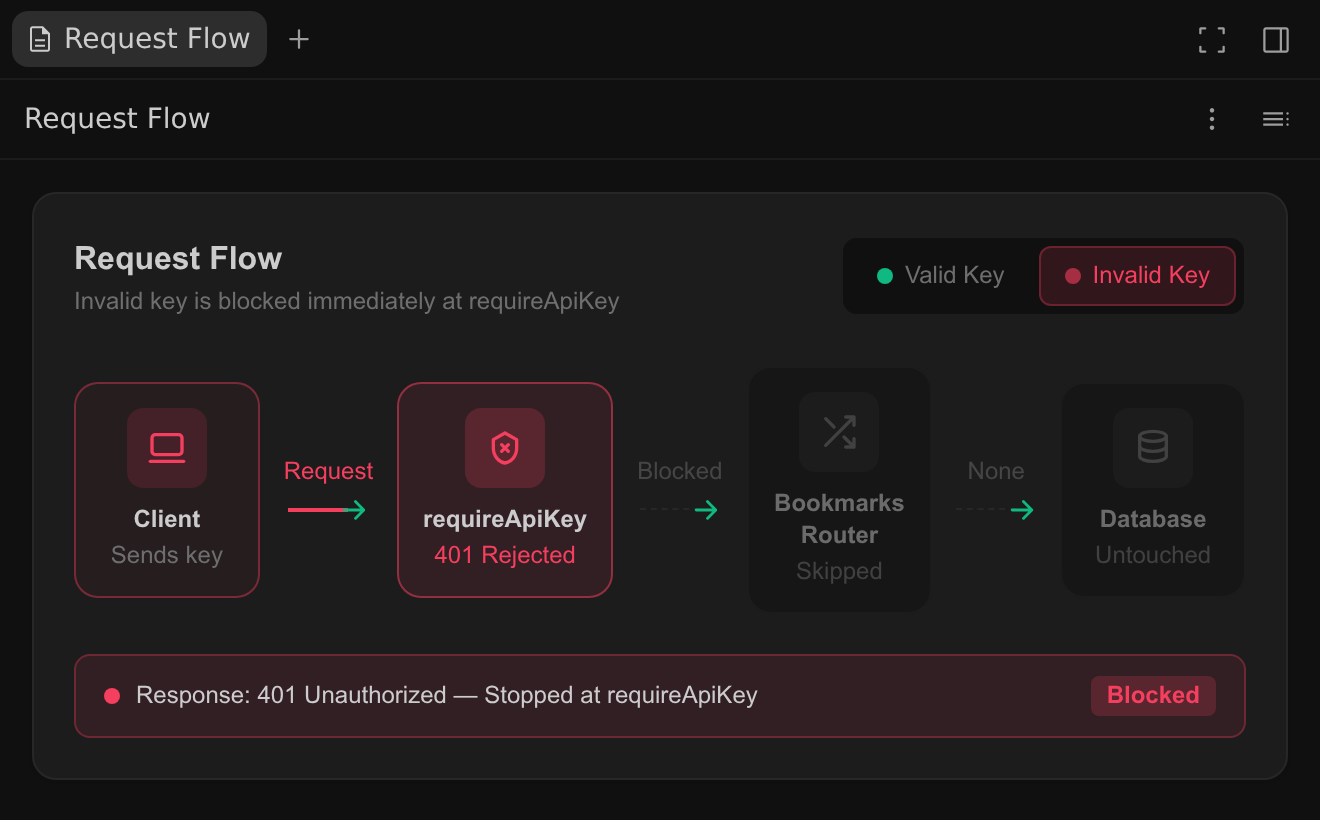
The conversation’s artifacts are also listed under Artifacts in the Overview panel at the top right of the conversation. To save a copy of the HTML file, click More actions (the three-dot menu) at the top of the artifact, and then click Export Artifact. The exported file doesn’t include the Antigravity App’s theme colors, so it can look different when you open it in a browser.
What you can ask for
Section titled “What you can ask for”Generative UI works well for anything that’s clearer when you can see it and interact with it:
- Code and architecture diagrams: request flows, call paths, state machines, and data models that you can click through.
- Data visualizations: charts and plots of data that you provide or that the agent computes.
- Interactive explainers: step-by-step walkthroughs and controls that show how changing a value affects a result.
- UI mockups and prototypes: clickable layouts for trying out an idea before you build it.
For example, to visualize a data model:
/generative_ui Visualize the users and bookmarks tables and how they relateTo chart sample data in the agent’s response:
/generative_ui Chart how many bookmarks each user has saved, using sample data, as an inline widgetTo prototype a screen before you build it:
/generative_ui Build a clickable prototype of a bookmark manager screen as a standalone artifactHow widgets work
Section titled “How widgets work”Widgets have the following behavior and limits:
- Interactive: buttons, tabs, sliders, and other controls run inside the widget. Using them doesn’t send a message to the agent.
- Sized to fit: an inline widget grows to fit its content, up to 500 pixels tall. Taller content scrolls inside the widget. For more room, click the widget’s artifact card to open it in the side panel, where it can use the panel’s full height, or ask for a standalone artifact.
- Sandboxed: each widget runs in an isolated frame. It can’t access your files or the rest of the Antigravity App, and it can’t embed other web pages.
- No external scripts: widgets can’t load scripts from other sites, apart from the Tailwind CSS script that they use for styling. The agent draws charts and diagrams with HTML, SVG, or canvas instead of an external charting library.
- Point in time: anything a widget shows from your code or data is written into the HTML when the agent builds it. After your code or data changes, ask the agent to update the widget.
Next steps
Section titled “Next steps”Explore related documentation:
- Artifacts: Learn how the agent shares plans, diffs, and other deliverables for you to review.
- Agent skills: See how skills extend the agent and how to invoke them.
- Slash commands overview: Browse every available slash command.