

Review changes
Section titled “Review changes”Check what the agent changed before you keep it. Review the diffs file by file, send line-by-line feedback to the agent, and, in the Antigravity App, commit the result to Git without leaving Antigravity.
Antigravity App
Section titled “Antigravity App”In the Antigravity App, the Review pane shows the changes in your project’s Git repository, including the agent’s edits.
Open the Review pane
Section titled “Open the Review pane”In a conversation, do either of the following:
- In the Overview panel, click Review. If the panel is hidden, click Toggle Overview Panel at the top right of the conversation, or press Cmd+Option+O on macOS or Ctrl+Alt+O on Windows and Linux.
- Under an agent response that changed files, click Review on the card that summarizes the changes, such as 2 files changed. The pane opens filtered to that turn, as described in Review a single turn.
The pane opens as a Review tab in the side panel, next to the conversation. To expand it over the conversation, click Maximize Pane, or press Cmd+Shift+M on macOS or Ctrl+Shift+M on Windows and Linux. To list the changed files, click Toggle sidebar at the top right of the pane.
In this example, the agent added a route and a test. The route file is staged, and the test file has unstaged changes:
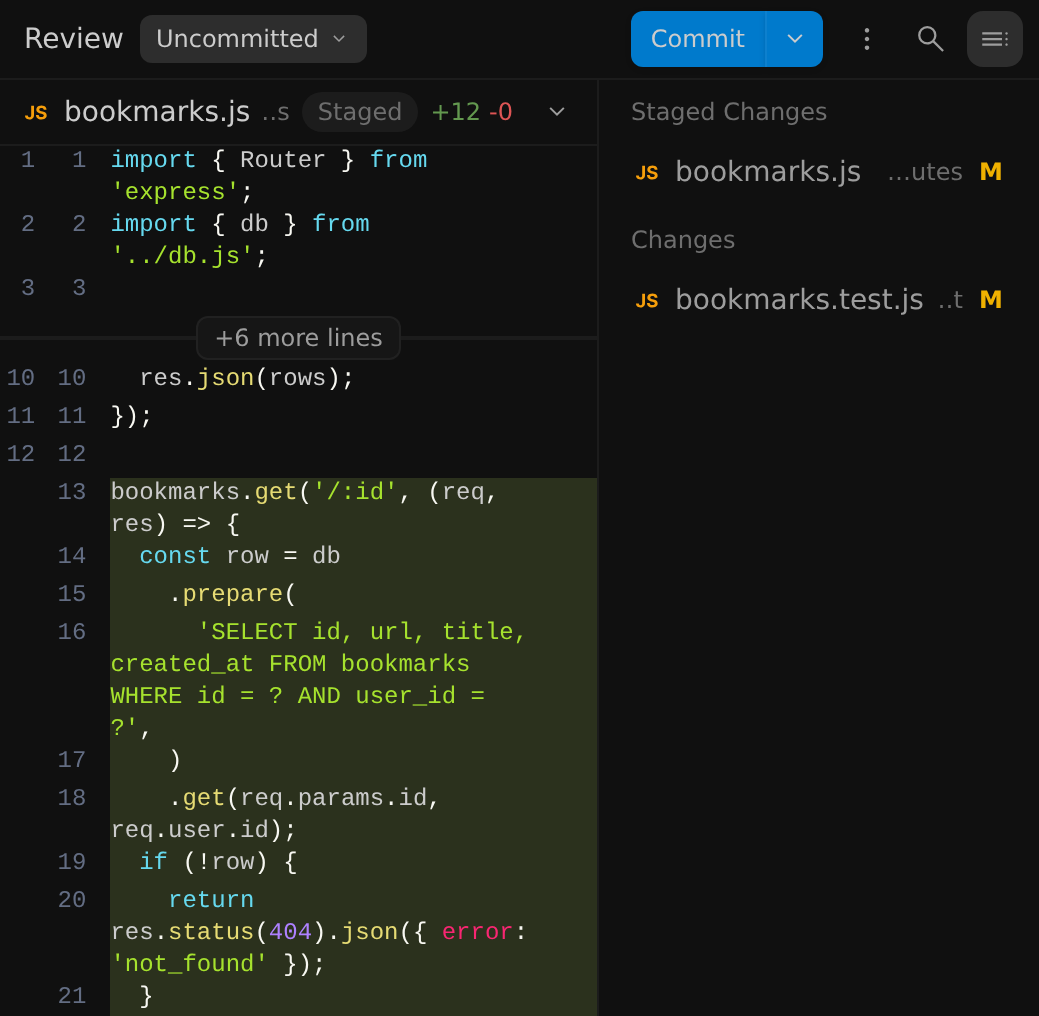
Each file in the sidebar shows a status letter. Hover over the letter to see its meaning:
| Letter | Meaning |
|---|---|
| M | Modified |
| A | Added (a new file that’s staged) |
| U | Untracked (a new file that isn’t staged) |
| D | Deleted |
| R | Renamed |
Click a file in the sidebar to scroll to its diff.
Choose what to compare
Section titled “Choose what to compare”Use the menu next to Review to choose which changes the pane shows:
| Option | Shows |
|---|---|
| Uncommitted | Staged and unstaged changes in your working tree, grouped under Staged Changes and Changes. This is the default. |
| Branch | Every change on the current branch since it split from its base branch, such as origin/main, including uncommitted changes. This option appears only when Antigravity can find the base branch. |
| Agent Edits | The files the agent modified in this conversation, whether or not they’re committed. |
You can stage, unstage, and discard files only in the Uncommitted view.
Review a single turn
Section titled “Review a single turn”To see only what the agent changed in one turn, click Review on that turn’s N files changed card. To jump to one file, click the card to list its files, and then click the file.
The pane header shows For Turn and the prompt for that turn. To return to all changes, click Clear filter (X) next to the prompt.
Adjust the diff view
Section titled “Adjust the diff view”Use these controls at the top of the Review pane to change how it shows diffs:
| Control | What it does |
|---|---|
| ⋮ > View Split Diff | Shows the old and new versions side by side. Choose View Stacked Diff to return to one column. |
| ⋮ > Hide Whitespace Changes | Hides changes that only affect whitespace. Choose Show Whitespace Changes to show them again. |
| ⋮ > Collapse All | Collapses every file’s diff. Choose Expand All to expand them again. |
| Search | Finds text in the diffs. |
| +N more lines | Shows the unchanged lines that are hidden between changes, such as +6 more lines. When 10 or more lines are hidden, +10 buttons also appear to show 10 lines at a time. |
To collapse or expand a single file, click the arrow on the right side of its header.
Send feedback to the agent
Section titled “Send feedback to the agent”Comment on specific lines to tell the agent what to change:
-
Hover over a line and click Add inline comment (+) at the start of the line. To comment on several lines, select them and click Comment in the popup that appears.
-
Type your feedback, and then click Add Comment.
Your comment appears below the lines it refers to, where you can edit or delete it:
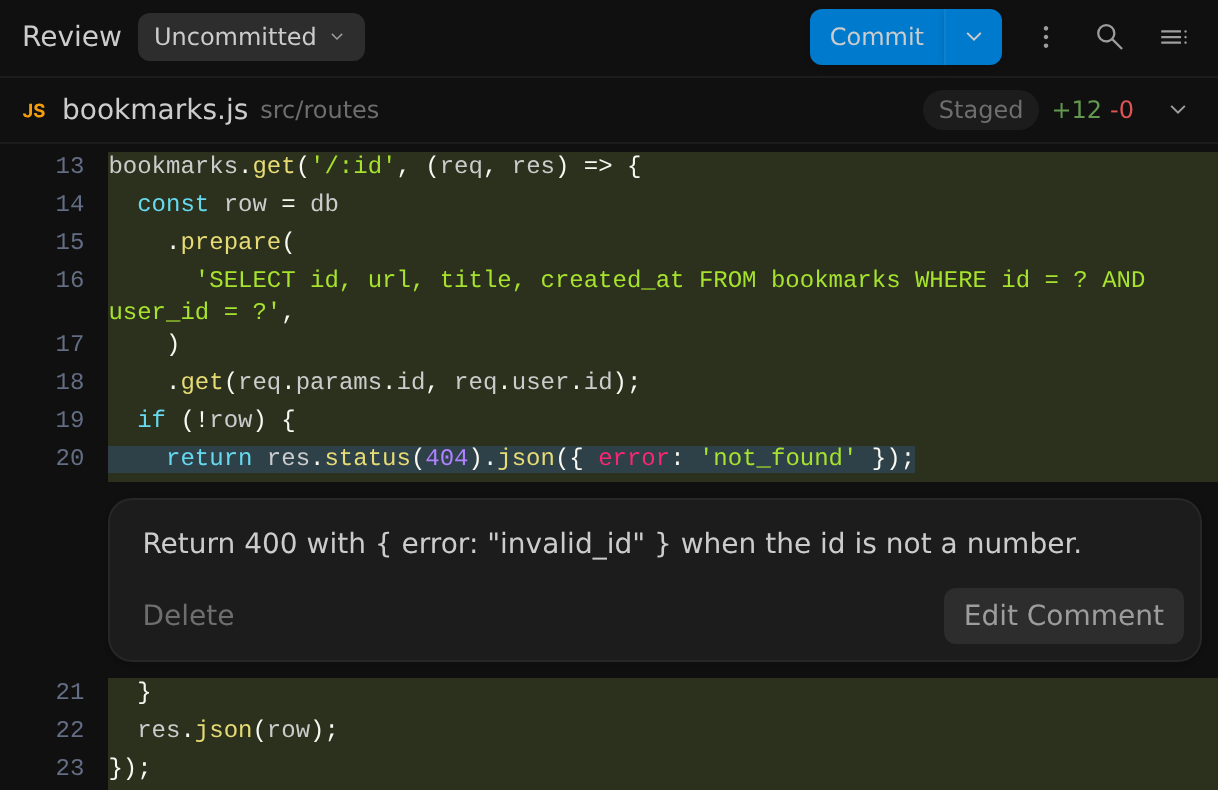
Comments are attached to your next message, and a chip such as 1 Comment appears above the message box. Hover over the chip to preview your comments. Send the message, with or without more text, and the agent receives each comment with its file and line numbers.
To reference lines without commenting, select them and click Quote in the
popup, or press Cmd+L on macOS or
Ctrl+L on Windows and Linux. A line-range reference, such
as bookmarks.js #L13-16, is added to the message box.
Stage, unstage, and discard files
Section titled “Stage, unstage, and discard files”In the Uncommitted view, hover over a file in the sidebar to show its actions:
- Stage change (+): moves the file to Staged Changes.
- Unstage change (−): moves a staged file back to Changes.
- Discard unstaged changes: reverts the file’s unstaged edits.
If a file has both staged and unstaged changes, it’s listed in both groups.
Commit your changes
Section titled “Commit your changes”To commit from the Review pane, do the following:
-
Click Commit at the top of the pane. The Commit dialog shows how many file changes will be committed and to which branch.
-
If you have staged changes, only those are committed. To commit your unstaged changes too, select Include unstaged changes. If nothing is staged, this option is already selected.
-
Type a commit message, or leave the box empty to have the agent write one based on the conversation and the files you’re committing.
-
Click Commit, or press Enter. To start a new line in the message, press Shift+Enter.
Here’s the Commit dialog for one staged file:
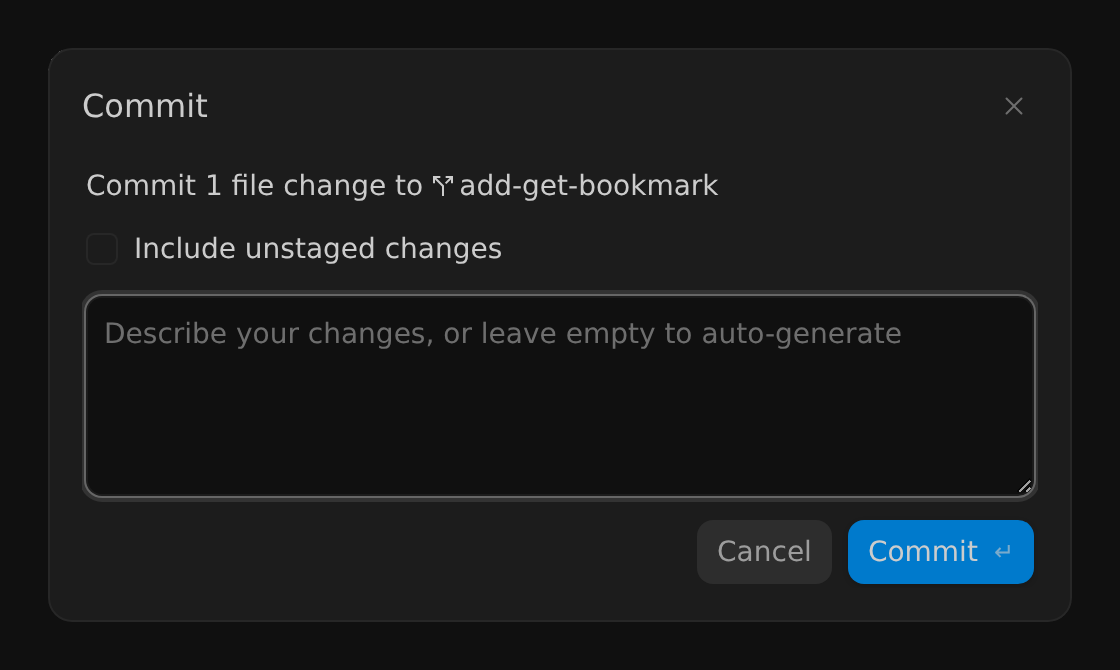
While Antigravity works, the button shows Committing…, preceded by Generating commit message… if you left the message empty.
Click the arrow next to Commit for more actions:
- Amend: adds your changes to the latest commit and keeps its message. If
nothing is staged, all changes are staged first. If you already pushed that
commit, force push it yourself afterward, for example with
git push --force-with-lease. Push in the Review pane doesn’t force push. - Push: pushes the branch’s commits to its upstream branch, or publishes the
branch to
originif it doesn’t have an upstream yet. If you can’t push, the menu shows why, such as No commits to push or No remote configured.
When nothing is left to commit but the branch has commits to push, the button changes from Commit to Push.
Antigravity CLI
Section titled “Antigravity CLI”In the Antigravity CLI, the /diff command opens a full-screen diff viewer
for the changes in your workspace and conversation.
Open the diff viewer
Section titled “Open the diff viewer”Type /diff in the prompt box and press Enter. The viewer opens in
the All Changes view. Select a file and press Enter to open its
diff, and press Esc to go back.
Switch views
Section titled “Switch views”Press ←/→ to switch between these views:
| View | Shows |
|---|---|
| All Changes | Uncommitted changes in your workspace. This is the default. |
| Per Turn | The changes from each turn of the conversation. |
| Commit Tree | Your repository’s commit history. Press Enter on a commit to list the files that it changed. |
Comment on lines
Section titled “Comment on lines”To give the agent feedback, open a file’s diff, move the cursor to a line, press C, type your comment, and press Enter.
When you exit /diff with unsent comments, the Unsent Comments screen
appears. Press Y to send the comments to the agent as your next
prompt, or press N to exit without sending them.
For every key, see Diff command (/diff).
Next steps
Section titled “Next steps”Explore related documentation:
- Diff command (
/diff): Review changes, turns, and commits in the Antigravity CLI. - Artifacts: Review and comment on plans, walkthroughs, and other deliverables from the agent.
- Projects: Choose whether the agent works in your local checkout or in a new Git worktree.
- Feature overview: Explore other Antigravity App features.