

Antigravity features
Section titled “Antigravity features”The Antigravity App and the Antigravity CLI run the same agent, so most features work on both. This page starts with the features they share, and then covers the features that are specific to the Antigravity App and the Antigravity CLI.
Features in the App and CLI
Section titled “Features in the App and CLI”Where a feature works differently in the App and the CLI, select your surface in the tabs. Your choice applies to every tab on this page and is remembered across the docs.
Projects
Section titled “Projects”Agents work in projects, which define the folders an agent can access and the settings and permissions it uses.
Antigravity App
Section titled “Antigravity App”- Worktree support: Projects natively support Git worktrees, allowing agents to operate in isolated background folders.
- Scoped settings: Settings are scoped, allowing you to have different security settings per project. This means you can have a more permissive setting for a trusted project and a more restrictive security setting for an untrusted folder. For the available presets, refer to Permission presets.
- Scoped permissions: Attach permission grants to projects to control what the agents are allowed to access. Permissions manually granted during a conversation can persist, allowing the agent to learn trusted actions over time.
- Multi-folder access: You can configure a project to work in multiple folders, allowing agents to operate across different codebases within the same conversation.
Antigravity CLI
Section titled “Antigravity CLI”- Default project: Conversations run in the
default-cli-projectunless you start the CLI with--project=<project_id>or--new-project. - Resumed conversations: When you resume a conversation with
/resumeor--conversation, the CLI uses that conversation’s project. - Fork a conversation: Run
/fork <project_id>to continue a copy of the current conversation in another project.
Secure by default
Section titled “Secure by default”By default, agents ask before sensitive actions and limit their file access to your project’s folders. The details differ by surface:
Antigravity App
Section titled “Antigravity App”- Interactive approvals: By default, agents request your explicit permission before running terminal commands outside the isolated Terminal sandbox. With the previous permission settings, agents ask before running any terminal command.
- Bounded access: By default, your agent can only read and write within the provided folders of a project. If you broaden your permission settings (for example, the “Turbo” preset, or the “Full machine” or “Turbo mode” presets in the previous permission settings), the agent has read and write access over your full machine.
Antigravity CLI
Section titled “Antigravity CLI”- Interactive approvals: The default
request-reviewpermission asks before the agent writes files, runs shell commands, or uses web tools, unless one of your allow rules matches. - Terminal sandbox: The terminal sandbox is off by default. Turn it on with
enableTerminalSandboxinsettings.jsonor the--sandboxflag.automode turns it on automatically. - Files outside your workspace: The agent asks before it reads or edits files outside your workspace folders. To treat those files like workspace files, turn on
allowNonWorkspaceAccess.
Learn more about permissions and the terminal sandbox.
Subagents
Section titled “Subagents”The main agent can delegate work, such as research, builds, or test runs, to subagents. Each subagent starts with a clean context and runs in its own conversation, in parallel with your main conversation.
Antigravity App
Section titled “Antigravity App”In the side panel’s Overview, open Subagents and select a subagent to follow its conversation.
Antigravity CLI
Section titled “Antigravity CLI”- Monitor and approve: Open the
/agentspanel to monitor subagents and approve their requests. - Jump to approvals: Press Alt+J to jump to the next subagent that’s waiting for approval.
- Approve in place: Press Ctrl+K to approve a pending request without leaving the main conversation.
Browser subagent
Section titled “Browser subagent”The browser subagent drives Google Chrome to test and debug web pages:
- On-demand: Invoke the browser subagent through the
/browsercommand. - Chrome DevTools integration: Integrate natively with Chrome DevTools MCP.
- Video recording: Record browser sessions as WebM videos.
Slash commands
Section titled “Slash commands”Type / in the App’s message box or the CLI’s prompt box to run commands such as /plan, /grill-me, /goal, /boost, /schedule, and /teamwork-preview. Some commands are available on only one surface, and /boost and /teamwork-preview require a paid plan.
Voice transcription
Section titled “Voice transcription”Antigravity features built-in live voice transcription, allowing you to prompt agents and leave feedback using natural speech.
Antigravity App
Section titled “Antigravity App”- Start or stop: Click the microphone button next to the message box to start recording, and click it again to stop. You can also press Ctrl+M to start recording, and press it again to stop.
- Live view: As you speak, your words are transcribed in real time directly into the message box.
- Conversational awareness: Antigravity gives the speech recognizer your recent conversation and the text around your cursor, so project-specific terms are more likely to come through correctly.
- Where it works: Use voice in the message box to start conversations and send prompt updates, and in artifact comments to leave precise, inline feedback on plans, code diffs, and deliverables.
Antigravity CLI
Section titled “Antigravity CLI”- Start dictation: Run
/voice(alias/record) or press F5. Your words appear in the prompt box, where you can edit them before you send. - Dictate over SSH: When the CLI runs on a remote machine, run
agy mic-serveon your local machine to stream your microphone to it. - Availability: Voice dictation in the CLI isn’t currently available for business or enterprise accounts.
Remote Control
Section titled “Remote Control”Remote Control allows you to drive and monitor your Antigravity App sessions and Antigravity CLI instances across multiple machines from any web browser:
- Work from any device: Start long-running agent work on your workstation, and then monitor it or approve actions from a phone or laptop.
- Keep your local setup: Agents keep full access to your workstation’s files, toolchains, credentials, and Git worktrees, without a separate environment.
- Get notified: Receive browser push notifications when tasks complete or when your input is needed.
To turn on Remote Control:
Antigravity App
Section titled “Antigravity App”In Settings, open Application and turn on Enable Remote Control. You can then enter a Device Name to identify the machine.
Antigravity CLI
Section titled “Antigravity CLI”- Current session: Run
/remote-controlto turn on Remote Control for the active terminal session, and/remote-control offto turn it off. - New session: Start the CLI with the
--remote-controlflag. - Always-on machine: Run
agy remote-control startto keep a headless CLI instance available in the background.
Learn more about Remote Control.
Skills, rules, and MCP servers
Section titled “Skills, rules, and MCP servers”Extend what the agent knows and can do. These customizations work in both the App and the CLI:
- Skills: Give the agent folders of instructions, each with a
SKILL.mdfile, that it follows when working on specific tasks. - Rules: Set persistent instructions, coding standards, and architectural constraints that apply to every conversation.
- MCP servers: Connect the agent to local developer tools, databases, and remote APIs through the Model Context Protocol.
JSON hooks
Section titled “JSON hooks”JSON hooks allow you to execute custom local shell scripts at critical stages of an Antigravity agent’s execution cycle. You can intercept and control the agent’s behavior before tool calls, after model responses, or at loop stopping conditions—configured globally or per workspace using simple JSON files.
Plugins
Section titled “Plugins”Plugins are namespaced bundles that can contain skills, agents, rules, MCP servers, and hooks as a single deployable unit.
Antigravity App
Section titled “Antigravity App”In the left sidebar, click Customizations, and then open the Marketplace tab to browse and install plugins. Plugins that you install in the App also appear in the CLI.
Antigravity CLI
Section titled “Antigravity CLI”- Plugin manager: Run
/pluginto open the plugin manager, and press Tab to switch between the Installed and Discover tabs. - From your shell: Run
agy plugin install <plugin-name>to install a plugin, and useagy plugin list,enable,disable, anduninstallto manage your plugins.
Learn more about plugins and the Marketplace.
Antigravity App features
Section titled “Antigravity App features”These features are specific to the Antigravity App.
Conversations outside of projects
Section titled “Conversations outside of projects”Start quick, one-off conversations outside of any project. These sessions run in a local scratch folder. They have their own settings and permissions in addition to inheriting from global permissions.
Automations
Section titled “Automations”Automations (previously called scheduled tasks) let you plan ahead with your projects by sending messages to your agents on a schedule, even while you’re away. Open them from Automations in the left sidebar:
- Repeatable: Set up time-based triggers to start conversations periodically.
- Model tier: Each automation runs on the model tier you choose: Flash Lite, Flash (the default), or Pro.
- Approximate timing: Runs start close to their scheduled time rather than on the exact minute. Antigravity spreads them out by up to 10% of the interval, and by no more than 15 minutes.
- Run on demand: Run an automation right away with Run Now from its menu, or select Create with Prompt to have the agent walk you through setting up a new one.
For a timer or recurring check inside a single conversation, in either the App or the CLI, use the /schedule command.
Built-in browser
Section titled “Built-in browser”Use the built-in browser to check your running app or read documentation in the side panel, next to your conversation, and to point the agent to exactly what you see on a page.
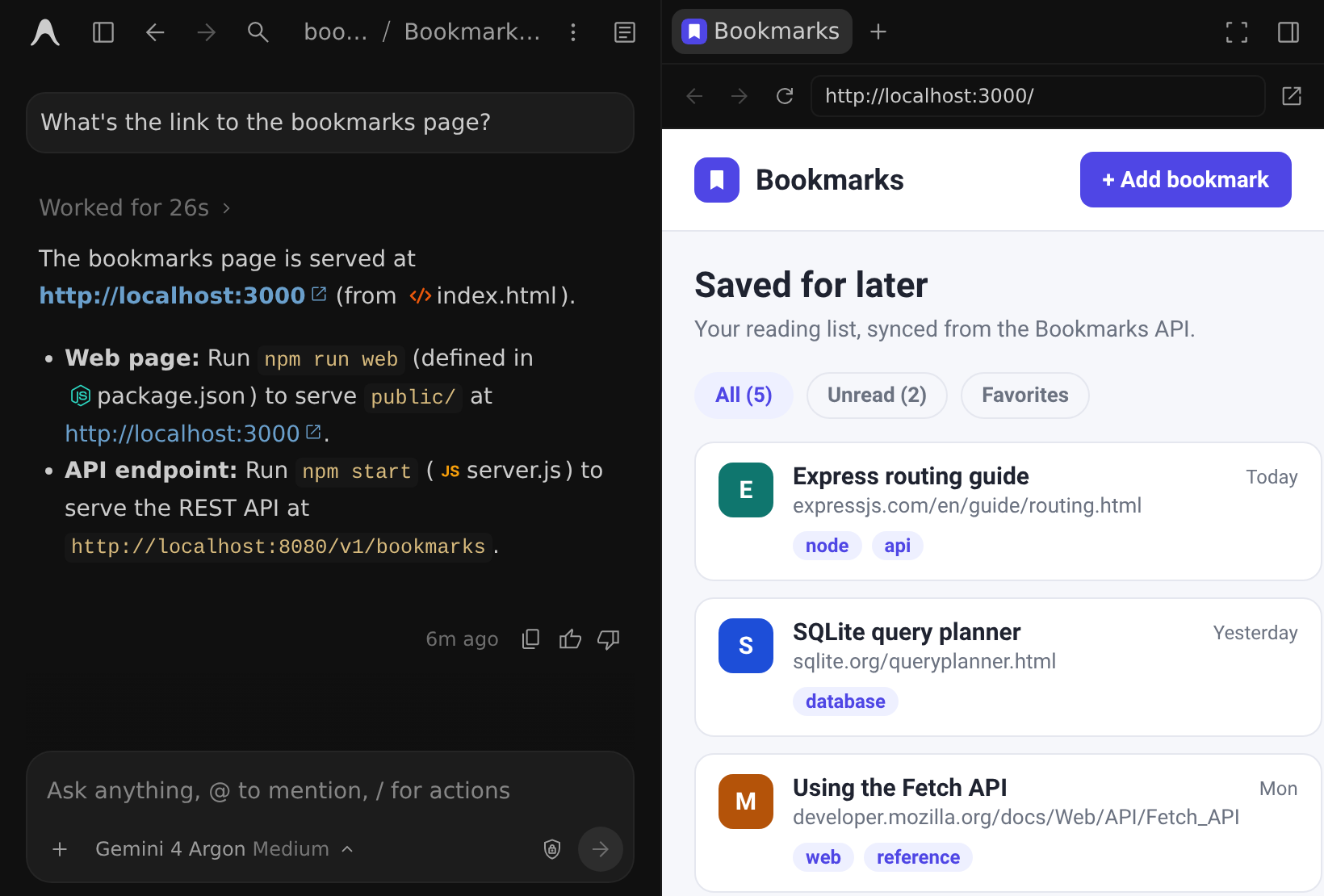
- Open a page: Click a web link in an agent response. To open a new browser tab, press Cmd+T (macOS) or Ctrl+T (Windows and Linux), or click + in the side panel, and then choose Browser. To open a link in your default browser instead, hold Cmd (macOS) or Ctrl (Windows and Linux) while you click it.
- Go to a URL or search: Type in the address bar. For local servers that don’t use HTTPS, include
http://, for examplehttp://localhost:3000. - Navigate: Use Back, Forward, and Reload in the toolbar, or click Open in external browser to open the current page in your default browser. Right-click a link to open it in a new tab or in your external browser.
- Keep sign-ins separate: The built-in browser keeps its own cookies and sign-ins, separate from your Chrome profile.
To point the agent to part of a page, select text and click Comment (C) to leave feedback, or Quote (Cmd+L on macOS, Ctrl+L on Windows and Linux) to add the text to your message. The agent receives the page URL and the selected text with your next message.
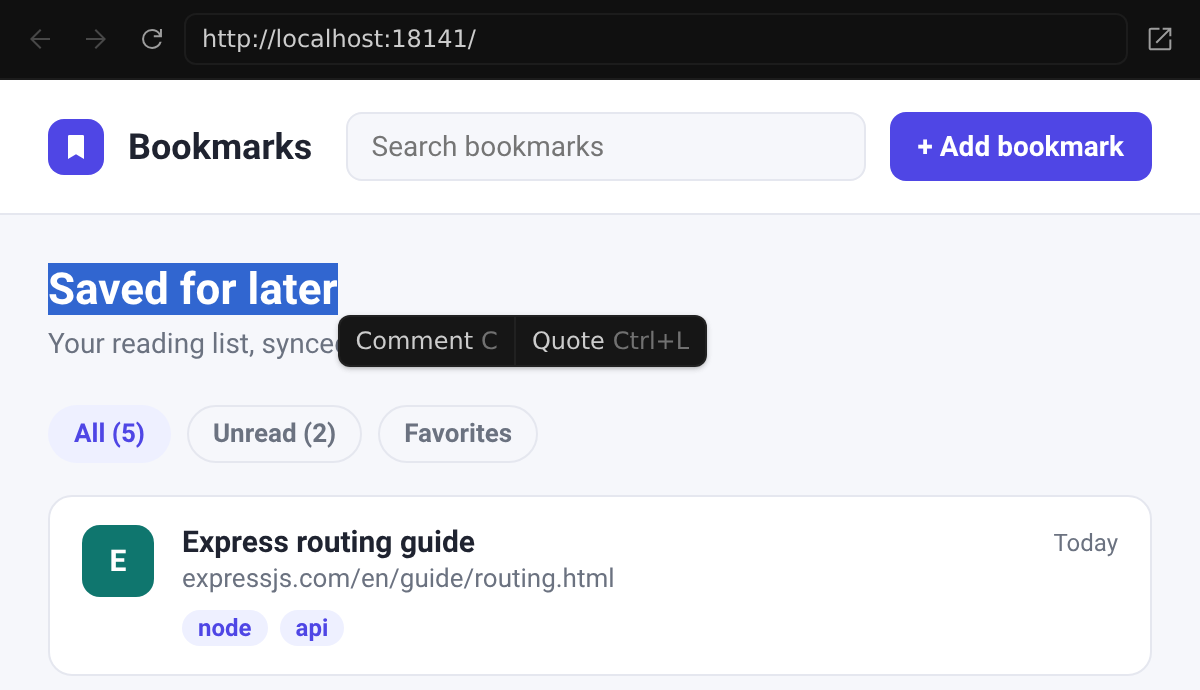
To have the agent browse and test pages for you, use the /browser command, which runs the browser subagent in Google Chrome.
PDF viewer
Section titled “PDF viewer”PDF files open in the side panel, so you can read a spec or paper next to your conversation and point the agent to specific passages. To open a PDF from your project, click it in an agent response, or click + in the side panel, choose Open File, and search for the PDF. Links to PDFs on the web open in the built-in browser.
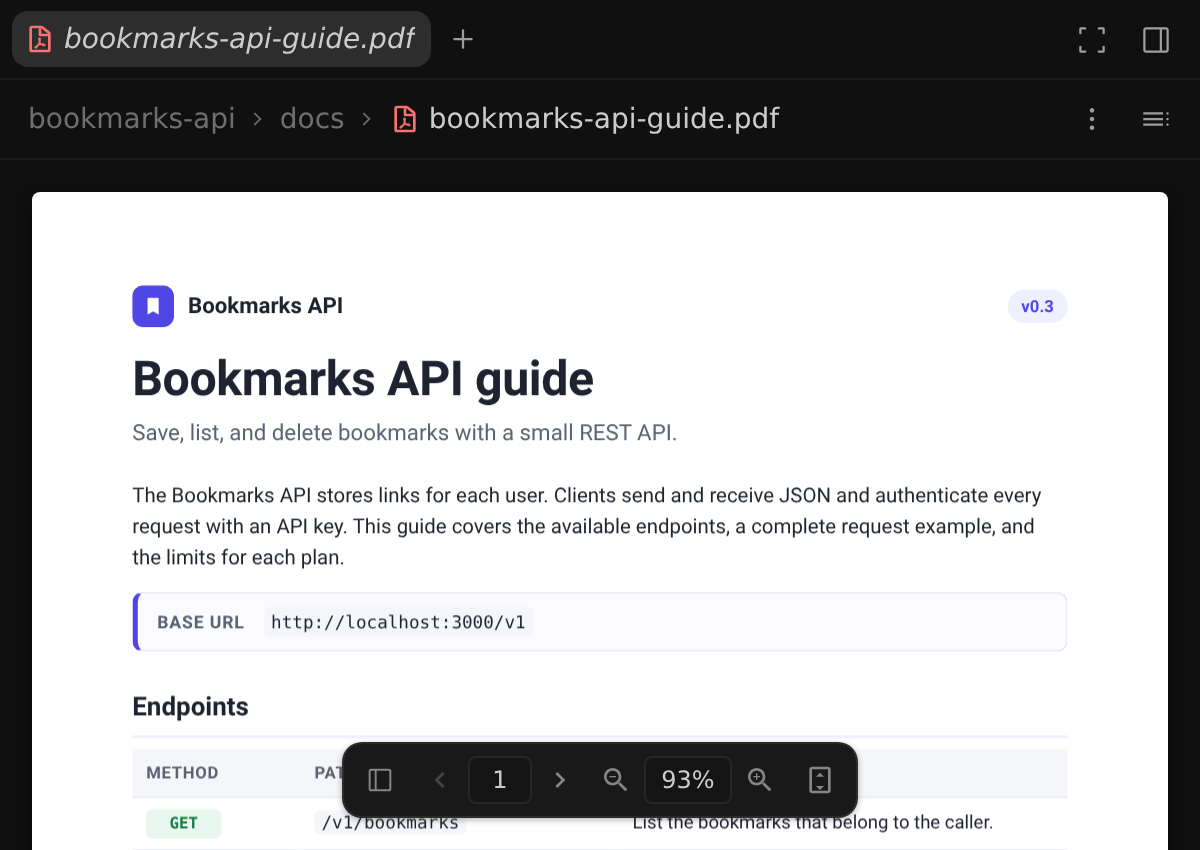
- Navigate: Use the toolbar at the bottom of the PDF to show page thumbnails, change pages, zoom, and fit the page or the width. To search the PDF, download it, or copy its path, use the More actions menu at the top.
- Comment or quote: Select text and click Comment (C) or Quote (Cmd+L on macOS, Ctrl+L on Windows and Linux), the same as on a web page.
Integrated terminal
Section titled “Integrated terminal”Open a terminal in the side panel: click + and choose Terminal. To show or hide the terminal at any time, press Cmd+J (macOS) or Ctrl+J (Windows and Linux).
Version control system (VCS) panel
Section titled “Version control system (VCS) panel”The Antigravity App provides a Git-native Review pane for the changes in your project. Open it from any conversation by clicking Review () in the Overview panel, and then perform the following actions:
- Compare views:
- Uncommitted: View all staged and unstaged working tree changes.
- Branch: Review all changes made on the current branch.
- Agent Edits: Inspect the files that the agent modified in the conversation.
- File actions: Stage, unstage, or discard unstaged changes per file.
- Repo actions:
- Commit: Create local commits, with a generated commit message if you leave the message empty.
- Amend: Add changes to the latest commit.
- Push: Send branch commits to a remote repository.
- Feedback: Comment on lines in a diff to send feedback to the agent.
Antigravity CLI features
Section titled “Antigravity CLI features”These features are specific to the Antigravity CLI.
Terminal UI and commands
Section titled “Terminal UI and commands”Run agy to work with the agent in an interactive terminal UI. Besides the shared slash commands, the CLI has commands for managing your session, such as /resume, /rewind, /model, /context, /codesearch, /tasks, and /usage.
- Keyboard shortcuts: Customize shortcuts with
/keybindings, or edit prompts with modal Vim keybindings in Vim editor mode. - Execution modes: Choose an execution mode to control whether the CLI pauses to ask before it modifies files or runs commands.
Review changes with /diff
Section titled “Review changes with /diff”Run /diff to open the interactive diff viewer, where you can inspect workspace changes, commit history, and the changes from each agent turn, and add line-by-line comments to steer the agent’s next steps.
Learn more about the diff viewer.
Headless mode
Section titled “Headless mode”Run the CLI non-interactively to script agent tasks, integrate with CI pipelines, and capture machine-readable output. Pass a prompt with -p (or its aliases --print and --prompt) to run it once and exit.
Learn more about headless mode.
Customize with settings.json
Section titled “Customize with settings.json”Configure the CLI in ~/.gemini/antigravity-cli/settings.json. For example, in addition to your permission mode, you can define specific commands that the agent is allowed or denied to run:
{
  "permissions": {
    "allow": ["command(git)", "command(npm test)"],
    "deny": ["command(rm -rf)"]
  }
}
You can also pipe live agent metadata (JSON that contains the current working directory, active model, token usage, state, and more) into your own shell scripts to generate a custom status line or terminal window title.