

Search and command palette
Section titled “Search and command palette”Find a past conversation, a file, or a command without leaving the keyboard.
In the Antigravity App, the command palette searches the full text of your
conversations, including your prompts and the agent’s responses. In the
Antigravity CLI, /resume finds past conversations and /codesearch searches
the code in your workspace.
Antigravity App
Section titled “Antigravity App”Open the command palette
Section titled “Open the command palette”The command palette searches your past conversations, project files, projects, and app commands. Each of these categories has its own keyboard shortcut:
| Category | macOS | Windows and Linux |
|---|---|---|
| Conversations | Cmd+K | Ctrl+K |
| Files | Cmd+P | Ctrl+P |
| Projects | Cmd+Shift+K | Ctrl+Shift+K |
| Commands | Cmd+Shift+P | Ctrl+Shift+P |
You can also open the Conversations category by clicking Search Conversations (the magnifying glass icon) next to the back and forward buttons at the top left of the window.
To switch to another category while the palette is open, do one of the following:
- Click the category name at the left of the search box, and then select a different category.
- Type
>in the empty search box to switch to Commands.
Use ↑ and ↓ to move through the results, press Enter to open the selected result, and press Esc to close the palette.
Search past conversations
Section titled “Search past conversations”Press Cmd+K (macOS) or Ctrl+K (Windows and Linux). With an empty search box, the palette lists your recent conversations, most recently updated first by default. When you type, the palette searches the following parts of each conversation:
- The conversation title, including a title that you renamed.
- The conversation’s project name and the name of its folder (the first folder, if the project has several).
- Your prompts.
- The agent’s responses.
Search covers the text of your prompts and the agent’s responses, including any code blocks in them. It doesn’t include the agent’s thinking, artifacts, the commands that the agent ran or their output, or the contents of files that it read or changed.
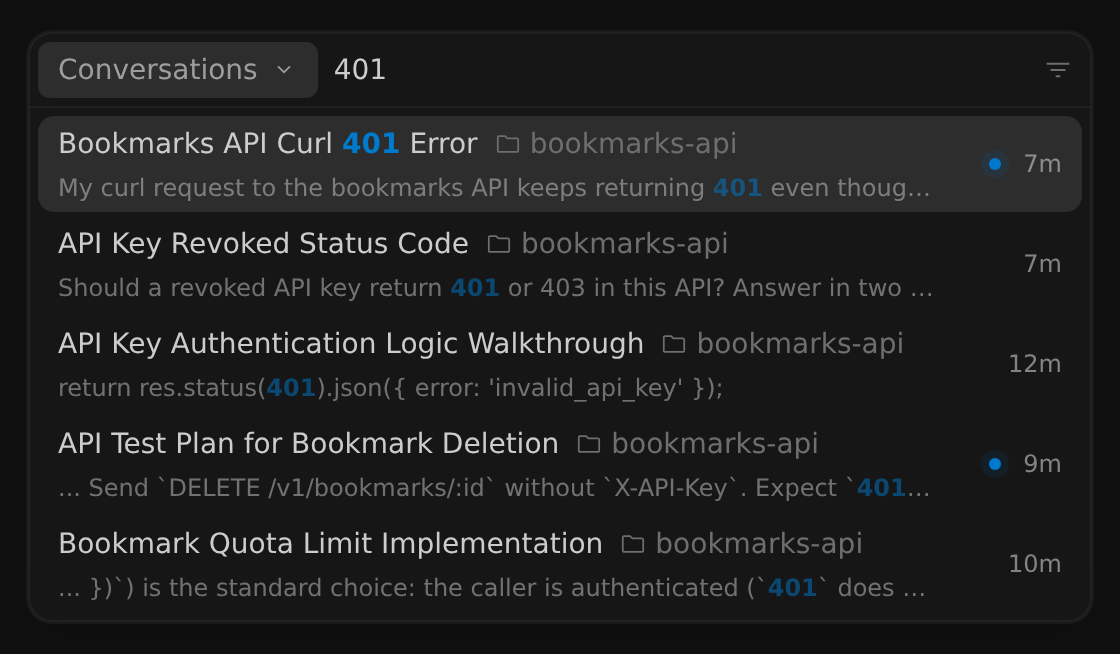
Each result shows the conversation title, its project, when it was last
updated, and a snippet of the matching text with your search terms
highlighted. For example, searching for 401 finds conversations that mention
that status code, including ones where it appears only in a prompt or in a
code block in the agent’s response:
Keep the following in mind when you search:
- Search isn’t case-sensitive.
- Only the word that you’re still typing matches the beginning of longer
words, so
paginfinds conversations about pagination. Other words must match whole words. - If you type more than one word, every word must appear in the same part of the conversation: all in the title, all in the project name, all in the folder name, all in your prompts, or all in the agent’s responses. The words can be in any order and don’t need to be next to each other, but a conversation doesn’t match if, for example, one word appears only in your prompt and another only in the agent’s response. In long conversations, the words also need to appear within roughly the same few messages.
- Results are sorted by relevance. Conversations that contain your words as an exact phrase come first. Matches in titles and in project or folder names count more than matches in your prompts or the agent’s responses, and recently updated conversations rank higher.
- Archived conversations don’t appear in the recent conversations list, but they do appear in search results, ranked lower. In version 2.26.0 and later, archived results are marked with an archive icon.
- The conversation that’s open in the current view doesn’t appear in the recent conversations list, but it can appear in search results.
Select a result to open that conversation.
Sort and filter conversations
Section titled “Sort and filter conversations”In version 2.26.0 and later, you can sort and filter the list. Click the filter icon at the right of the search box, and then choose one of these options:
| Option | What it does |
|---|---|
| Sort Conversations > Last Updated | Lists conversations by their most recent activity. This is the default. |
| Sort Conversations > Last Prompt | Lists conversations by when you last sent a prompt. |
| Filter > Only Unread | Shows only conversations with updates that you haven’t viewed. |
| Filter > Only Archived | Shows only archived conversations. |
| Filter > Only Automations | Shows only conversations that Automations started. |
Sorting applies to the list that appears when the search box is empty, so the Sort Conversations options are hidden while you search. Filters apply to both the list and search results.
Reference a past conversation in a prompt
Section titled “Reference a past conversation in a prompt”To give the agent context from an earlier conversation, type @ in the message
box and choose Conversation. The list of conversations uses the same
full-text search as the command palette.
Find files
Section titled “Find files”Press Cmd+P (macOS) or Ctrl+P (Windows and Linux), and then type part of a file name or path. Results show each file’s name and its path in the project. Select a file to open it in the side panel.
When the search box is empty, the palette shows Recent Files for the current conversation, such as files that the agent changed.
The Files category matches file names and paths, not file contents. To find text inside a file, open the file and press Cmd+F or Ctrl+F, as described in Find text in a conversation or file.
Run commands
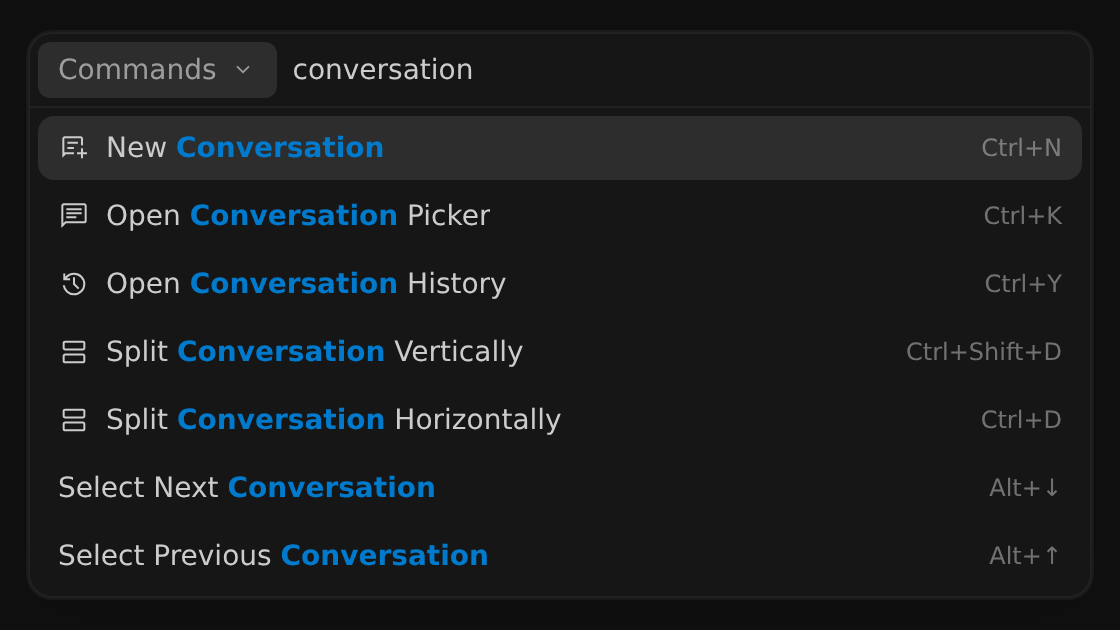
Section titled “Run commands”Press Cmd+Shift+P (macOS) or
Ctrl+Shift+P (Windows and Linux) to list the
commands that are available in the current view. Each command shows its
keyboard shortcut, if it has one. Type to filter the list, and then press
Enter to run the selected command. For example, typing
conversation lists the commands whose names contain that word:
Some commands appear only when a conversation is open, such as Pin This Conversation, Archive This Conversation, and Find in Conversation. To see the main keyboard shortcuts, go to Settings > Shortcuts.
Switch projects
Section titled “Switch projects”Press Cmd+Shift+K (macOS) or Ctrl+Shift+K (Windows and Linux), and then type part of a project name. Select a project to start a new conversation in it, or select Outside of Project to start a conversation that isn’t part of any project. To learn more, see Projects.
Find text in a conversation or file
Section titled “Find text in a conversation or file”Press Cmd+F (macOS) or Ctrl+F (Windows and Linux) to open the Find bar for the view that has focus: the current conversation, or the file, artifact, or diff that’s open in the side panel. As you type, matches are highlighted and the bar shows which match is selected, such as 1 of 2.
To narrow the matches, turn on any of these options:
| Option | What it does |
|---|---|
| Match Case (Aa) | Matches only text with the same uppercase and lowercase letters. |
| Match Whole Word (ab) | Matches only whole words. |
| Use Regular Expression (.*) | Treats your search text as a regular expression. |
Press Enter to go to the next match and Shift+Enter to go to the previous match. Press Esc to close the Find bar.
Antigravity CLI
Section titled “Antigravity CLI”Find past conversations
Section titled “Find past conversations”Run /resume (or its aliases /switch and /conversation) in the prompt box
to open the conversation picker:
/resumeType to filter the list by conversation title, the first line of your first prompt, or conversation ID. The picker doesn’t search the full text of your conversations, so it doesn’t find words that appear only later in a conversation, such as in the agent’s responses. Press Enter to resume the selected conversation.
To find a conversation that you started in the Antigravity App, press Tab to switch to the Other tab. Select the conversation, press Enter, and then press Y to import a copy into the CLI.
You can also resume a conversation when you start the CLI:
- Run
agy -cto resume the most recent conversation in the current folder. - Run
agy --conversation <conversation-id>to resume a specific conversation.
To learn how to rename, delete, and import conversations, see
Resume command (/resume).
Search code
Section titled “Search code”Run /codesearch (or its aliases /cs and /search) followed by your query
to search the code in your workspace:
/codesearch requireApiKeyThe Code Search panel lists the matches grouped by file. Press
Enter to open the selected match in the file viewer at the matching
line. To learn about the query syntax, path filters, and line comments, see
Code search command (/codesearch).
Next steps
Section titled “Next steps”Explore related documentation:
- Projects: Organize folders, settings, and conversations into projects.
- Resume command (
/resume): Browse, rename, delete, and import conversations in the Antigravity CLI. - Code search command (
/codesearch): Search your workspace code from the Antigravity CLI. - Settings: Configure the Antigravity App and the Antigravity CLI.