

Mentions and quoting
Section titled “Mentions and quoting”Type @ to point the agent at specific files, folders, rules, or past
conversations, or quote text that you select, so the agent starts from the
right context instead of searching for it. You can also send a message straight
to a subagent.
What you can add
Section titled “What you can add”This table compares the Antigravity App and the Antigravity CLI:
| Context | Antigravity App | Antigravity CLI |
|---|---|---|
| Files and folders | Type @ and part of the name | Type @ and part of the path |
| Rules | Type @, then choose Rules | Not available |
| Past conversations | Type @, then choose Conversation | Not available |
| Selected text | Select the text, then click Quote | Not available |
| Subagent messages | Open the subagent and use its message box | Start your prompt with @ and the subagent’s name |
Antigravity App
Section titled “Antigravity App”Mention files and folders
Section titled “Mention files and folders”Type @ in the message box, followed by part of a file or folder name. A bare
@ lists only the Rules and Conversation categories. As you type, the
menu narrows to matching categories, files, and folders from your project, and
to matching artifacts in the current conversation, such as an implementation
plan. Matching is fuzzy, so @bkmk finds bookmarks.js. For example, typing
@ru lists the Rules category, the routes folder, and matching files:
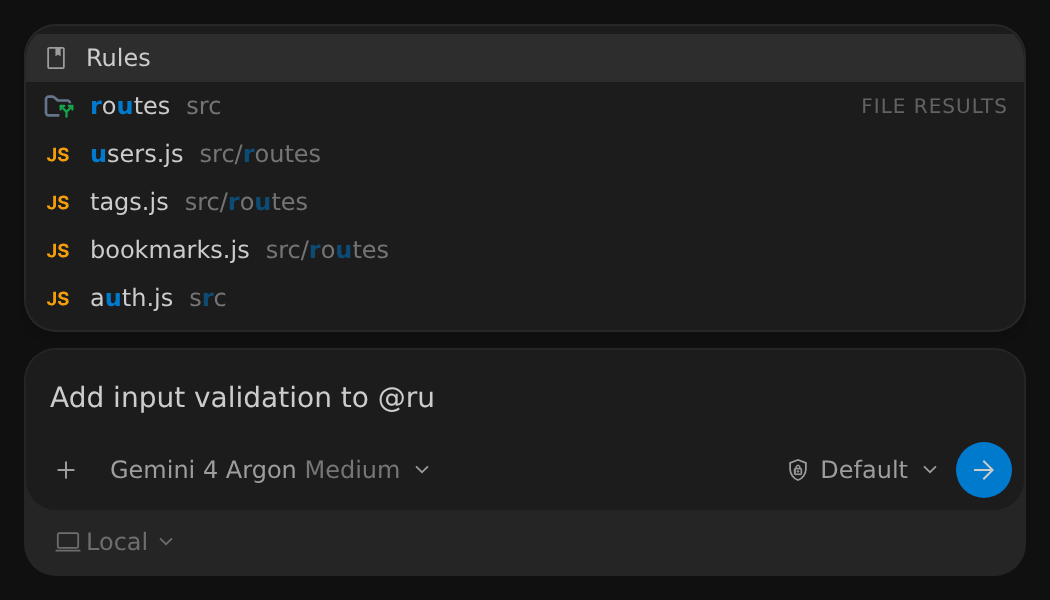
Press ↑ or ↓ to highlight a result, and then press
Enter or Tab to select it, or click it. The mention
appears in your prompt as a chip with its icon and name. To start a mention
without typing @, click Add Context (+) in the message box and select
Mentions.
The agent receives the full path of each file or folder that you mention, so it knows exactly which one you mean and reads it when it needs to.
Attach a rule
Section titled “Attach a rule”Choose Rules in the @ menu, or type @rules:, to list all your workspace
and global rules, whatever their trigger. Each row shows the
rule’s name and the start of its text. Keep typing to filter by name. Select a
rule to add its full text to your message.
Mentioning a rule is how you apply rules that use the manual trigger, which
Antigravity never loads on its own, such as a release checklist that you only
need occasionally.
Reference a past conversation
Section titled “Reference a past conversation”Choose Conversation in the @ menu, or type @conversation:, to list your
recent conversations. Keep typing to search past conversations by title and by
what you and the agent wrote, for example @conversation:rate limiter. Press
Esc to close the list.
Select a conversation to add it to your prompt as a chip with the conversation’s title. The agent can then look up what you discussed and decided there, so you don’t have to restate earlier work.
Quote a selection
Section titled “Quote a selection”Quote part of an agent response to ask a follow-up about exactly that text. When you select text in a response, a popup shows Quote and its keyboard shortcut:
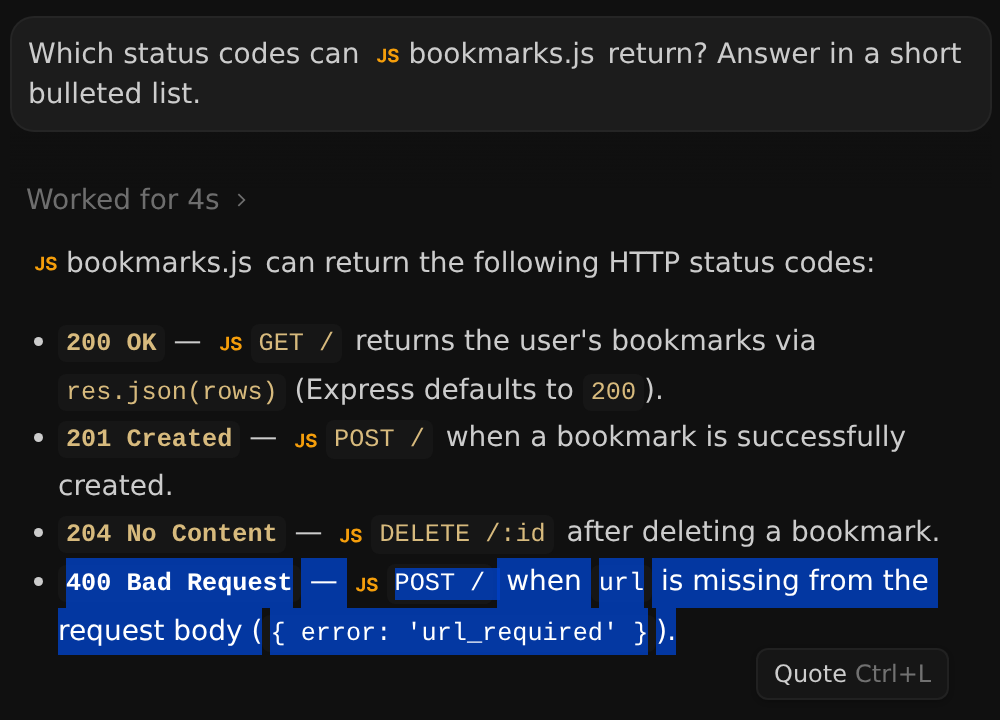
- Select text in an agent response.
- Click Quote in the popup, or press Cmd+L or Cmd+I on macOS, or Ctrl+L or Ctrl+I on Windows and Linux.
- Type your follow-up in the message box and send it.
The quoted text appears as a chip in the message box, and the agent receives the full quoted text along with your message.
Quote from files, diffs, and artifacts
Section titled “Quote from files, diffs, and artifacts”When you select text in a file or diff in the side panel, or in an artifact such as an implementation plan, the popup shows Comment and Quote. To add the selection to the message box as a chip, click Quote, or press Cmd+L or Cmd+I on macOS, or Ctrl+L or Ctrl+I on Windows and Linux. What the chip shows depends on where you selected the text:
- Files and diffs: The chip shows the file name and line range, such as
bookmarks.js #L13-17. The agent receives the file path and the line numbers. - Artifacts: The chip shows the artifact name and the start of the selected text. The agent receives the selected text.
To leave a review comment on the selection instead, click Comment.
Quote terminal output
Section titled “Quote terminal output”Select output in the integrated terminal and click Quote to add it to the
message box as a terminal chip, such as terminal:bash. For example, quote an
error message to ask the agent about it.
Message a subagent
Section titled “Message a subagent”To send a running or idle subagent a message directly, select the subagent in
the conversation to open it in the side panel, and then type in the subagent’s
own message box. Your message goes to that subagent instead of the parent
agent. Subagents don’t appear in the @ menu, and you can’t message a subagent
that was killed. For more about subagent states, see
Custom subagents.
Antigravity CLI
Section titled “Antigravity CLI”Mention files and directories
Section titled “Mention files and directories”Type @ in the prompt box to open path suggestions, and keep typing to filter
them. Matching is fuzzy, so @bkjs finds src/routes/bookmarks.js. Each
suggestion shows its path relative to the workspace, whether it’s a File or
a Directory, and its full path. If the conversation has subagents, they’re
listed first when @ starts your prompt:
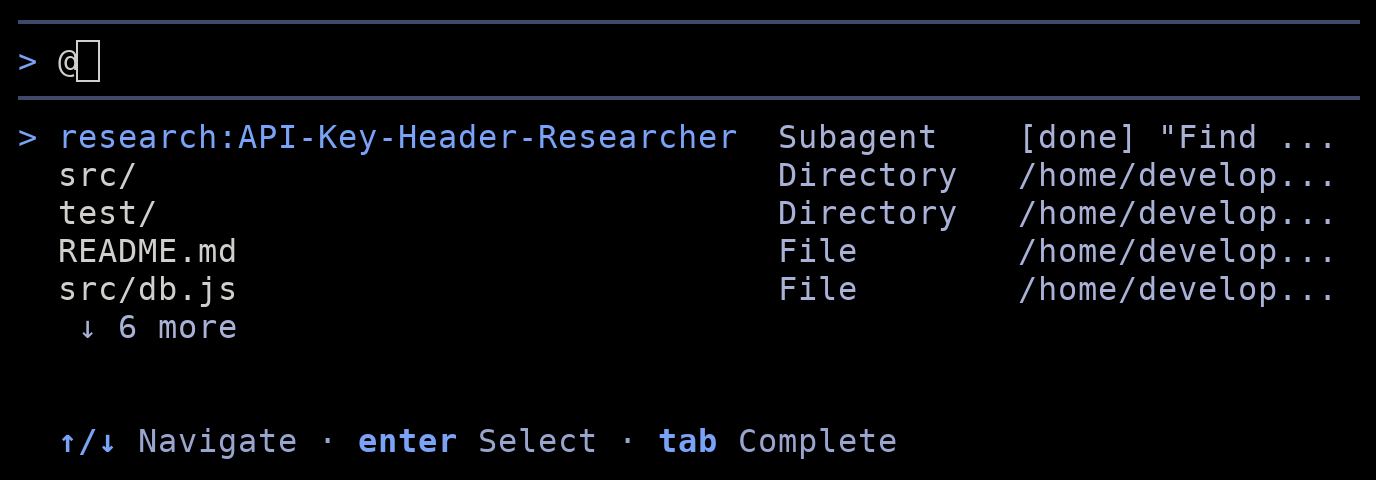
Use these keys in the suggestions list:
| Key | Action |
|---|---|
| ↑ | Move to the previous suggestion. |
| ↓ | Move to the next suggestion. |
| Enter | Insert the highlighted path, followed by a space. |
| Tab | Insert the highlighted path. For a directory, the list then shows what’s inside it. |
| Esc | Close the suggestions and keep what you typed. |
When you pick a path from the list, it stays in your prompt as text, such as
@src/routes/bookmarks.js, and the agent also receives the item’s full path
when you send the prompt. A path that you type or edit yourself is sent as
plain text.
To mention a path outside your workspace, start the query with ~/ or /, for
example @~/Develop/. Mentioning a path doesn’t grant access to it: your
permission settings still decide whether the agent can
read files outside your workspace.
Message a subagent
Section titled “Message a subagent”To give a subagent new instructions without going through the parent agent,
start your prompt with @ followed by the subagent’s name and your message,
for example:
@research:API-Key-Header-Researcher Also check whether the tests cover a missing X-API-Key header.The suggestions list shows each running or finished subagent by its
<type>:<role> name, followed by its status, such as [running] or [done],
and the start of its task.
Press Enter to send. The CLI confirms with Sent message to followed by the subagent’s name and your message. A subagent that already finished picks up the message and continues with the context from its earlier work. The name must match a listed subagent exactly (case doesn’t matter); otherwise, the CLI sends the prompt to the parent agent. If you send only the name, the CLI asks you to enter a message.
To monitor subagents and open their full conversations, use the
/agents panel.
What the agent receives
Section titled “What the agent receives”Mentioning a file or folder doesn’t paste its contents into your prompt. This table shows what the agent gets for each kind of context. In the Antigravity CLI, you can add only files and directories.
| You add | The agent receives |
|---|---|
| A file or folder | Its full path. The agent reads it when it needs to. |
| A line range | The file path and line numbers, not the selected text. The agent reads those lines when it needs to. |
| A rule | The rule’s full text. |
| A past conversation | The conversation’s title and ID. The agent reads that conversation’s saved transcript when it needs details. |
| Quoted text | The text that you quoted. |
| Terminal output | The output that you selected (up to the last 8 KB) and the terminal’s name. |
Next steps
Section titled “Next steps”- Rules: Write rules, including
manualrules that you attach with@. - Custom subagents: Learn how subagents run and how to monitor them.
- Prompting and interaction: Compose multiline prompts and attach media in the Antigravity CLI.
- Slash commands overview: Browse the commands that you
can run with
/.