

Jupyter notebooks
Section titled “Jupyter notebooks”Inspect Jupyter notebooks (.ipynb) directly alongside your conversation,
switch between rendered cells and raw JSON, leave inline comments on specific
cells, and collaborate with the agent to create, update, and run notebooks.
Antigravity App
Section titled “Antigravity App”In the Antigravity App, .ipynb files open in a native notebook viewer in the
side panel so you can read Markdown documentation, syntax-highlighted code
cells, and cell outputs without leaving your conversation.
Open a notebook
Section titled “Open a notebook”To open a .ipynb file in the side panel, do any of the following:
- Click a
.ipynbfile link or@-mention chip in a conversation. - Click + in the side panel header, choose Open File, and search for the
.ipynbfile. - Open the Overview panel and select the
.ipynbfile from the file list.
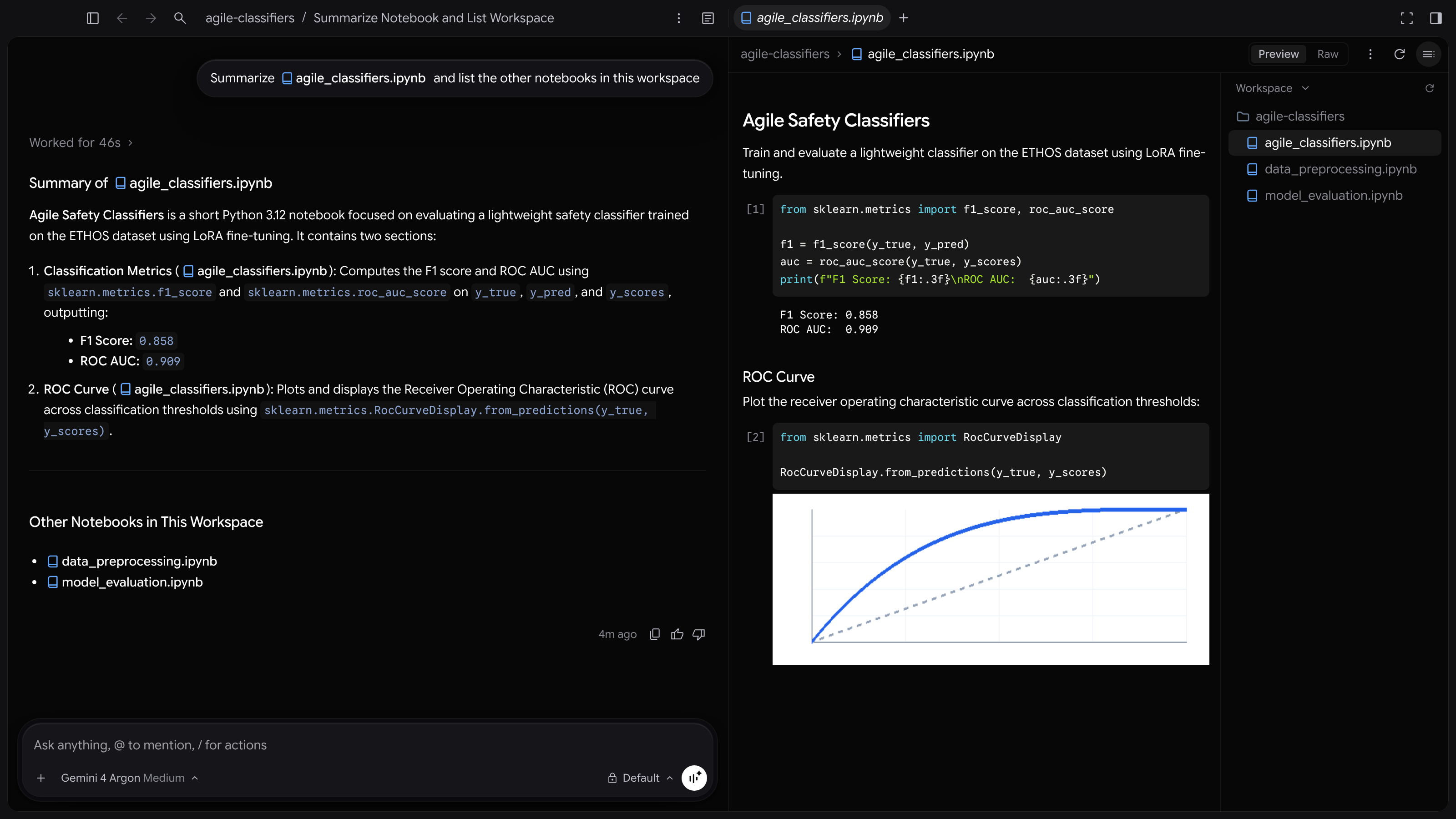
What the notebook viewer renders
Section titled “What the notebook viewer renders”The viewer supports standard nbformat v4 notebooks as well as legacy
nbformat v3 (worksheets) notebooks:
| Element | How it renders |
|---|---|
| Markdown cells | Formatted Markdown, including headings, lists, links, inline code, tables, and images resolved relative to the notebook’s directory. |
| Code cells | Execution count gutter ([1], [2], or [ ] when unexecuted) next to syntax-highlighted code using the notebook’s language metadata (defaulting to Python). |
| Image outputs | Inline image/png, image/jpeg, and image/gif plots and figures. |
| Text outputs | Standard output (stdout), standard error (stderr), and plain-text execution results (text/plain). |
| Error outputs | Exception names, messages, and tracebacks highlighted in error styling. |
Switch between Preview and Raw views
Section titled “Switch between Preview and Raw views”Use the Preview / Raw toggle in the side panel header to switch between
the rendered notebook cells and the underlying .ipynb JSON text.
If a .ipynb file contains malformed JSON or an invalid notebook structure,
Antigravity automatically falls back to the Raw view and disables the
Preview button with a tooltip describing the parse error.
Comment on notebook cells
Section titled “Comment on notebook cells”You can leave inline comments on rendered notebook cells to point the agent to specific code or Markdown:
-
Hover over a cell or select lines in the rendered notebook, then click Add inline comment (+).
-
Type your feedback and click Add Comment.
Comments are anchored to the corresponding lines in the underlying .ipynb
file and attached to your next message to the agent.
Review notebook diffs
Section titled “Review notebook diffs”When you inspect changes in the Review pane or toggle Show Diff on a
modified .ipynb file, Antigravity strips cell outputs before computing
conversation turn diffs so diffs stay focused on your code and Markdown edits
rather than large output payloads.
Work with notebooks using the agent
Section titled “Work with notebooks using the agent”You can ask the agent to read, create, update, or execute notebooks in your workspace:
- Reference a notebook: Type
@followed by the notebook name (for example,@analysis.ipynb) to attach it to your prompt. - Create or update cells: Ask the agent to add analysis steps, refactor
functions, or generate a new
.ipynbfile. - Execute notebooks: Ask the agent to run a notebook from the terminal (for
example, with
jupyter nbconvert --to notebook --execute --inplaceorpapermill) and summarize the resulting outputs or errors.
Antigravity CLI
Section titled “Antigravity CLI”In the Antigravity CLI, you can reference, inspect, create, update, and run
Jupyter notebooks (.ipynb) from your terminal session:
- Reference a notebook: Type
@followed by the path to a.ipynbfile (for example,@notebooks/analysis.ipynb) to include it in your prompt. - Create or edit notebooks: Ask the agent to generate a new
.ipynbfile or update existing cells and metadata. - Run notebooks: Ask the agent to execute cells via
jupyter nbconvert --to notebook --execute --inplace <notebook.ipynb>orpapermilland report the outputs. - Inspect diffs: Run
/diffto review changes to.ipynbfiles; Antigravity strips cell outputs from turn diffs so code and Markdown changes remain easy to read.
Antigravity IDE
Section titled “Antigravity IDE”In the Antigravity IDE, you can open .ipynb files directly in the editor’s
interactive notebook interface to edit cells, select local or remote Jupyter
kernels, and run cells interactively while collaborating with the agent in the
side panel:
- Interactive execution: Run individual cells or the full notebook in the editor and inspect rich outputs inline.
- Agent collaboration: Reference the active notebook in the agent side panel to ask for new cells, debugging help, or refactoring.
Next steps
Section titled “Next steps”- Learn how to reference files and quote selections in Mentions and quoting.
- Inspect workspace edits in Review changes.
- Explore other capabilities in Features.