

Customization discovery
Section titled “Customization discovery”Antigravity loads your rules, skills, custom agents, plugins, hooks, and MCP servers from standard folders in your project and your home directory. Use this page to decide where a customization belongs, to load customizations that live in other folders, and to check what Antigravity found.
Where Antigravity looks
Section titled “Where Antigravity looks”Antigravity reads customizations from two scopes:
- Workspace: the
.agents/folder in your project, plusAGENTS.mdandGEMINI.mdfiles. Commit these files to share them with your team. - Personal: the
~/.gemini/config/folder in your home directory, plus~/.gemini/AGENTS.mdand~/.gemini/GEMINI.md. These customizations apply to every project, in both the Antigravity App and the Antigravity CLI.
Both scopes use the same layout. The following table lists where each type of
customization lives inside .agents/ or ~/.gemini/config/:
| Customization | Path inside .agents/ or ~/.gemini/config/ |
|---|---|
| Rules | rules/*.md, AGENTS.md, GEMINI.md |
| Skills | skills/<name>/SKILL.md |
| Custom agents | agents/<name>.md or agents/<name>/agent.md |
| Plugins | plugins/<plugin-folder>/ |
| Hooks | hooks.json |
| MCP servers | mcp_config.json |
Plugins can also bundle their own skills, rules, custom agents, hooks, and MCP
servers, which load while the plugin is enabled. The Antigravity CLI also loads
skills from ~/.gemini/antigravity-cli/skills/ and ~/.gemini/skills/, which
the Antigravity App doesn’t read.
Workspace folders and parent directories
Section titled “Workspace folders and parent directories”Your workspace folder is the folder you work in:
- Antigravity App: each folder that you add to a project.
- Antigravity CLI: the folder where you start
agy, plus any folder that you add with--add-diror/add-dir.
Antigravity checks the workspace folder and each parent folder up to the root
of its repository, such as the folder that contains .git. At each level, it
reads AGENTS.md, GEMINI.md, and the .agents/ folder. For example, if you
start the CLI in services/api/, Antigravity loads the customizations in
services/api/.agents/ and in the .agents/ folder at the repository root.
Antigravity doesn’t search beyond these folders:
- It stops at the repository root. If the workspace folder isn’t in a repository, it checks only the workspace folder.
- It doesn’t search subfolders below the workspace folder. For example, if you
open the repository root, Antigravity doesn’t load
src/routes/AGENTS.md, even when the agent reads files in that folder.
Scan depth
Section titled “Scan depth”Antigravity scans each customization folder one level deep. A skill folder must
sit directly inside skills/, and a rule file directly inside rules/. In the
following example project, the scan skips rules/security/api-keys.md and
skills/database/migrate-schema/ because each is nested one level too deep:
bookmarks-api/
├── AGENTS.md
├── .agents/
│   ├── agents/
│   │   └── api-reviewer.md
│   ├── rules/
│   │   ├── api-conventions.md
│   │   └── security/
│   │       └── api-keys.md
│   ├── rules.json
│   ├── skills/
│   │   ├── add-endpoint/
│   │   │   └── SKILL.md
│   │   └── database/
│   │       └── migrate-schema/
│   │           └── SKILL.md
│   └── skills.json
└── tools/
    └── agent-skills/
        ├── load-test/
        │   └── SKILL.md
        └── seed-data/
            └── SKILL.md
To load a nested item, move it up one level or name it in a discovery manifest.
Custom agents follow the same rule: Antigravity loads agents/<name>.md and
agents/<name>/agent.md, but not files in deeper folders.
Discovery manifests
Section titled “Discovery manifests”A discovery manifest is a JSON file that lists customizations stored outside
the standard folders, or nested deeper than the scan reaches. Manifests add to
the standard folders; they don’t replace them. Skills, rules, custom agents,
and plugins each have their own manifest: skills.json, rules.json,
agents.json, and plugins.json.
Put a manifest in a .agents/ folder for one project, or in
~/.gemini/config/ for all your projects. Antigravity reads the manifests in
every .agents/ folder between the workspace folder and the repository root,
so a manifest at the repository root also applies when you start in a
subfolder.
The example project uses this .agents/skills.json file:
{
  "entries": [
    {
      "path": "tools/agent-skills",
      "exclude": ["load-test"]
    },
    {
      "path": ".agents/skills",
      "include_only": ["database/migrate-schema"]
    }
  ]
}
The first entry loads every skill in tools/agent-skills/ except load-test.
The second entry adds the nested migrate-schema skill that the one-level scan
skips. A rules.json file works the same way; for example,
"include_only": ["security/api-keys.md"] loads the nested rule. Rules that you
list in rules.json keep their frontmatter, so their trigger setting still
applies.
Manifest fields
Section titled “Manifest fields”A manifest supports the following top-level fields:
| Field | Type | Description |
|---|---|---|
entries | Array of objects | Folders to scan, or single customizations to load. |
inherits | Array of objects | Other manifests of the same type to include. |
exclude | Array of strings | Customizations to hide. Antigravity skips matching items in every location, including your personal folder. For an exception in the Antigravity CLI, see Which customization wins. |
Each object in entries and inherits supports these fields:
| Field | Type | Description |
|---|---|---|
path | String | Required. In entries, a folder that Antigravity scans one level deep, or the folder or file of a single customization. In inherits, the path to another manifest. |
include_only | Array of strings | Load only the matching items. Can name nested items, such as database/migrate-schema. |
exclude | Array of strings | Skip the matching items. |
Paths and patterns
Section titled “Paths and patterns”Antigravity resolves the path field as follows:
- In a project’s manifest: relative paths start at the folder that contains
the
.agents/folder, such as the repository root for.agents/skills.json. If a relative path doesn’t exist there, Antigravity tries it from the repository root. - In a personal manifest: relative paths in
entriesstart at~/.gemini/config/. Use absolute paths ininherits. - Absolute paths work in both. Antigravity doesn’t expand
~, so write folders in your home directory as absolute paths.
The include_only and exclude lists match items by name or by relative path:
- A folder name, such as
load-test, for skills, plugins, and custom agents stored in folders. - A file name, with or without
.md, such asapi-keys.md, for rules and custom agent files. - A relative path for nested items, such as
database/migrate-schema.
Wildcards aren’t supported: a pattern such as load-* doesn’t match
load-test.
Share customizations across projects
Section titled “Share customizations across projects”To reuse customizations from a shared checkout, point a manifest at it with an
absolute path. To load a manifest that already exists in that checkout, add it
to inherits in your project’s .agents/skills.json, optionally narrowed with
include_only or exclude:
{
  "inherits": [
    {
      "path": "/home/developer/team-config/.agents/skills.json",
      "include_only": ["fix-lint-errors"]
    }
  ]
}
When an inherited manifest outside your project sits in a .agents/ folder,
its relative paths start at the folder that contains that .agents/ folder, in
this case /home/developer/team-config/.
To load shared skills in every project instead, list their folder in your
personal ~/.gemini/config/skills.json. The screenshots on this page use this
setup:
{
  "entries": [
    { "path": "/home/developer/team-config/skills" }
  ]
}
Personal folders in a shared repository
Section titled “Personal folders in a shared repository”Some teams keep a folder for each person inside a shared repository. To make
Antigravity load each person’s customizations from their own folder, add a
.gemini/config.json file at the repository root:
{
  "personal_customization_dir": "people/{user}"
}
Antigravity replaces {user} with your user name from the USER environment
variable (USERNAME on Windows), or with your operating system account name if
that variable isn’t set. It resolves the path from the repository root and reads
the .agents/ folder inside it, such as people/alex/.agents/skills/.
Customizations in that folder take priority over the project’s own .agents/
folder. Relative paths in the manifests in that folder start at the repository
root.
Which customization wins
Section titled “Which customization wins”When two skills or two custom agents have the same name, Antigravity keeps one of them, in this order of priority:
- Your personal folder inside the repository, if the repository sets one up. For details, see Personal folders in a shared repository.
- The workspace, including the manifests in its
.agents/folders. - Your personal
~/.gemini/config/folder, including personal manifests. - Built-in skills and agents.
In the Antigravity CLI, skills in ~/.gemini/antigravity-cli/skills/ and
~/.gemini/skills/ take priority over all of these, and manifest exclude
lists don’t hide them.
Rules don’t replace each other: Antigravity loads every rule it finds. Skills
from a plugin are named <plugin>:<skill>, so they don’t conflict with your
other skills.
Check what Antigravity loaded
Section titled “Check what Antigravity loaded”Antigravity App
Section titled “Antigravity App”To see everything that applies to a project, do the following:
- Click Settings at the bottom of the left sidebar.
- Under Projects, select the project. If it isn’t listed, click Show All.
- Scroll to the Customizations section.
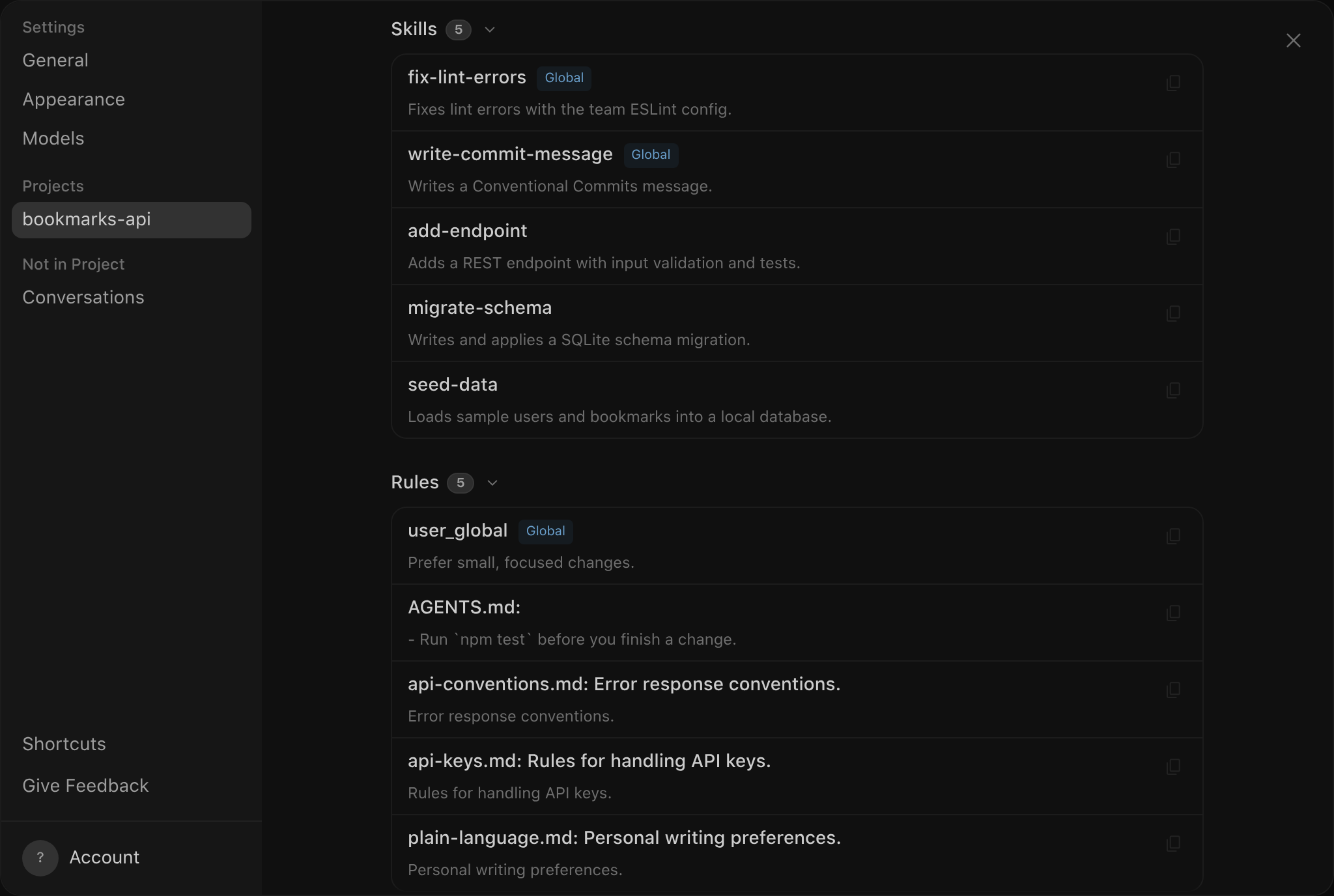
The section shows how many tokens your customizations use, followed by lists of
Skills, Rules, Plugins, and Custom Agents. Built-in skills, the
skills and custom agents in your personal folder, and your personal AGENTS.md
and GEMINI.md files (each listed as user_global) have a Global badge
and appear at the top of their lists. Other skills, rules, and custom agents,
including the rules in ~/.gemini/config/rules/, have no badge unless the
project has several folders; then the project’s items show their folder name.
Plugins always show a Global or Workspace badge. The following example
shows the Skills and Rules lists for the bookmarks-api project:
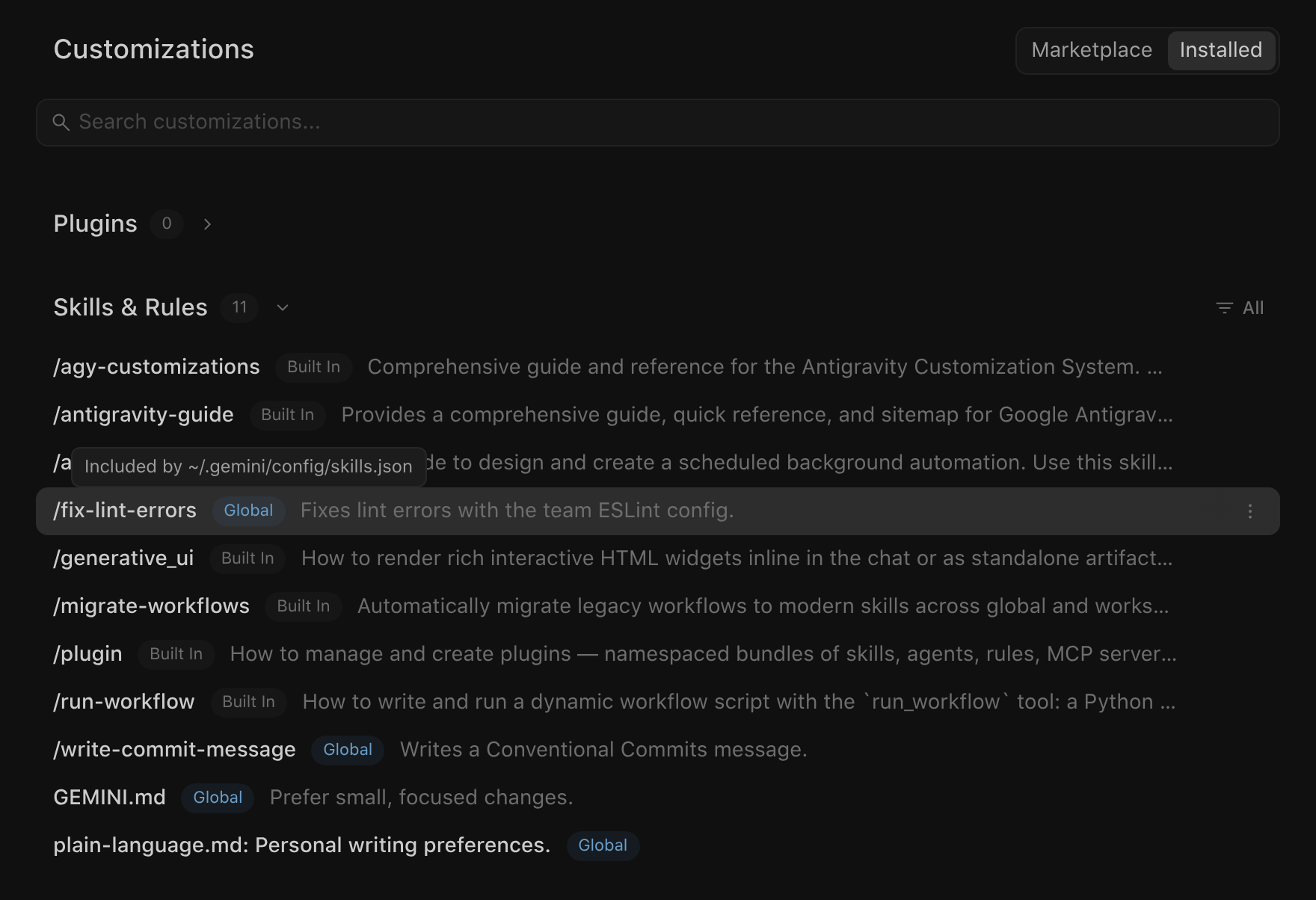
To see where a personal customization came from, do the following:
- Click Customizations in the left sidebar.
- Click Installed.
- In the Skills & Rules list, hover over the item’s Global badge. To narrow the list first, click All and filter by Type (Skills or Rules) or Source (Built In or Global).
The tooltip shows Installed in followed by the item’s location, or Included by followed by the manifest that lists it:
Antigravity CLI
Section titled “Antigravity CLI”Run /skills to list the available skills, grouped by where they came from.
Some built-in skills in the list, such as run-workflow, don’t run as slash
commands:
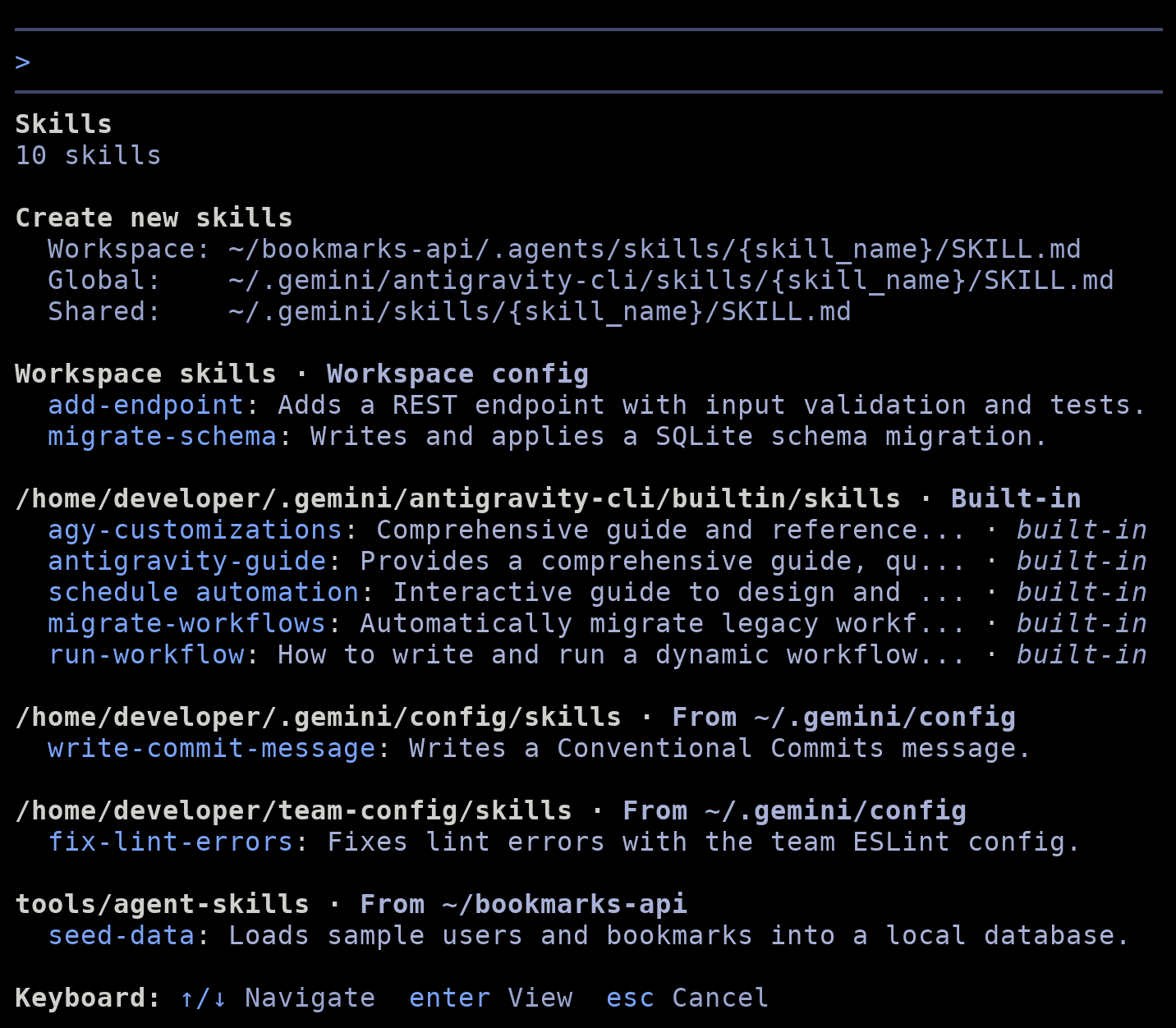
Press ↑/↓ to highlight a skill, and press Enter to view its description, path, and instructions. Press Esc to go back to the list, and press it again to close the panel.
Other customizations have their own commands: /agents lists custom agents,
/hooks shows hooks, /mcp opens the MCP Servers panel, and /plugin
opens the Plugins panel.
When changes take effect
Section titled “When changes take effect”Antigravity rereads your rules and skills before each turn, so a new or edited file applies to your next message without a restart.
Antigravity App
Section titled “Antigravity App”The Antigravity App refreshes the customization lists in Settings and on the Customizations page when you open them.
Antigravity CLI
Section titled “Antigravity CLI”To update the /skills list and the slash commands after you add, edit, or
remove skills, start a new conversation or run the following command:
/skills reloadThe CLI summarizes what changed—for example,
Reloaded 12 skills: 1 added, 0 updated, 0 removed.
If a customization doesn’t load
Section titled “If a customization doesn’t load”Check the following:
- Location: the file is in one of the folders listed in Where Antigravity looks, in the workspace folder or a parent folder up to the repository root.
- Depth: the item sits one level inside its folder, or a manifest names it.
- File name: skills use
SKILL.md, rules and custom agents end in.md, and each plugin has aplugin.jsonfile in its folder or in its.antigravity-plugin/or.gemini-plugin/subfolder. - Frontmatter:
SKILL.mdand each rule file inrules/start with a YAML frontmatter block, and each rule sets a validtrigger. For details, see Rules. - Manifest: the JSON is valid, the paths are absolute or relative to the
right folder, and no
excludepattern matches the item. - Name conflicts: another skill or custom agent with the same name doesn’t take priority. See Which customization wins.
Next steps
Section titled “Next steps”- Agent skills: Write skills and learn how the agent uses them.
- Rules: Set rule triggers, file includes, and size limits.
- Custom subagents: Define custom agents in Markdown.
- Plugins: Bundle and install customizations as one unit.
- Hooks: Run scripts at points in the agent loop.
- MCP: Connect Antigravity to external tools and data.
- Workflows to skills migration: Replace deprecated workflows with skills.