

Other editors (ACP)
Section titled “Other editors (ACP)”Use Antigravity in any editor that supports the Agent Client Protocol (ACP). Antigravity CLI includes an ACP server, agy acp, so any editor can run it and chat with the agent in its own panel. Zed, JetBrains IDEs, Android Studio, and Xcode support ACP natively. VS Code needs a community extension.
agy acp starts an ACP server that talks JSON-RPC over stdin and stdout. Your editor launches it as a subprocess, sends prompts, and renders the agent’s replies, tool calls, file diffs, and permission requests in its native UI. The agent, its tools, and your settings come from Antigravity CLI, so the agent behaves the same in the editor as it does in the terminal.
This video demo shows how to configure ACP in the Zed editor:
Before you begin
Section titled “Before you begin”-
Install Antigravity CLI and confirm that
agyis on yourPATH:agy --version -
Sign in once with an interactive
agysession, or runagy acp --login.agy acpreuses the cached credentials. To authenticate from the editor instead, refer to Authentication. -
Find the absolute path to
agy. Some editors launch agents without your shell’sPATH:which agy
Connect your editor
Section titled “Connect your editor”Every client registers the same command: agy with the single argument acp.
VS Code
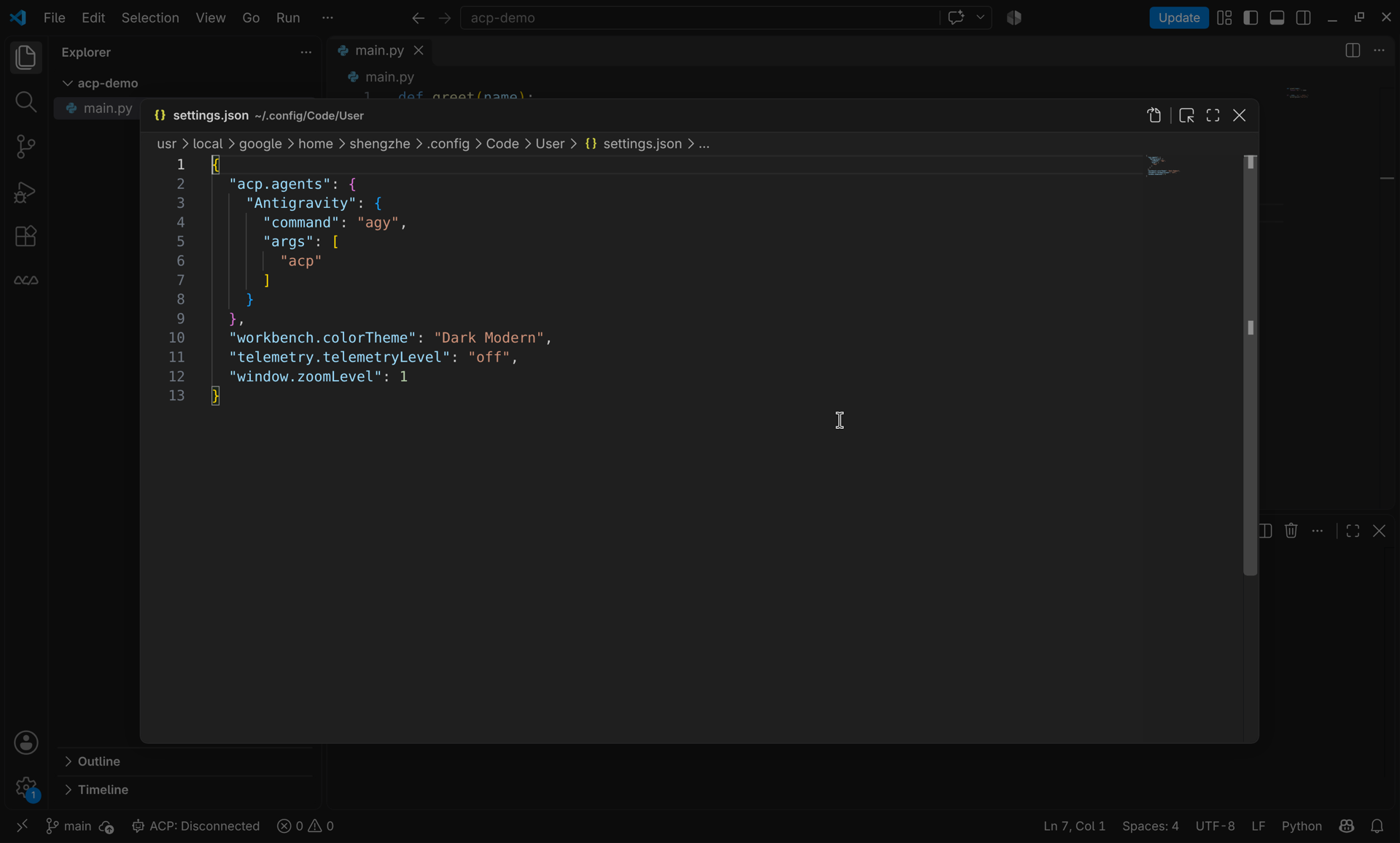
Section titled “VS Code”VS Code doesn’t support ACP natively. Install the community ACP Client extension, then add Antigravity to your user settings.json:
{
  "acp.agents": {
    "Antigravity": {
      "command": "agy",
      "args": ["acp"]
    }
  }
}
To start a session:
- Open the ACP Client view from the activity bar.
- Run ACP: Connect to Agent from the Command Palette and choose Antigravity.
- Type a prompt in the Chat panel.
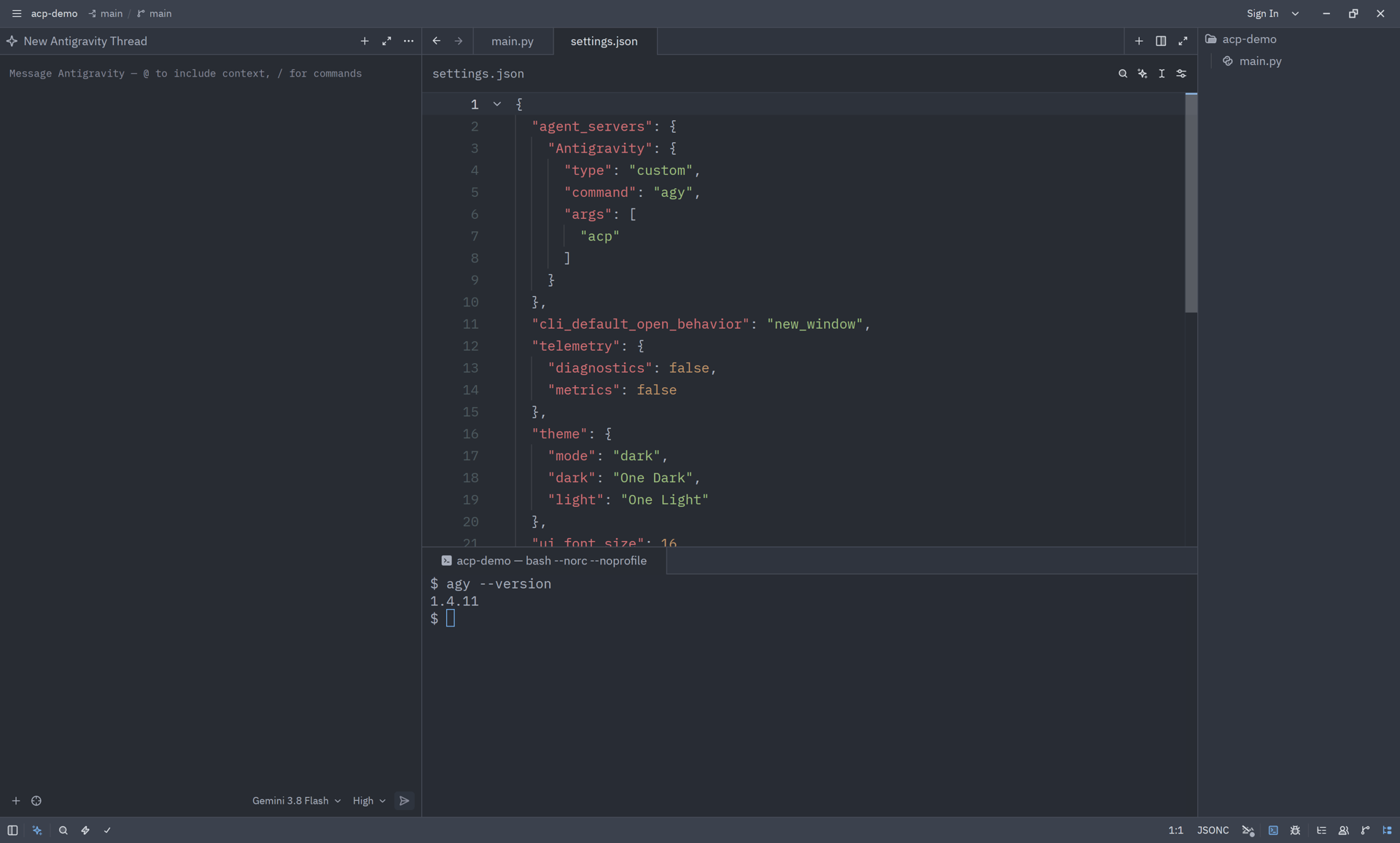
Add Antigravity as a custom agent server in your Zed settings.json (zed: open settings file):
{
  "agent_servers": {
    "Antigravity": {
      "type": "custom",
      "command": "agy",
      "args": ["acp"]
    }
  }
}
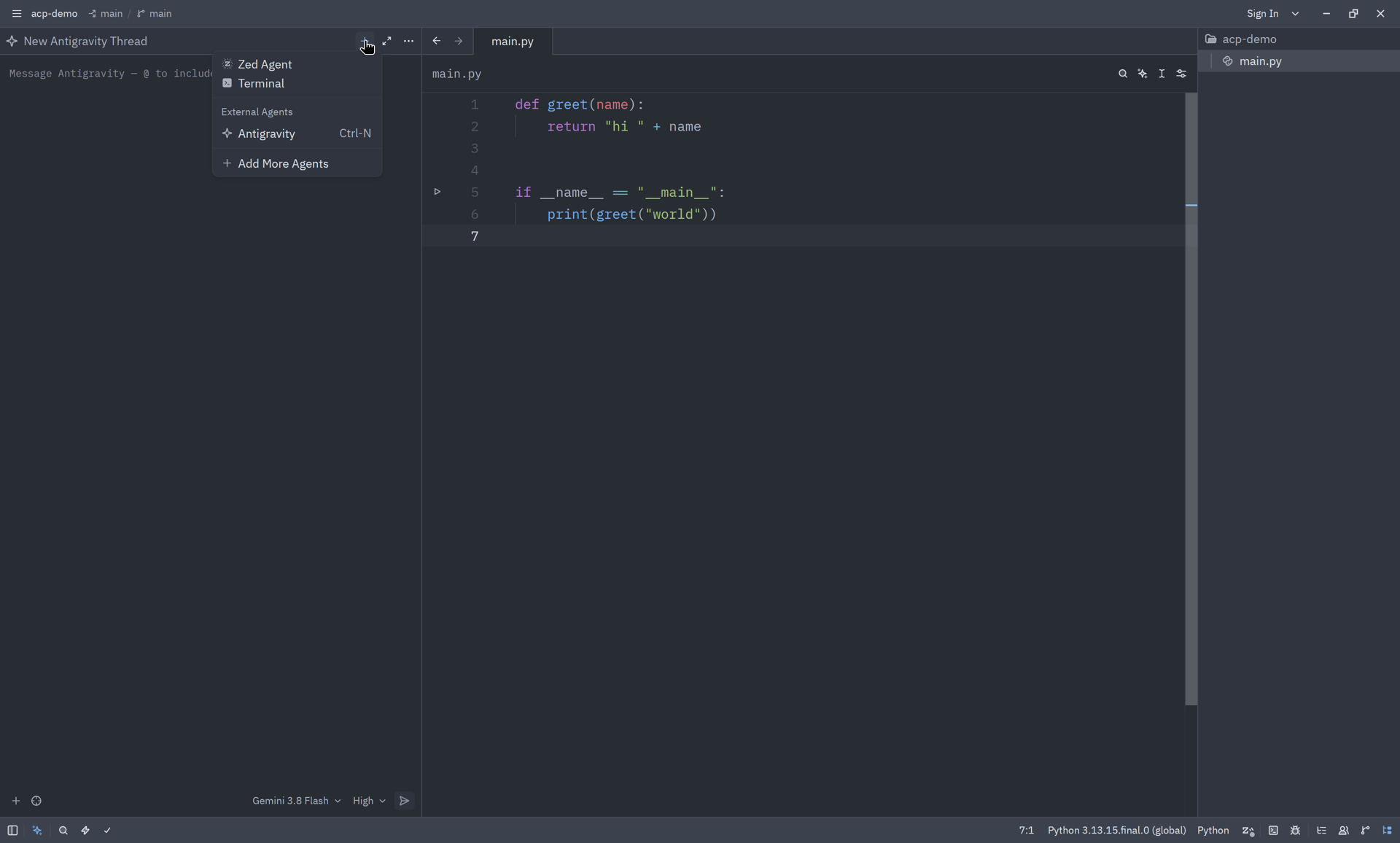
To start a session, open the Agent Panel, click +, and choose Antigravity under External Agents.
JetBrains IDEs
Section titled “JetBrains IDEs”JetBrains IDEs (IntelliJ IDEA, PyCharm, GoLand, WebStorm, and others) run ACP agents in the AI Chat tool window, which comes with the AI Assistant plugin. If AI Chat asks you to install the plugin, click Install Plugin.
The IDE reads custom agents from ~/.jetbrains/acp.json. Open it from the AI Chat tool window with Add Custom Agent, or create it yourself:
{
  "agent_servers": {
    "Antigravity": {
      "command": "/absolute/path/to/agy",
      "args": ["acp"]
    }
  }
}
Use the absolute path from which agy. JetBrains IDEs don’t always inherit your shell’s PATH.
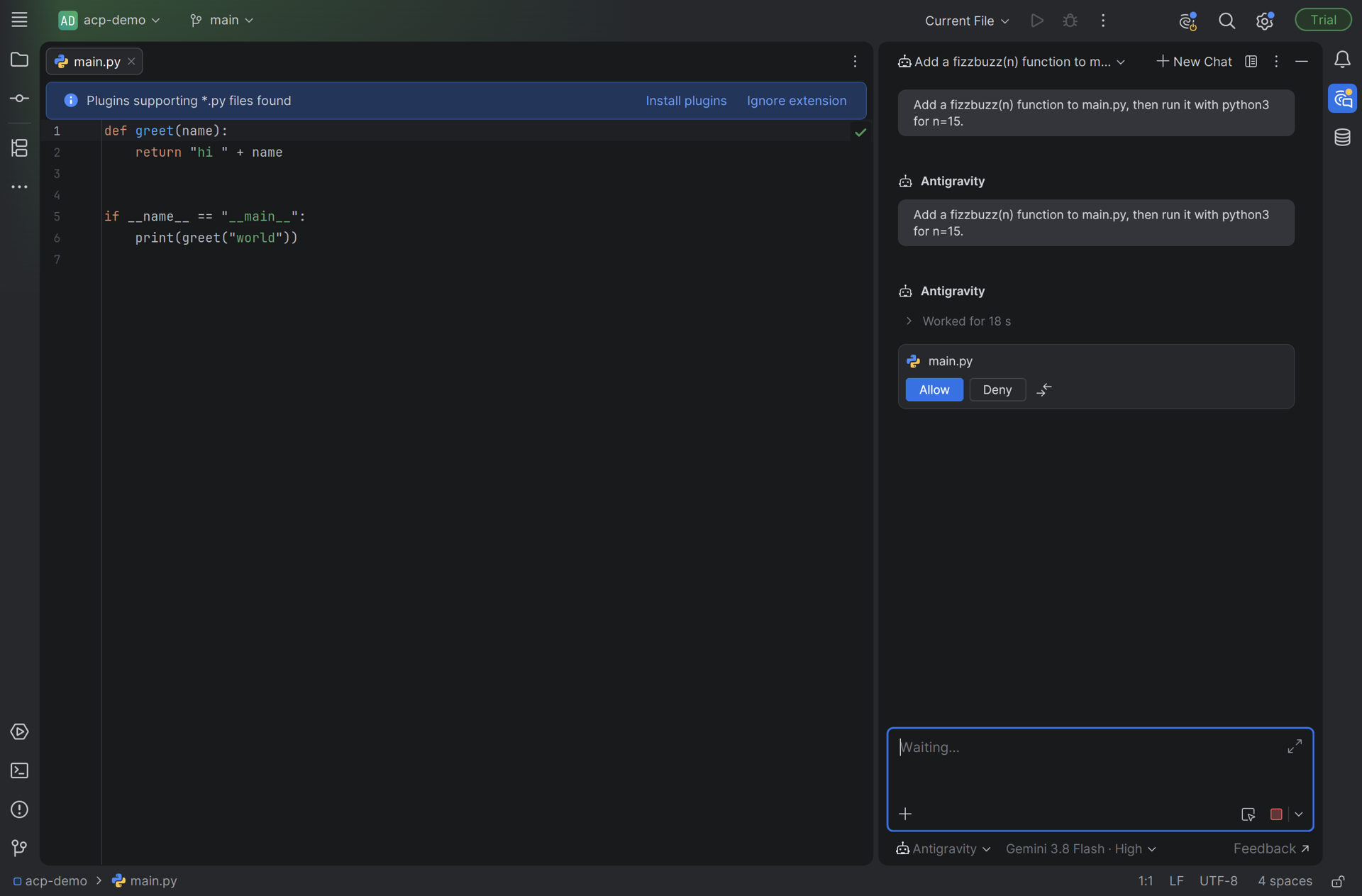
Reopen the AI Chat tool window, then pick Antigravity from the agent selector below the prompt box.
Android Studio
Section titled “Android Studio”Android Studio uses the same ~/.jetbrains/acp.json file as other JetBrains IDEs:
{
  "agent_servers": {
    "Antigravity": {
      "command": "/absolute/path/to/agy",
      "args": ["acp"]
    }
  }
}
To start a session:
- Restart Android Studio, then open the Agent tool window.
- Click the agent picker at the top of the panel and choose Antigravity, the name you set in
acp.json. Custom agents are in preview. - Type a prompt. The model and thinking level pickers appear below the prompt box.
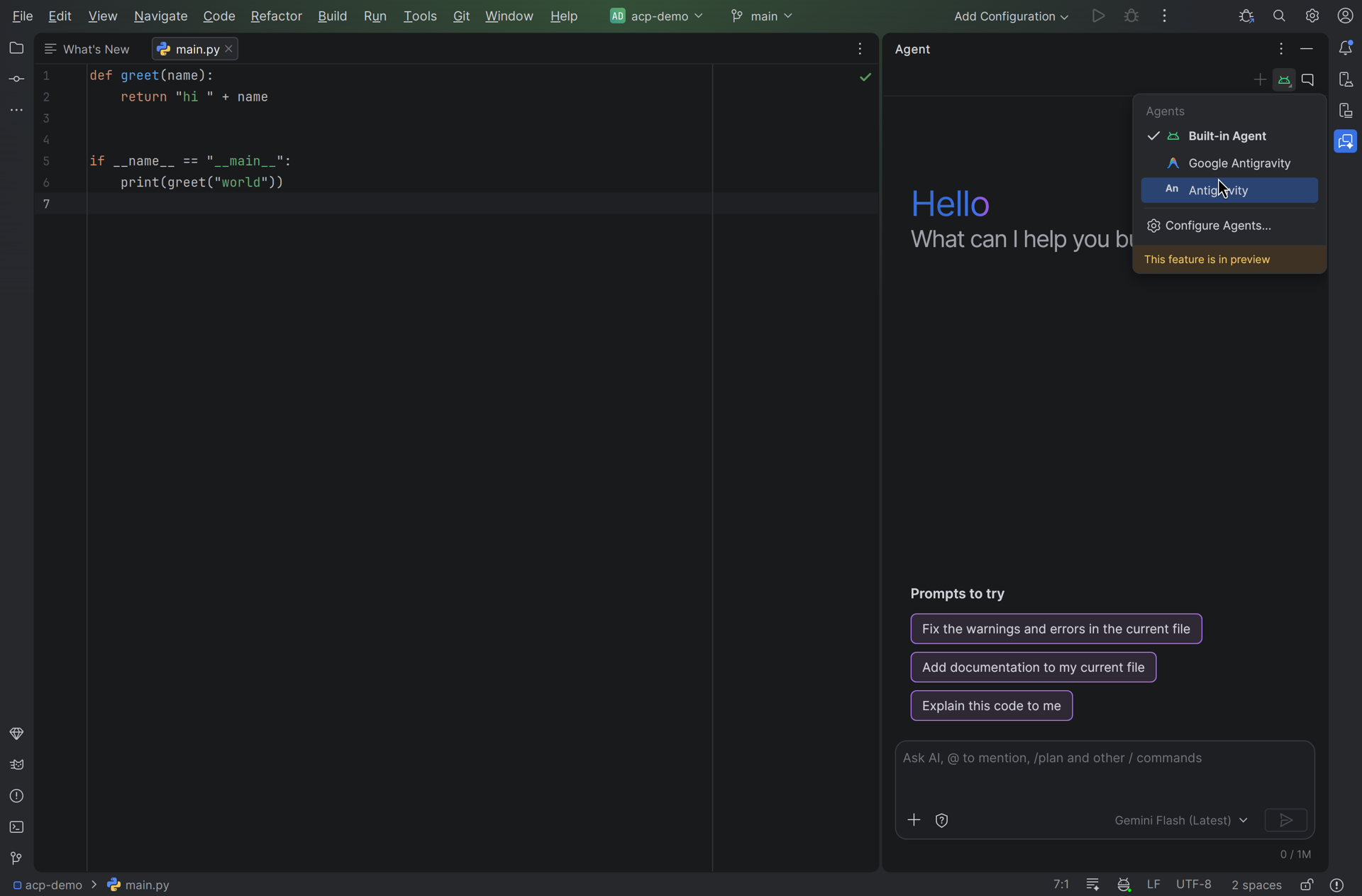
If the editor doesn’t show a change that the agent made, choose File > Reload All from Disk.
- Open Xcode > Settings > Intelligence.
- Under Agents, click Add an Agent.
- Set Command to the absolute path from
which agy. Xcode doesn’t expand~or read your shell’sPATH. - Set Arguments to
acp, then click Add.
Other clients
Section titled “Other clients”Any ACP client can launch Antigravity CLI. Configure it to run this command with the project directory as the working directory:
agy acpThe server speaks ACP protocol version 1 over stdio and identifies itself as Antigravity ACP Server.
Work with the agent
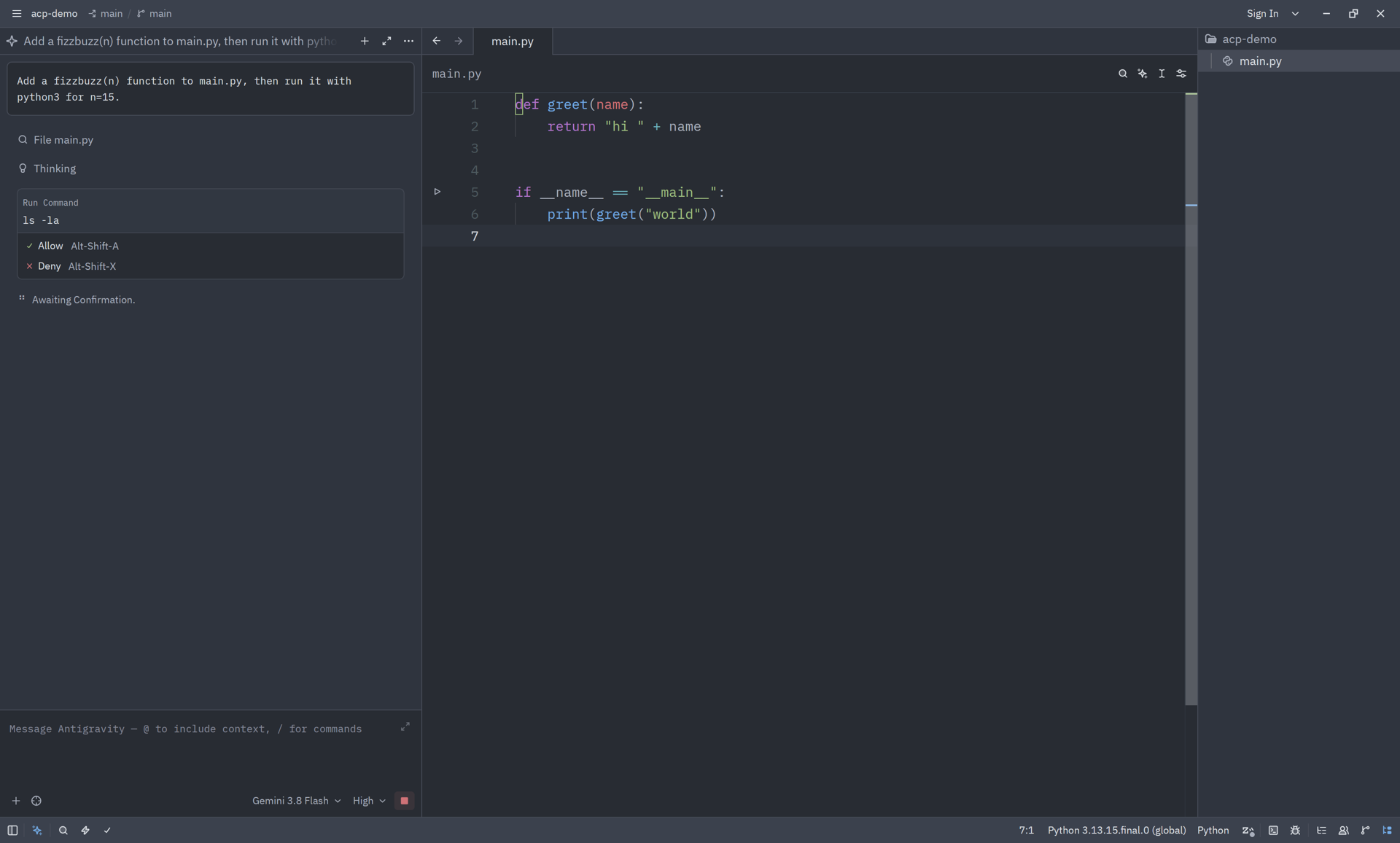
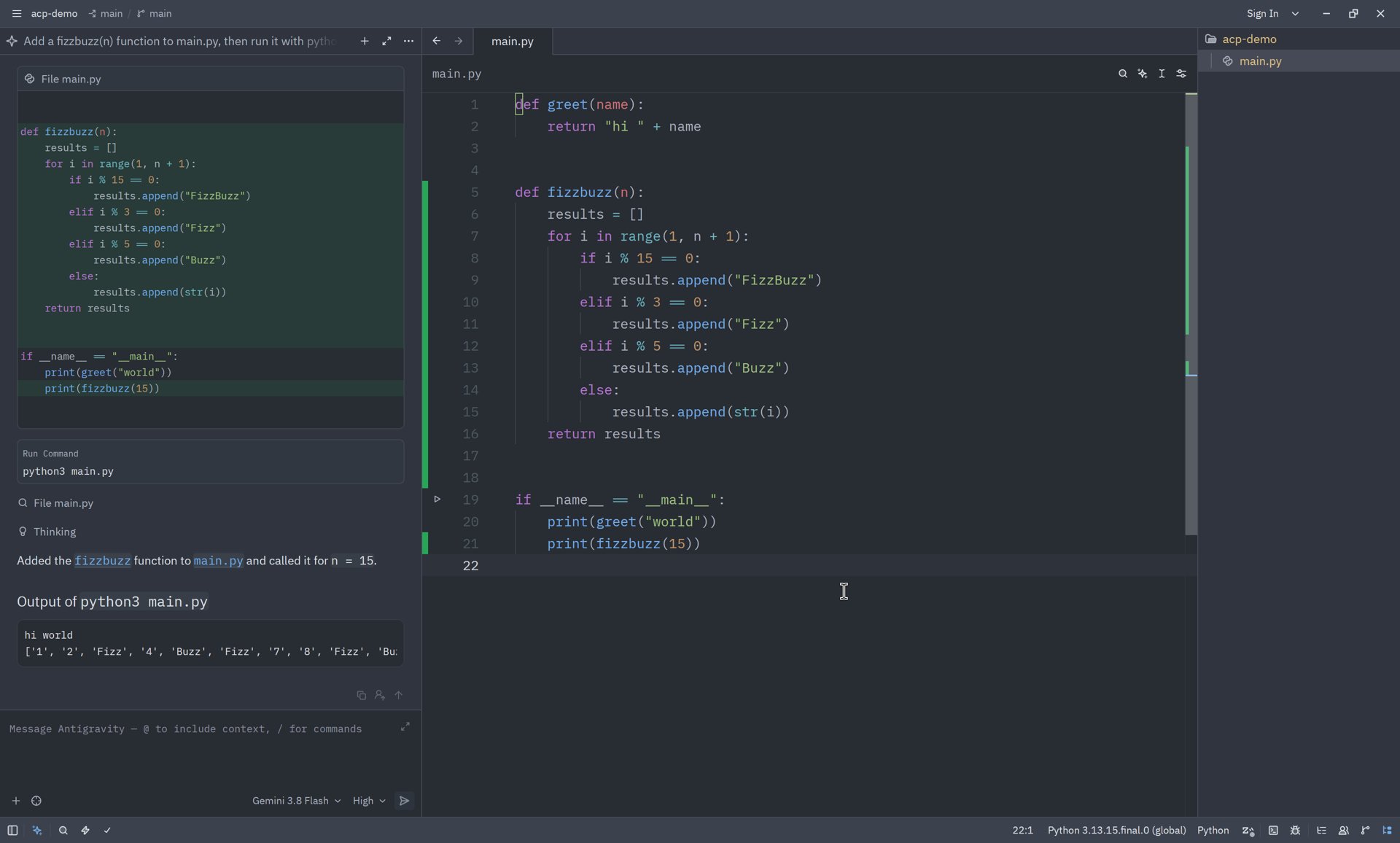
Section titled “Work with the agent”After you connect, prompt the agent the same way you would in the terminal. The editor shows each step of the turn:
- Tool calls appear as they run, with the command or file they touch.
- Edits stream back as diffs, so you can review a change in the editor.
- Permission requests pause the turn until you allow or deny the action.
- Slash commands that Antigravity CLI supports appear in the client’s command menu.
- Conversation titles update automatically as the session progresses.
- Images and embedded resources: Paste images or attach files as context in your prompt.
- Questions: When the agent asks a question, clients that support ACP elicitation forms show a native form. Other clients show the question in chat.
- Steering: Sending a prompt while a turn runs steers that turn instead of starting a new one.
- Cancel: Cancelling a turn ends open tool calls and abandons pending permission requests.
Models and thinking level
Section titled “Models and thinking level”The server exposes two session options that clients show as pickers:
| Option | Values |
|---|---|
| Model | The models available to your account |
| Thinking level | Low, Medium, High, Extra, Max |
Gemini models are available in every client. Third-party models are only offered to JetBrains IDEs (including JetBrains Air), Android Studio, Android Performance Analyzer, Zed, and Xcode.
Permissions
Section titled “Permissions”When the agent wants to run a command or change a file, the client shows a permission request with Allow and Deny options. Your permission rules still apply: actions that your rules already allow or deny don’t prompt.
To skip prompts entirely, add --dangerously-skip-permissions to the agent’s args. Only do this in a sandboxed or disposable environment.
Sessions
Section titled “Sessions”The server supports loading, resuming, listing, and closing sessions. Clients that support these ACP features can reopen a previous Antigravity conversation instead of starting a new one. Resuming a session reopens the conversation without replaying its history. Editors with multi-root workspaces, such as Zed, can also send extra workspace folders.
Authentication
Section titled “Authentication”agy acp uses the credentials you cached with an interactive agy session. If no credentials are available, requests fail with the error Authentication required (code -32000), and the client can ask you to sign in with one of these methods:
| Method | ID | Notes |
|---|---|---|
| Log in with Google | oauth-personal | Opens a browser sign-in for a personal Google account |
| Log in with Gemini Enterprise | oauth-business | Opens a browser sign-in for a Gemini Enterprise account |
| Gemini API key | gemini-api-key | Reads GEMINI_API_KEY from the agent’s environment |
| Gemini Enterprise Agent Platform | agent-platform | Formerly Vertex AI. Uses Application Default Credentials with GOOGLE_CLOUD_PROJECT and GOOGLE_CLOUD_LOCATION, or gcp.project and gcp.location in settings.json |
| Log in from the terminal | terminal-login | Signs in with your Google account by pasting a code in a terminal. Works over SSH. Only offered to clients that support ACP terminal authentication |
To pass an API key through the editor, set it in the agent’s environment. For example, in Zed:
{
  "agent_servers": {
    "Antigravity": {
      "type": "custom",
      "command": "agy",
      "args": ["acp"],
      "env": { "GEMINI_API_KEY": "<your-api-key>" }
    }
  }
}Add flags after acp in the client’s args list, for example ["acp", "--sandbox"].
| Flag | Default | Description |
|---|---|---|
--add-dir | — | Add a directory to the workspace. Repeat for more directories. |
--agent | — | Agent to use for ACP sessions (refer to agy agents) |
--sandbox | false | Run with terminal sandbox restrictions enabled |
--dangerously-skip-permissions | false | Auto-approve all tool permission requests |
--process-per-session | false | Serve each session from an isolated worker process. Required for HTTP MCP servers that your editor configures. |
--ide-mcp-port | — | Port of the editor’s MCP server to expose its tools to the agent. Requires nc on PATH. |
--login | false | Sign in with Google interactively in the terminal by pasting a code, then exit. Works over SSH. |
--log-file | — | Write the ACP server log to this path |
--disable-telemetry | false | Disable telemetry for this server |
Troubleshooting
Section titled “Troubleshooting”The agent doesn’t start. Run agy acp --help in a terminal to confirm that your installed version includes ACP. If it works in the terminal but not in the editor, replace agy with the absolute path from which agy.
Requests fail with Authentication required. Run agy interactively once to sign in, or pass credentials through the agent’s environment as shown in Authentication.
Sign-in fails over SSH or without a browser. Run agy acp --login in a terminal on that machine, then retry. Alternatively, use a Gemini API key.
You need more detail. The server writes logs to ~/.gemini/antigravity-cli/log/acp-*.log. Use --log-file to choose a different path.
Next steps
Section titled “Next steps”- Permissions: Configure which actions the agent can take without asking.
- MCP: Connect MCP servers to give the agent more tools.
- Headless mode: Run the agent non-interactively in scripts and CI.
- Reference: Full command and flag reference.