

Side panel and Overview panel
Section titled “Side panel and Overview panel”In the Antigravity App, the side panel shows your work next to the conversation. Artifacts, files, diffs, terminals, subagent conversations, and web pages each open in their own tab. The Overview panel lists what the conversation has produced so far, so you can open any of it in one click.
The Overview panel
Section titled “The Overview panel”Each conversation has an Overview panel at its top right. In this example, the agent planned and added an API endpoint, so the panel shows the line counts of the change and the two artifacts that the agent created:
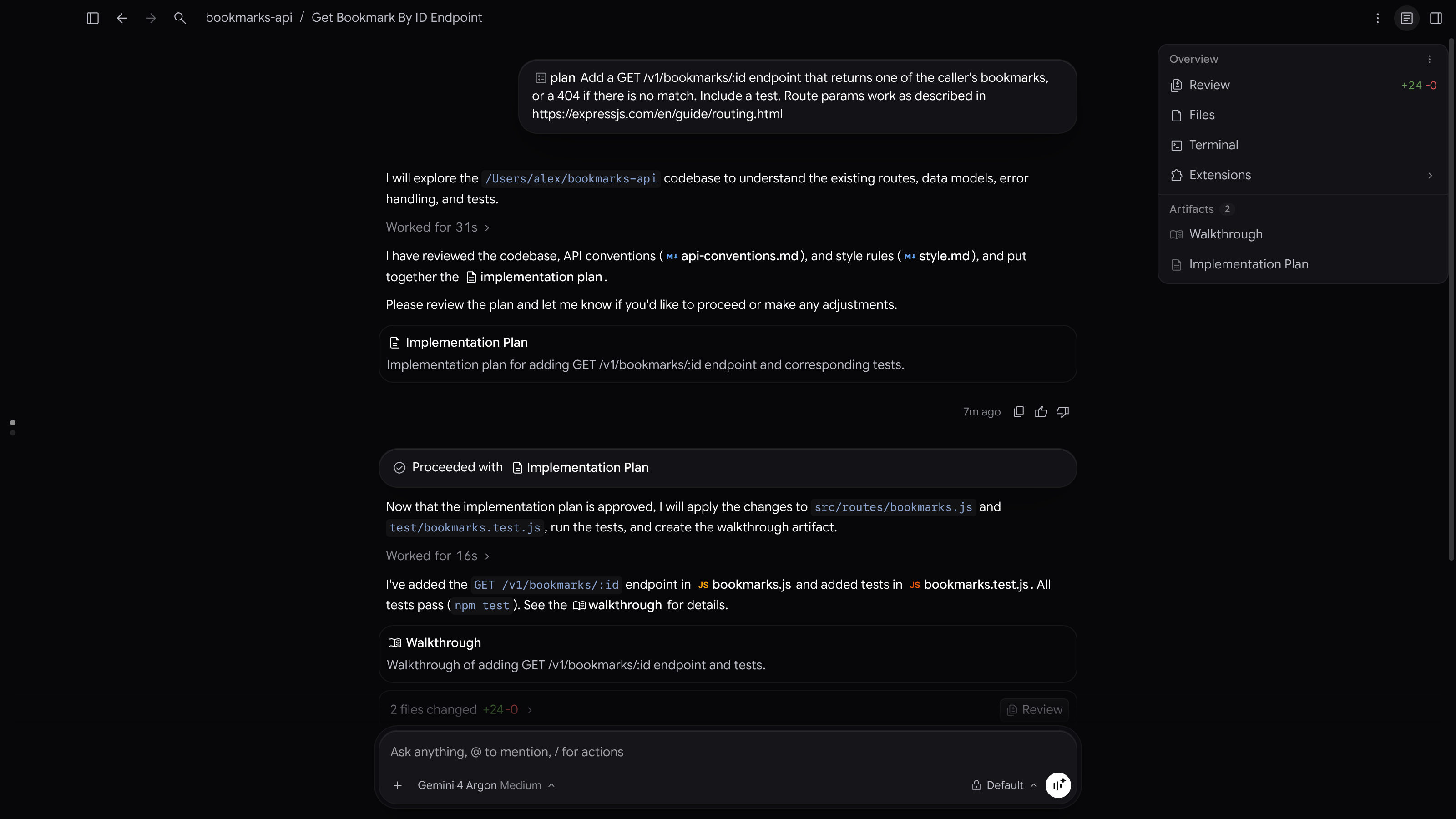
To show or hide the panel, click Toggle Overview Panel at the top right of the conversation, or press Cmd+Option+O on macOS or Ctrl+Alt+O on Windows and Linux. The panel is open by default, and Antigravity remembers your choice for each conversation.
When there isn’t enough room next to the conversation, for example when the side panel is open in a small window, the Overview panel hides. Click Toggle Overview Panel to open it over the conversation, and press Esc or click outside it to close it again.
Rows at the top
Section titled “Rows at the top”| Row | What it does |
|---|---|
| Review | Opens the Review tab with the changes in your project’s Git repository. The row shows the total lines added and deleted. For details, refer to Review changes. |
| Files | Opens an Open File tab with your project’s file tree. Click a file to open it, or click Open File to search for one. |
| Terminal | Opens a new terminal tab. Each click starts another terminal. |
| Extensions | Lists the views that your installed plugins add to the side panel. Point to the row to see them. |
Sections
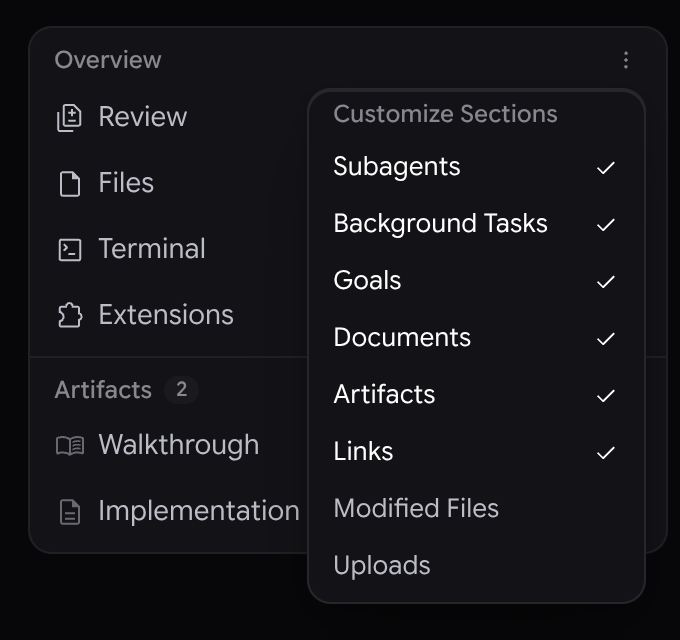
Section titled “Sections”Below the rows, the panel groups what the conversation produced into sections:
| Section | What it lists |
|---|---|
| Subagents | The subagents that the agent started. Click one to follow its conversation in the side panel. |
| Background Tasks | Tasks that run in the background. Click one to open it in a tab. To stop a running task, point to it and click Cancel Task. |
| Goals | The conversation’s goals, with running goals first. For details, refer to Goals. |
| Documents | PDFs, Office files, and Google Workspace links from the conversation. |
| Artifacts | The artifacts that the agent created, such as an implementation plan or a walkthrough. Click one to open it in a tab. |
| Links | Web pages that the agent shared as artifacts. Click one to open it in the built-in browser. It appears only when the agent has saved a link. |
| Modified Files | The files that changed. Click one to open its diff. This section is hidden by default. |
| Uploads | Files that you attached to your prompts, other than PDFs. This section is hidden by default. |
Sections with nothing in them don’t appear. Each section shows up to four items; click See all to show the rest. In Subagents, Background Tasks, and Goals, running items always show, and finished ones appear when you click See all. To collapse or expand a section, click its title.
Choose which sections to show
Section titled “Choose which sections to show”Click Customize Sections (the three dots at the top right of the panel), and then click a section to show or hide it. A check mark means the section is shown. Your choice applies to all conversations.
Tabs in the side panel
Section titled “Tabs in the side panel”When you open an artifact, a file, a diff, a terminal, a subagent’s conversation, or a web page, it opens as a tab in the side panel, next to the conversation. To show or hide the side panel, click Toggle Side Panel at the top right of the window, or press Cmd+Shift+B on macOS or Ctrl+Shift+B on Windows and Linux.
A file that you open from a search or from the file tree opens as a preview tab, with its name in italics. The next file that you open replaces it. To keep the file open in its own tab, double-click the tab.
Open a new tab
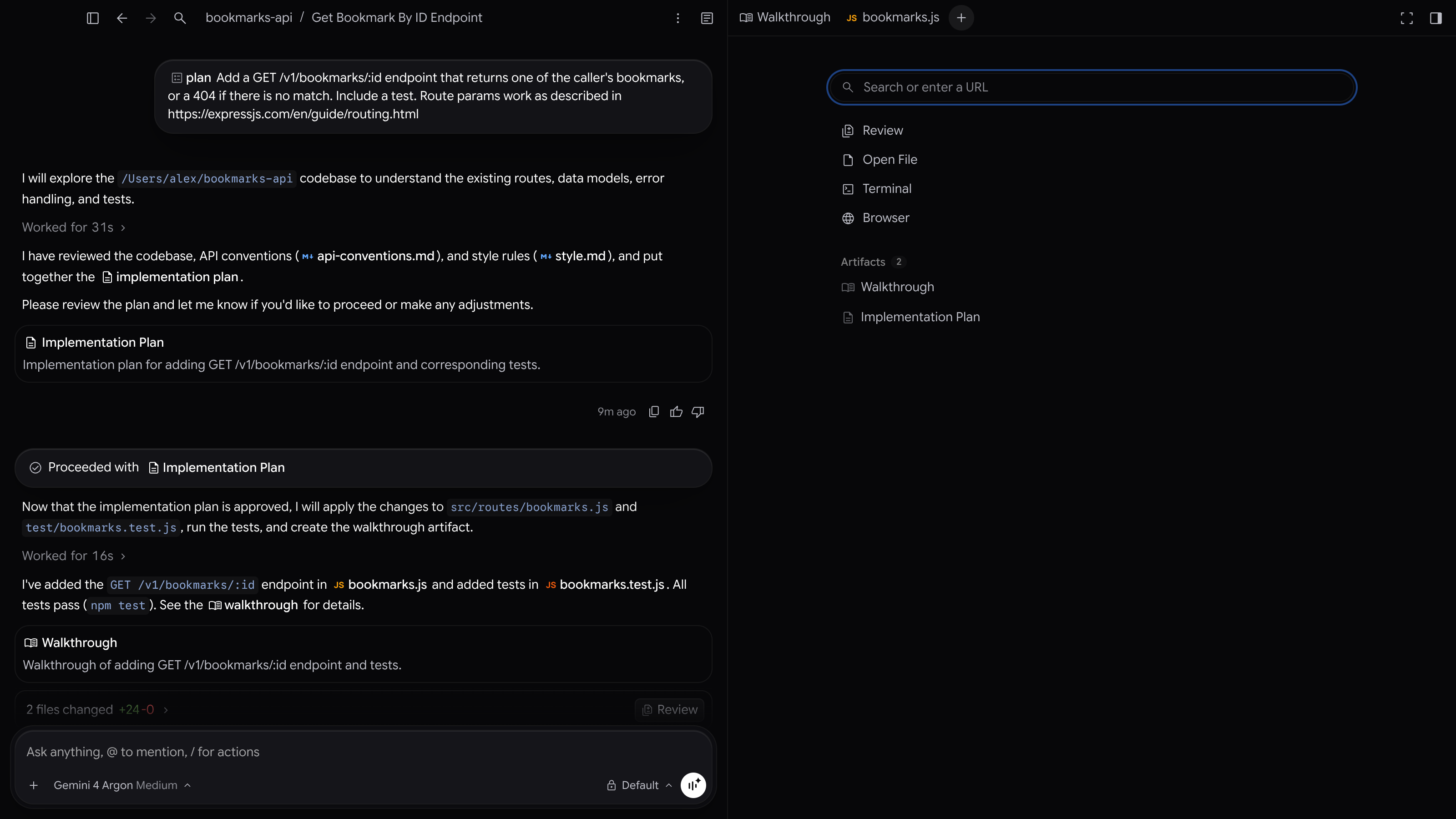
Section titled “Open a new tab”Click New Tab (+) after the last tab, or press Cmd+T on macOS or Ctrl+T on Windows and Linux. The New Tab page shows the following:
- Search or enter a URL: Type to search your open tabs, the files in your project, and the conversation’s subagents, artifacts, and background tasks. You can also type a web address or search terms, and then choose Open followed by the address, or Search Google for followed by your terms, to open the page in the built-in browser.
- Review, Open File, Terminal, and Browser: Open the Review tab, search for a file to open, start a terminal, or open a browser tab. Open File opens the Files category of the command palette.
- The conversation’s Overview sections, such as Artifacts.
Manage tabs
Section titled “Manage tabs”- Reorder tabs: Drag a tab to a new position.
- Switch tabs: Press Ctrl+Tab for the next tab and Ctrl+Shift+Tab for the previous tab, on all platforms.
- Close a tab: Point to the tab and click X, middle-click the tab, or press Cmd+W on macOS or Ctrl+W on Windows and Linux. When you close the last tab, the side panel closes too.
- Close several tabs: Right-click a tab to close it, all the other tabs, or the tabs to its left or right. On the Review tab and on tabs that plugins add, you can also choose Pin Tab.
- Reopen a closed tab: Press Cmd+Shift+T on macOS or Ctrl+Shift+T on Windows and Linux. The tab reopens at its previous position and scroll point. Press the shortcut again to reopen the tab that you closed before it.
- Maximize the side panel: Click Maximize Pane at the top right of the side panel, or press Cmd+Shift+M on macOS or Ctrl+Shift+M on Windows and Linux. The panel slides over the conversation. To return to the side-by-side view, click Restore Pane or press the shortcut again.
Split view
Section titled “Split view”To work in two conversations side by side, split the window:
- To open a new conversation next to the current one, click More actions (the three dots at the top of the conversation), point to Split, and choose Split Right or Split Down. You can also press Cmd+D (Split Right) or Cmd+Shift+D (Split Down) on macOS, or Ctrl+D or Ctrl+Shift+D on Windows and Linux.
- To open an existing conversation next to the current one, point to it in the sidebar, click More options (the three dots), point to Split, and choose Split Right or Split Down.
- To start a new conversation in place of the one in a pane, choose Split > Replace with New in that pane’s More actions menu.
- To close a pane, click Remove from Split (X) at the top of the pane.
Each pane has its own Toggle Overview Panel button. In narrow panes, the toolbar at the top of the pane appears only when you point to the pane or it has focus.
Keyboard shortcuts
Section titled “Keyboard shortcuts”| Action | macOS | Windows and Linux |
|---|---|---|
| Show or hide the Overview panel | Cmd+Option+O | Ctrl+Alt+O |
| Show or hide the side panel | Cmd+Shift+B | Ctrl+Shift+B |
| Open a new tab | Cmd+T | Ctrl+T |
| Find and open a file | Cmd+P | Ctrl+P |
| Close the current tab | Cmd+W | Ctrl+W |
| Reopen the last closed tab | Cmd+Shift+T | Ctrl+Shift+T |
| Next or previous tab | Ctrl+Tab or Ctrl+Shift+Tab | Ctrl+Tab or Ctrl+Shift+Tab |
| Maximize or restore the side panel | Cmd+Shift+M | Ctrl+Shift+M |
| Split Right | Cmd+D | Ctrl+D |
| Split Down | Cmd+Shift+D | Ctrl+Shift+D |
To see all shortcuts, go to Settings > Shortcuts.
Related pages
Section titled “Related pages”- Review changes: Review the agent’s diffs in the Review tab.
- Artifacts: Read and comment on the plans and walkthroughs that open in the side panel.
- Search and command palette: Find conversations, files, and commands.