Screenshots
Section titled “Screenshots”The browser subagent can take a screenshot of the visible page or of a single element on it, for example to check how a page rendered. Ask for a screenshot in your prompt, or the subagent may take one on its own when the task calls for it. You can also click Add screenshot to conversation (the camera icon) in the Antigravity App’s built-in browser toolbar to attach a snapshot of the page you’re viewing directly to your prompt.
In the Antigravity App (v2.30.0+, personal Google Accounts), ask in plain language or type /browser followed by the task—the subagent runs directly inside the built-in browser with no external browser setup. On business and enterprise accounts (and in the Antigravity CLI), /browser connects to Google Chrome with remote debugging enabled; refer to Set up Chrome.
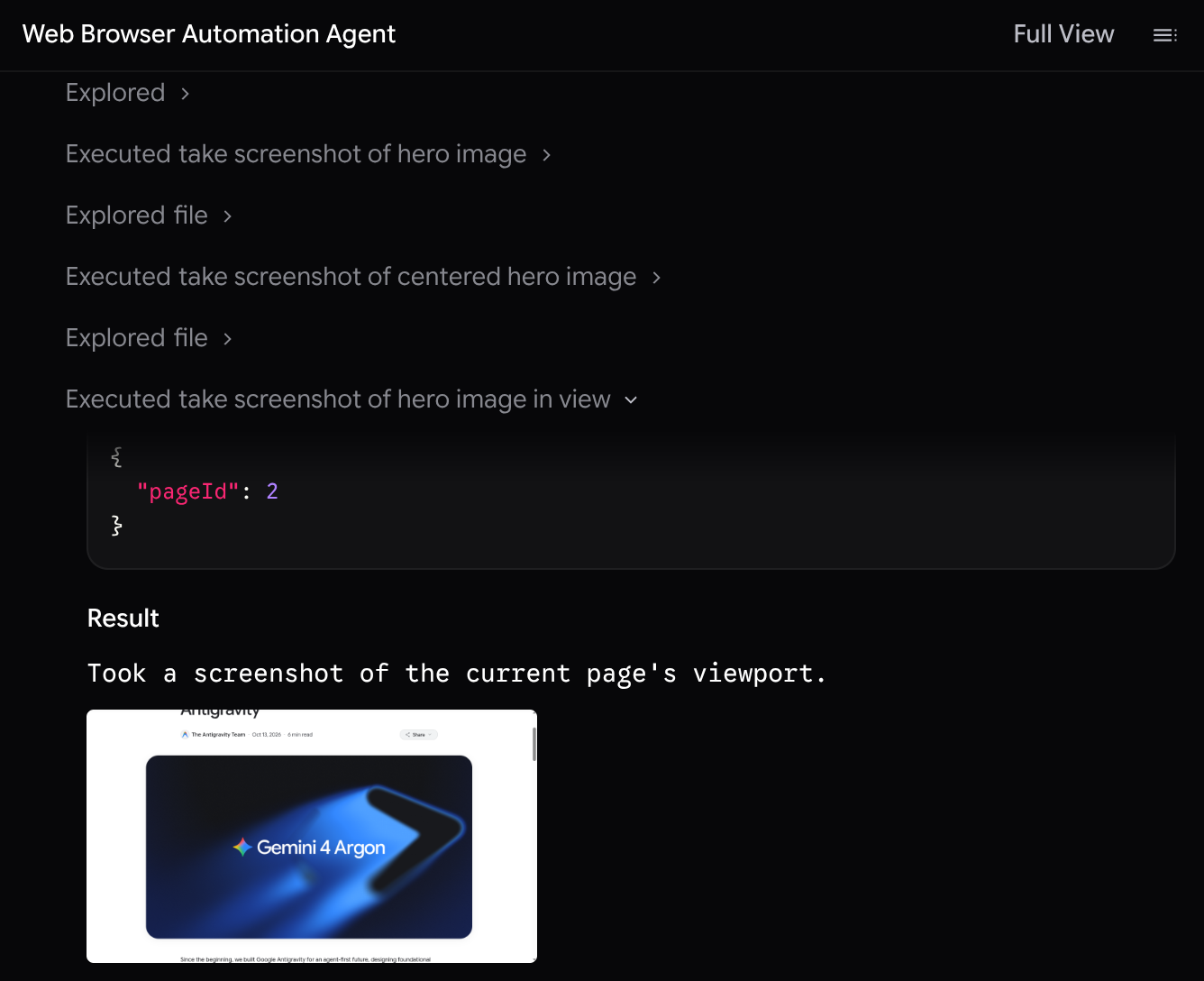
In your conversation, the subagent appears in a row that reads Starting or Started, followed by a name the agent gives it, such as “Web Browser Automation Agent”. Click that name, or the subagent in the Subagents section of the conversation overview, to open its conversation in the side panel. Each screenshot is a step labeled with a short summary of what the subagent captured. Expand the step to see the tool’s arguments, its result, and a thumbnail of the screenshot.
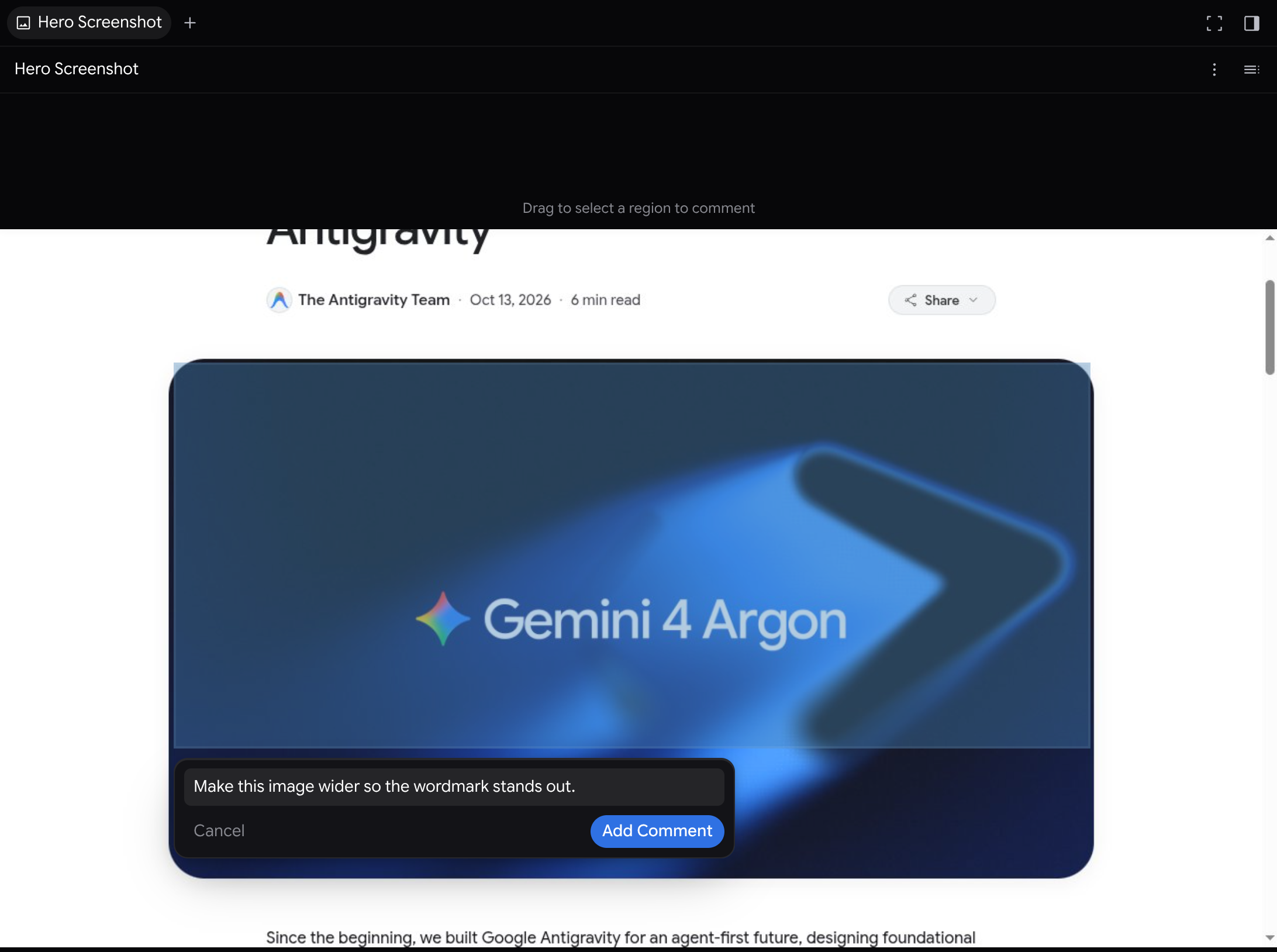
A screenshot isn’t an artifact on its own. To comment on one, ask the agent to save it to the conversation’s artifacts, then open the image from the agent’s reply. Drag to select a region of the image, type your comment, and click Add Comment. Comments aren’t sent right away: they’re held as pending comments and go to the agent with your next message, or when you submit them from the Review button in the artifact’s header.