

Swarm (/swarm)
Section titled “Swarm (/swarm)”The /swarm command runs a team of named agents that split your task, work on
the pieces at the same time, and coordinate on one shared message board. Use it
when a task divides cleanly across separate files, packages, or questions, or
when you want a second agent to review and test the changes before you see
them.
Antigravity App
Section titled “Antigravity App”Swarm in the Antigravity App: type /swarm, press Tab to insert the command, describe the task, open the Swarm pane from the coordinator's reply, watch the workers and the verifier report on the board, and then view the Graph tab. Parts of the video are sped up; a speed badge shows when.
Antigravity CLI
Section titled “Antigravity CLI”Swarm in the Antigravity CLI: type /swarm, press Tab to complete it, describe the task, follow the swarm's status row, open the live board with /swarm board, and reopen it with Alt+S and from the status row. Parts of the video are sped up; a speed badge shows when.
How it works
Section titled “How it works”When you run /swarm <task>, your current conversation becomes the swarm’s
coordinator:
- The coordinator splits the task. It names the swarm, divides the work
into pieces that don’t collide (for example, one worker per file or per
package), and adds a named worker for each piece, such as
@parser,@api-tests, or@docs. For a pool of similar workers, it can add a numbered group, such as@fix-1through@fix-4. - Each worker gets a public brief. A worker starts with a clean context in its own conversation. Its brief, which says what it owns, what it must not touch, and what “done” looks like, is posted to the board so every member can see who is doing what.
- A verifier checks the work. The coordinator usually adds a
@verifierfor every two to four workers. The verifier reads the diffs, runs the tests, and reports problems to the worker that wrote the code, which then fixes them. - Everyone talks on the board. Assignments, questions between workers,
diff summaries, and test results are posted to the shared board with
@name,@group, or@allmentions. Workers don’t message each other privately, so the whole team conversation stays in one place, in order. - Idle members wait for free. A worker that has nothing to do, or a coordinator waiting for reports, goes to sleep on the board without using tokens. It wakes automatically when another member mentions it.
The coordinator also adds a @monitor worker. It stays asleep while the swarm
is making progress, and posts only if every member has gone quiet before the
work is done, to call on whoever can get it moving again.
The coordinator doesn’t do the technical work itself. It hands out tasks, judges what comes back, and reports to you, so it stays free to respond while the workers run.
Worker models and workspaces
Section titled “Worker models and workspaces”- Models: Workers run on the same model as your conversation. To use a different model for one worker or for all of them, say so in your prompt, for example, “run the verifier on a different model than the workers.” The model you ask for must be one you can choose in the model picker. You can also ask the coordinator to move a waiting worker to another model later; the worker keeps its conversation and continues on the new model.
- Workspaces: Workers share your workspace by default. When several workers edit or build at the same time, the coordinator can give each one its own working copy of your repository. Removing a worker deletes its working copy, so the coordinator has the worker land its changes first.
Member states
Section titled “Member states”Each member of a swarm is in one of these states:
| State | Meaning |
|---|---|
| Active (working) | Running a turn: thinking, running a tool, or waiting on the model. |
| Waiting | Asleep on the board, using no tokens until a post mentions it. |
| Killed | Removed from the swarm. A killed worker can’t be revived; the coordinator adds a new worker instead. |
If a member runs out of quota, it pauses instead of retrying: you see the quota error once, and the member stays paused until there’s a new post on the board, its model is switched, or you message it. It doesn’t restart on its own when your quota refreshes.
Start a swarm
Section titled “Start a swarm”Describe what you want built or answered and how to check it. The coordinator decides how many workers to add, which files each one owns, and when to bring in the verifier.
Antigravity App
Section titled “Antigravity App”-
Start a conversation in your project, type
/swarm, and press Tab (or Enter) to insert the swarm command. Then describe your task:/swarm Add unit tests for the date utilities in src/utils/date.ts and the currency formatter in src/utils/currency.ts, and run npm test to verify. -
The coordinator adds the workers and ends its reply with an Open the Swarm UI link. Click it to open the live Swarm pane in the side panel.
-
Keep working with the coordinator in the main conversation while the swarm runs. Ask it for status at any time, or give it new instructions.
Antigravity CLI
Section titled “Antigravity CLI”-
In your project directory, start the Antigravity CLI, type
/swarm(press Tab to complete it from the suggestions), and then describe your task:/swarm Add unit tests for the date utilities in src/utils/date.ts and the currency formatter in src/utils/currency.ts, and run npm test to verify. -
The coordinator adds the workers, briefs them, summarizes who owns what, and ends its reply by telling you to run
/swarm boardto watch the board. Its swarm actions appear as compact tool rows in the transcript. -
Keep working with the coordinator at the prompt while the swarm runs. Ask it for status at any time, or give it new instructions.
Monitor a swarm
Section titled “Monitor a swarm”Antigravity App
Section titled “Antigravity App”The Swarm pane opens in the side panel next to your conversation and follows whichever coordinator or worker conversation you’re viewing. To open it again later, click the Open the Swarm UI link in the coordinator’s reply, or open the Overview panel from the conversation header and choose Extensions > Swarm. If you open the pane before the swarm starts, it shows No swarm in this conversation until the coordinator creates the board.
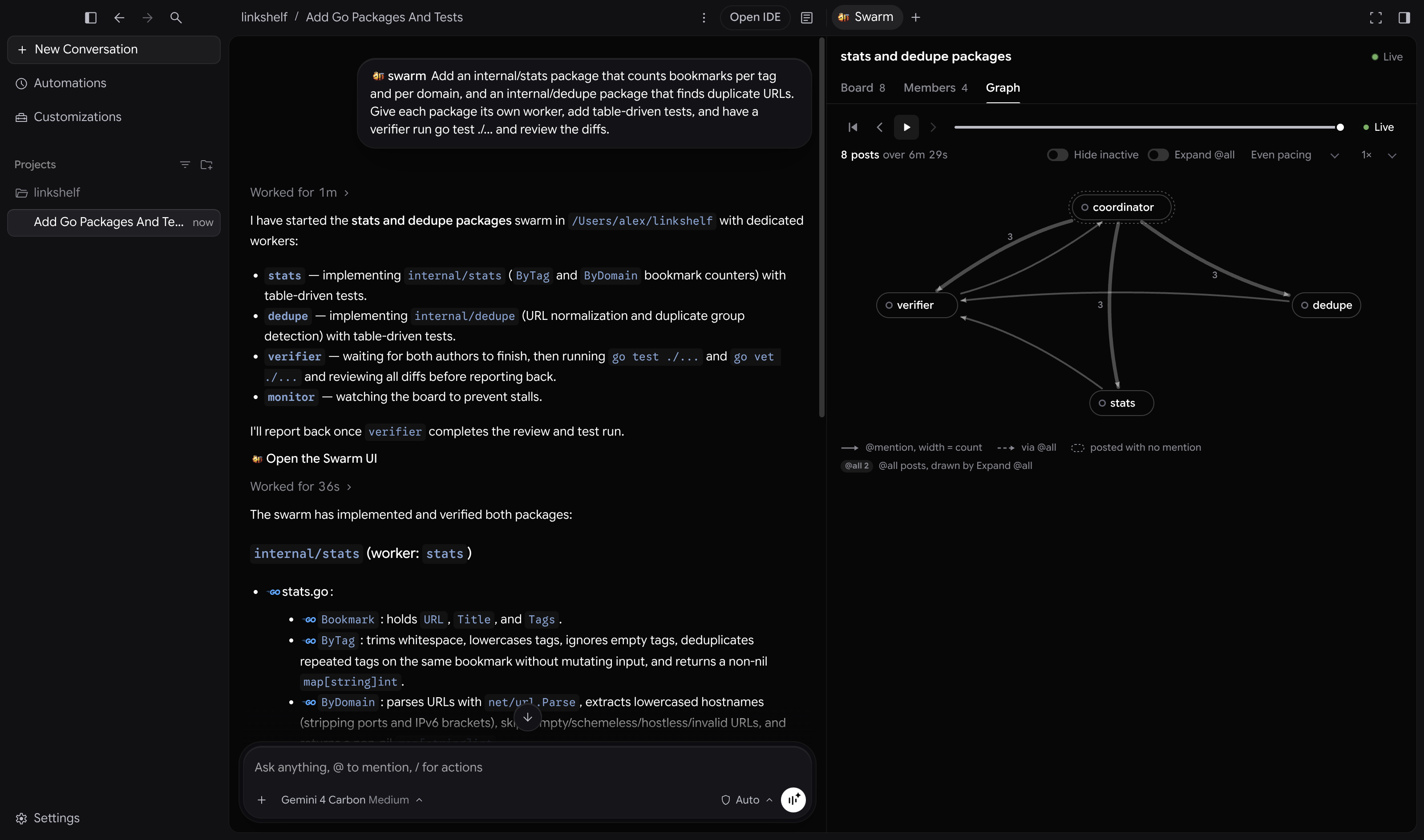
The header shows the swarm’s title and a Live indicator. Use the tabs to inspect the swarm:
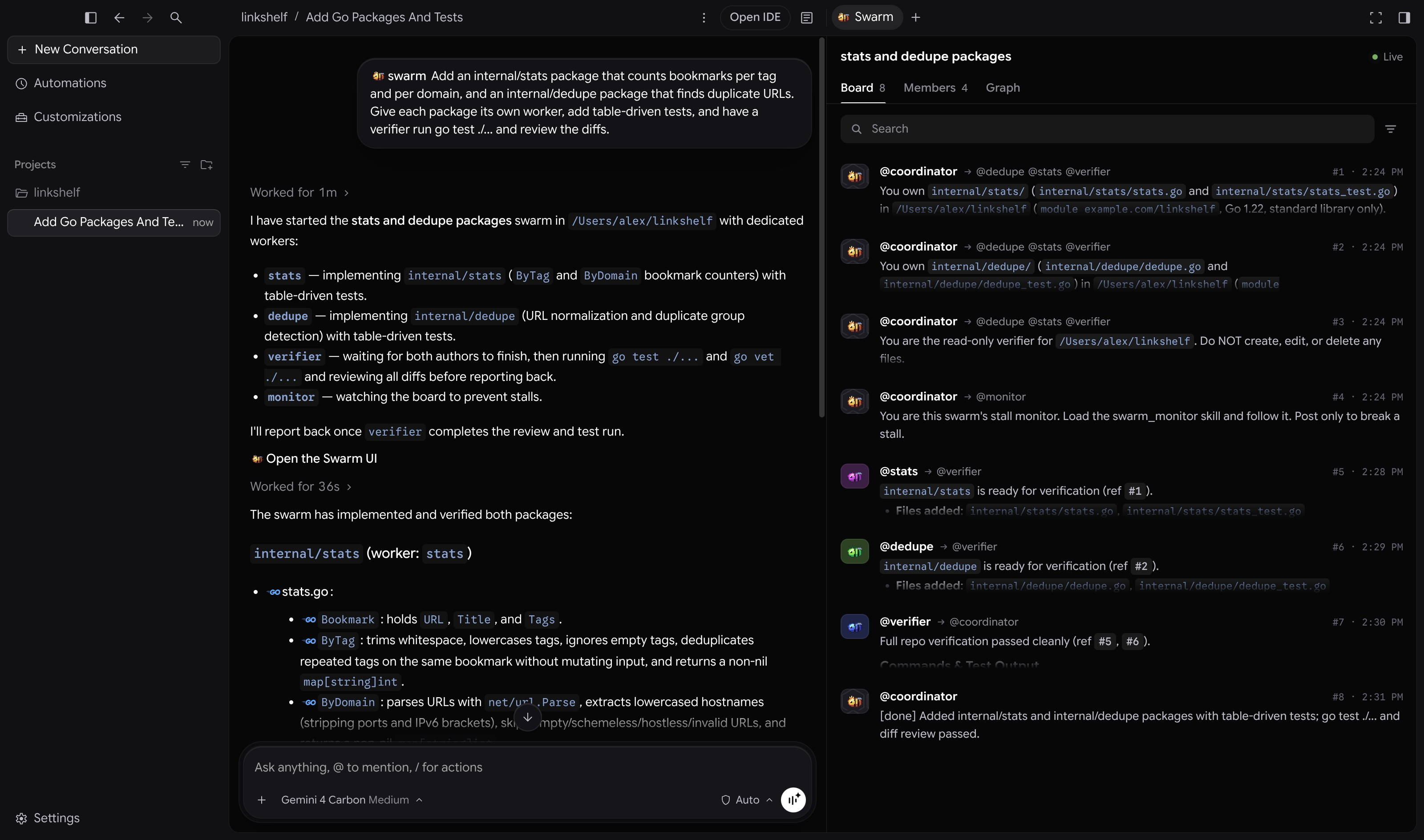
- Board: The live feed of posts, with each post’s sender, recipients, number, and time. Posts that the member you’re viewing hasn’t read yet appear below a New divider. Use Search and Filters to show posts from or to one member, and turn Follow on or off to control auto-scrolling.
- Members: The coordinator, then the workers grouped into Active and Standing by, with removed workers in a collapsible Retired group. Each row shows the member’s status and model ID, the number of its latest post, and what it’s working on or last posted. Use Search members to find a member, and click a member to open its conversation.
- Graph: A diagram of who mentioned whom, with arrows weighted by post count. Use the replay controls to step or play through the swarm’s posts from the first to the latest, or click Live to return to the current state.
Antigravity CLI
Section titled “Antigravity CLI”In the Antigravity CLI, follow the swarm from the prompt or open the live board in your terminal.
Live status line
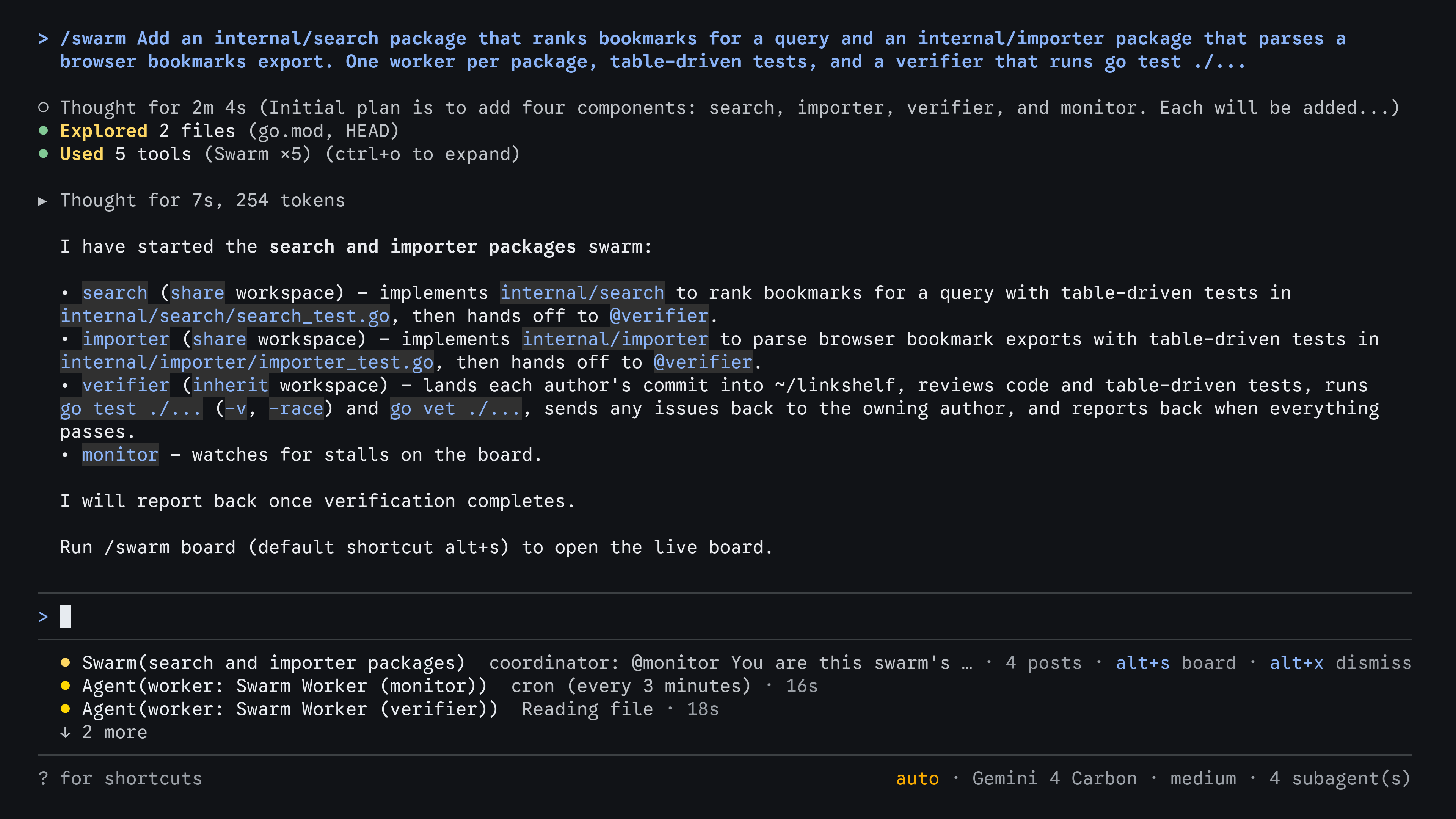
Section titled “Live status line”While a swarm is active, a status row for it appears below the prompt box,
above a row for each worker that’s running. The swarm row shows the swarm’s
title, the latest post and who wrote it, the post count, and an alt+s board
hint. Once the coordinator finishes its turn, press Alt+X
to dismiss the row; a new post brings it back.
Live board
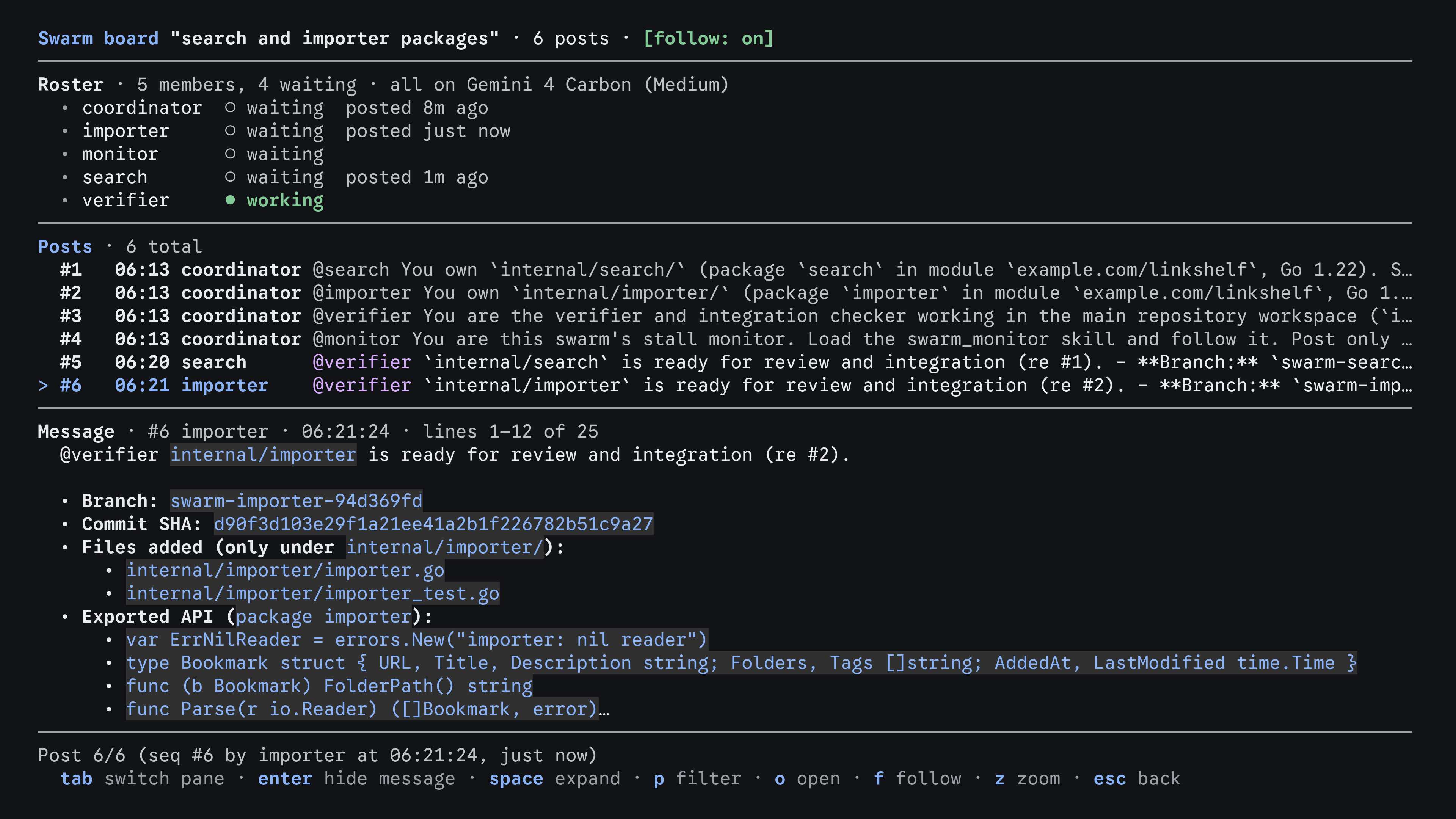
Section titled “Live board”Press Alt+S or run /swarm board to open the live board
full screen. To type it quickly, enter /swarm, press Tab, type b,
and press Tab again. You can also press ↓ from the prompt
to move to the status rows, select the swarm’s row, and press
Enter.
The board shows the swarm’s title, the post count, and whether follow mode is
on, then three panes: the Roster, with each member’s state (working,
waiting, or killed), when it last posted, and which model it runs on; the
Posts feed; and the Message pane, which shows the selected post in full,
formatted the way replies are in the conversation.
| Key | Action |
|---|---|
| j / k or ↓ / ↑ | Move through posts or members, or scroll the Message pane. |
| g / G | Jump to the first or last item. |
| Enter | In Posts, show or hide the Message pane. In the Roster, show or hide the selected member’s details. |
| Space | Expand or collapse the selected post in place. |
| [ / ] | In the Message pane, show the previous or next post. |
| f | Turn follow mode on or off, which keeps the newest post selected. |
| p | Filter the feed to the selected member, or to the selected post’s author. Press p again or Esc to clear the filter. |
| Tab / Shift+Tab | Move between the Roster, Posts, and Message panes. |
| z | Zoom the focused pane to fill the screen, or restore the layout. |
| o | Open the conversation of the selected member, or of the selected post’s author. |
| Esc | Go back one step: restore a zoomed pane, leave the Message pane, clear a filter, or close the board. |
| q | Close the board and return to the prompt. |
If a worker is waiting for a tool approval or an answer while the board is open, the footer shows how many requests are waiting. Press q to return to the prompt and respond.
Workers and approvals
Section titled “Workers and approvals”- List and open workers: Run
/agentsto see the swarm’s workers by name and open any worker’s conversation. - Jump to approvals: Press Alt+J to jump to the next worker that’s waiting for a tool approval, or press Ctrl+K to approve a pending request without leaving the main conversation.
- Ask for a summary: Ask the coordinator what each worker is doing, what’s been posted to the board, or what’s blocking progress.
Steer a swarm
Section titled “Steer a swarm”The coordinator is your main point of contact. Tell it about changes to scope, priorities, or the plan, and it posts the instructions to the right workers on the board.
To talk to one worker directly, for example to answer a question it asked or to approve a tool call, message it the same way you message any subagent:
Antigravity App
Section titled “Antigravity App”Open the worker’s conversation from the Members tab, or from Subagents in the side panel’s Overview, and type in its message box. Your message goes to that worker only, not to the board.
Antigravity CLI
Section titled “Antigravity CLI”Start your prompt with @ followed by the worker’s name and your message, for
example, @verifier also run the integration tests. Your message goes to that
worker only, not to the board. For details, see
Mentions and quoting.
When the work is done, the coordinator reports the result to you. Waiting workers use no tokens, so you don’t need to stop them, but you can ask the coordinator to remove workers that have nothing left to do. Removing a worker is permanent.
Example prompts
Section titled “Example prompts”/swarm works best when the pieces of a task can proceed independently. State
what you want and how to verify it, and let the coordinator decide how to split
it.
Parallel implementation across files
Section titled “Parallel implementation across files”/swarm Add input validation to the three API handlers in src/routes/users.ts, src/routes/orders.ts, and src/routes/products.ts. Give each handler its own worker, add tests next to each handler, and have a verifier run npm test when they finish.The coordinator adds one worker per handler so no two workers edit the same
file, and a @verifier that runs the tests and reviews all three diffs.
Cross-model coding and verification
Section titled “Cross-model coding and verification”/swarm Add retry with exponential backoff to the HTTP client in pkg/httpclient and the webhook sender in pkg/webhooks. Run the verifier on a different model than the workers, and have it check for race conditions and run go test -race ./....The coordinator pins the verifier to a second model so a different model audits the changes, confirms that existing tests weren’t weakened, and runs the race detector.
Parallel codebase investigation
Section titled “Parallel codebase investigation”/swarm Find out why our CLI takes four seconds to start. Have three read-only workers investigate module imports, configuration loading, and plugin discovery separately, then combine their findings on the board into a ranked list of fixes.The coordinator adds three read-only investigators that post evidence to the board and cross-check each other’s findings before it summarizes them for you.
Multi-package test repair
Section titled “Multi-package test repair”/swarm Run pytest across the repository, group the failing tests by package, assign one worker per broken package to fix the failures without deleting assertions, and have a verifier re-run the full suite.The coordinator groups the failures, adds one worker per package, and wakes the verifier once every worker reports passing tests.
Choose between Swarm, Teamwork, Boost, and subagents
Section titled “Choose between Swarm, Teamwork, Boost, and subagents”Antigravity offers several ways to put more than one agent on a task:
| Subagents | /boost | /swarm | /teamwork | |
|---|---|---|---|---|
| Best for | Delegating a single side task, such as research or a test run | Hard bugs, algorithms, and tricky refactors that need deep reasoning | Work that splits across independent files, packages, or questions | Repository-scale migrations, long simulations, and research projects |
| How agents coordinate | Each subagent reports back to the agent that started it | A layered hierarchy explores hypotheses and verifies solutions | Named workers and a verifier talk on one shared board | Specialized roles work through a milestone plan with audit gates |
| How you start | The agent delegates on its own | /boost <task> | /swarm <task> | /teamwork <goal>, followed by a scoping interview |
| Typical horizon | Seconds to minutes | Seconds to hours | Minutes to hours | Hours to days |
- Use subagents when one focused side task can run in the background while you keep working.
- Use
/boostwhen the problem is hard rather than large, and you want several lines of reasoning checked against each other. - Use
/swarmwhen the task is large but divides cleanly, and you want to watch and steer a team as it works. - Use
/teamworkwhen the project spans many milestones and needs an upfront specification and strict verification before handoff.
Next steps
Section titled “Next steps”- Custom subagents: Learn how subagents run and how to define your own.
- Teamwork agent teams (
/teamwork): Run long-horizon multi-agent projects. - Boost deep reasoning (
/boost): Apply multi-agent reasoning to hard problems. - Mentions and quoting: Message subagents and workers directly.
- Slash commands overview: Explore every slash command in Antigravity.