

Marketplace
Section titled “Marketplace”The Marketplace lets you discover, install, and manage curated plugins that extend your agent with reusable skills, MCP servers, rules, and subagents.
Antigravity App
Section titled “Antigravity App”Browse and install plugins
Section titled “Browse and install plugins”To browse and install Marketplace plugins in the Antigravity App, follow these steps:
-
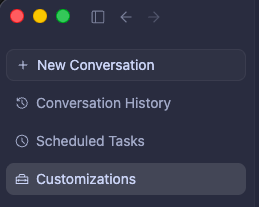
In the left sidebar, click the Customizations tab (below Automations):
-
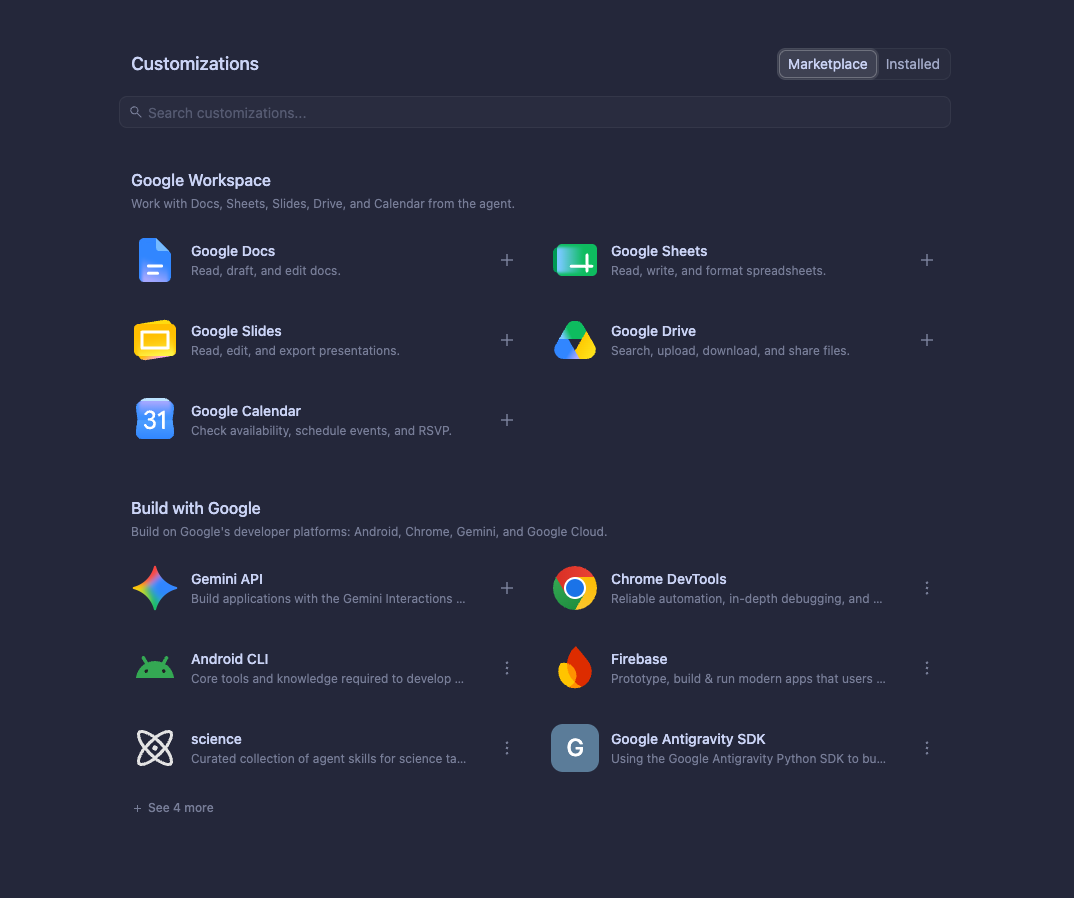
Click the Marketplace tab to view available plugins:
-
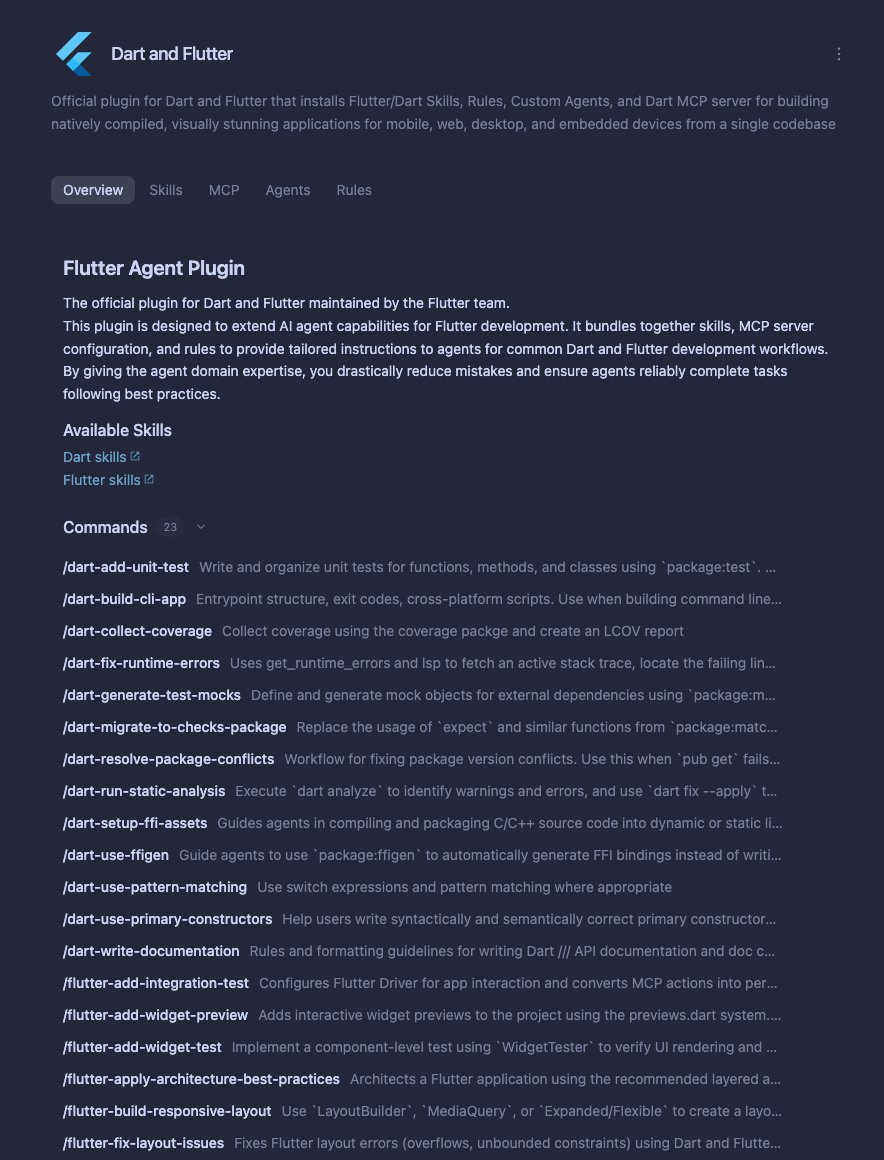
Click any plugin card to inspect its details and bundled capabilities:
-
Click + on the plugin card to install it.
Configure plugin credentials (API keys and OAuth)
Section titled “Configure plugin credentials (API keys and OAuth)”Some plugins connect to external services that require authentication before their MCP tools can run:
- API tokens and configuration variables: If a plugin requires an API key, token, or workspace URL, toggling the plugin on in Customizations > Installed opens a setup dialog prompting for each variable (with a direct link to generate or look up your token).
- OAuth sign-in: If a plugin uses OAuth 2.0, Antigravity opens your browser to complete sign-in when the plugin’s MCP server connects.
Manage installed plugins
Section titled “Manage installed plugins”To inspect, toggle, or uninstall existing plugins:
-
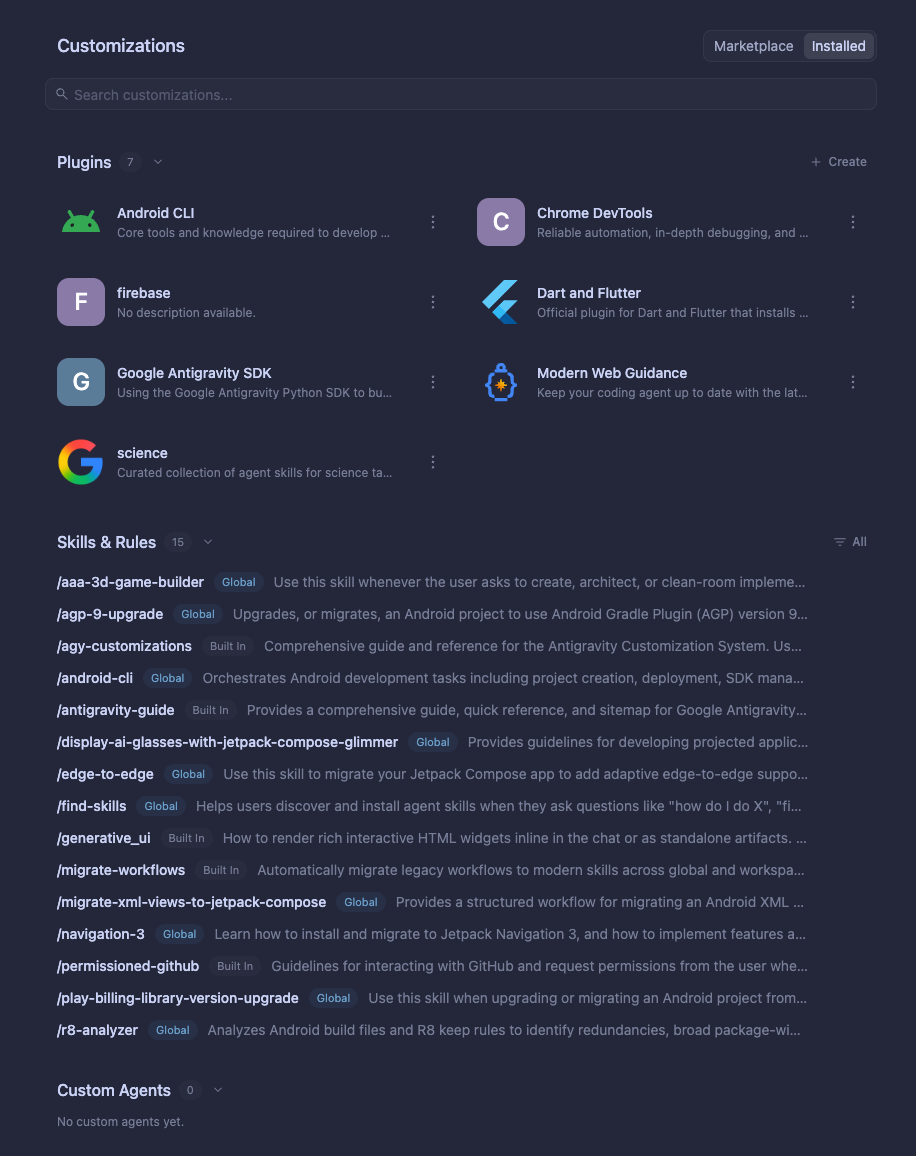
In the Customizations panel, click the Installed tab:
-
Click the ⋮ menu beside any installed plugin (or open the plugin card) to enable, disable, or configure it.
-
Select Uninstall from the ⋮ menu (or on the plugin detail page) to remove a plugin.
Any plugins you install in the Antigravity App automatically sync and appear in the Antigravity CLI’s Installed tab.
Antigravity CLI
Section titled “Antigravity CLI”Open the plugin manager in the CLI
Section titled “Open the plugin manager in the CLI”In the Antigravity CLI, open the interactive plugin manager using the /plugin
slash command (or its alias /plugins):
/pluginInteractive CLI Plugins Manager — press Tab (or click a tab) to switch between Installed and Discover, ↑/↓ to navigate, Enter to expand details, Space to toggle enable/disable, and Ctrl+S to install or uninstall.
Press Tab to switch between the Installed tab and the Discover tab.
Discover tab
Section titled “Discover tab”Use the Discover tab to browse the Marketplace catalog and install new plugins:
- Search plugins: Start typing to search and filter for specific plugins.
- Install from a local directory: Highlight Install from local directory and press Enter to provide a local filesystem path for plugin installation.
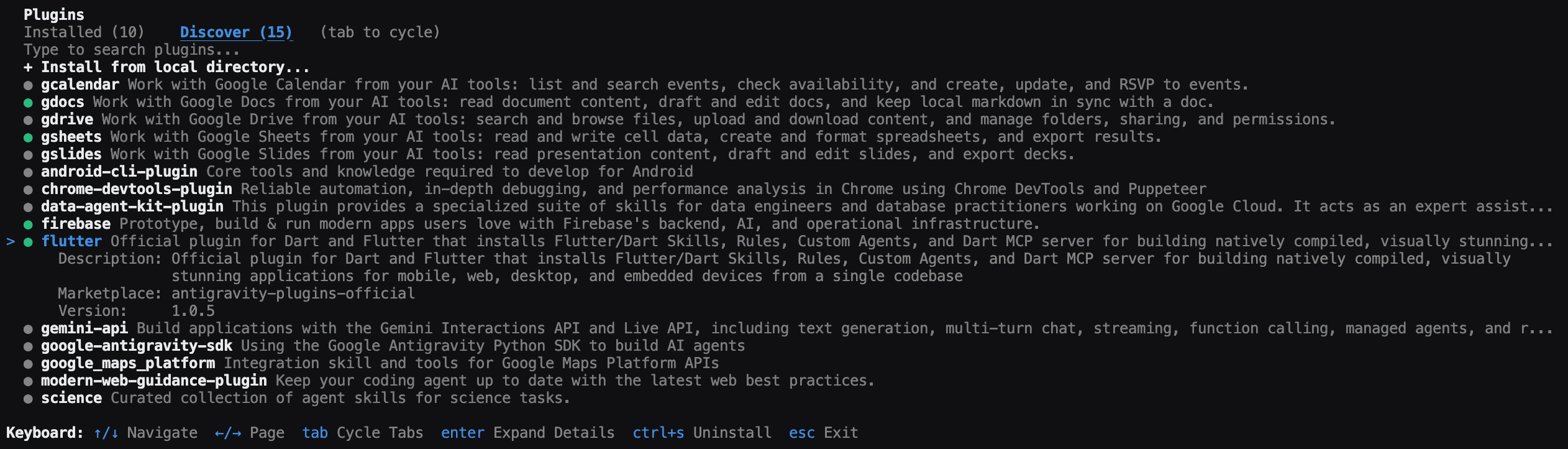
- View plugin details: Highlight a plugin and press Enter to
expand its details view. The details view displays the following information:
- Description
- Included components (MCP servers, skills, rules, agents, and more)
- Marketplace name
- Version
- Install or uninstall: Press Ctrl + S on an uninstalled plugin to install it, or press Ctrl + S on an installed plugin to uninstall it.
The following example shows the Discover tab with the details of a selected plugin expanded:
After installation
Section titled “After installation”Once a plugin is installed, the interface updates as follows:
- Discover tab: A green dot (
●) appears beside the plugin name indicating its installed status. - Installed tab: The plugin name appears in the Installed tab list.
Installed tab
Section titled “Installed tab”Use the Installed tab to inspect and manage the plugins you have installed:
- Search installed plugins: Start typing to filter your installed plugins.
- Enable or disable: Press Space on an installed plugin to toggle
it between enabled and disabled. If the plugin declares required MCP
credentials (
variables), pressing Space opens an interactive prompt to fill in those values before enabling the plugin. - View plugin details: Press Enter on an installed plugin to
expand its details view. The details view displays the following information:
- Description
- Skills (if applicable)
- MCP servers (if applicable)
- Rules (if applicable)
- Agents (if applicable)
- Marketplace name
- Local installation path
- Version
- Uninstall: Press Ctrl + S on an installed plugin to uninstall it.
Keyboard shortcuts
Section titled “Keyboard shortcuts”The following keyboard shortcuts are available in the plugin manager:
| Key | Tab | Action |
|---|---|---|
| Tab | Both | Switch between the Installed tab and Discover tab. |
| Any key | Both | Search and filter plugins in the active tab. |
| Enter | Both | Expand plugin details (or select Install from local directory in Discover). |
| Ctrl + S | Both | Install an uninstalled plugin, or uninstall an installed plugin. |
| Space | Installed | Toggle enable or disable on an installed plugin. |
Inline /plugin commands
Section titled “Inline /plugin commands”In addition to the interactive panel, /plugin supports inline commands to
install, uninstall, enable, disable, and list plugins directly from
the prompt without opening the plugin manager UI:
-
Install from the official marketplace or a local directory: Run the following commands (
<marketplace-name>supports the official marketplace,antigravity-plugins-official):/plugin install <plugin-name>@antigravity-plugins-official /plugin install <local-path>For example, running
/plugin install firebase@antigravity-plugins-officialoutputs:Successfully installed plugin "firebase" from "antigravity-plugins-official". -
Manage and list plugins inline: Run the following commands:
/plugin uninstall <plugin-name>
/plugin enable <plugin-name>
/plugin disable <plugin-name>
/plugin list
Install from your shell (agy plugin)
Section titled “Install from your shell (agy plugin)”Outside an interactive TUI session, you can install and manage plugins directly
from your shell using agy plugin:
- Install from the official marketplace: Once signed in to
agy, specify<plugin-name>@antigravity-plugins-official(<marketplace-name>only supports the official marketplace,antigravity-plugins-official), or pass a bare<plugin-name>, which defaults to<plugin-name>@antigravity-plugins-official:
Running either command outputs:agy plugin install firebase@antigravity-plugins-official agy plugin install firebaseInstalled plugin "firebase" from antigravity-plugins-official - Install from a GitHub link: Clone and stage a plugin directly from a
GitHub repository URL:
agy plugin install https://github.com/<owner>/<repo> - Install from a local directory: Stage a local plugin folder into your
profile:
agy plugin install </path/to/local/plugin> - List installed plugins: Run
agy plugin listfor a human-readable summary of installed plugins and their component counts, or pass--jsonto output a JSON array with installation paths and component names:agy plugin list agy plugin list --json - Enable, disable, or uninstall plugins:
agy plugin enable <plugin-name>
agy plugin disable <plugin-name>
agy plugin uninstall <plugin-name>
Using installed plugins
Section titled “Using installed plugins”Once a plugin is installed and enabled, its bundled capabilities are available in your workspace automatically:
| Component | How to use it in your workflow |
|---|---|
| Starter prompts | In the Antigravity App (Customizations > Installed), open a plugin’s detail view and click any suggested prompt chip to start a guided task immediately. |
| Skills | Ask for a task in natural language—Antigravity loads relevant plugin skills on demand using progressive disclosure—or invoke a skill explicitly in chat with /<skill-name>. |
| MCP servers | Ask the agent to query or act on the connected service (such as Jira, Figma, Datadog, Stripe, or Firebase). Bundled MCP tools (namespaced as <plugin-name>_<server-name>) are available automatically while the plugin is enabled. |
| Custom agents & subagents | The main agent delegates specialized tasks (such as security reviews or accessibility audits) to bundled subagents automatically. You can also run a plugin’s custom agent directly as your primary session agent via the agent selector in the App, /agents in the CLI, or agy --agent <agent-name> from your terminal (run agy agents to list all available agents). |
| Rules & Hooks | Run automatically in the background while the plugin is enabled—enforcing coding conventions, SDK standards, and pre- or post-tool policy checks without manual invocation. |
Next steps
Section titled “Next steps”Explore related documentation and guides:
- Plugins: Learn how to configure, use, and manage installed plugins across the Antigravity App, Antigravity CLI, and Antigravity IDE.
- Build plugins: Author
plugin.jsonmanifests, bundle skills, MCP servers, custom agents, rules, and hooks, and validate your plugin locally withagy plugin validate --strict. - Get your plugin in the marketplace: Fill out this interest form to submit your validated plugin to the Antigravity Marketplace.
- Build with Google: Explore curated Google plugins for Firebase, Android, Flutter, Chrome DevTools, BigQuery, and more.
- CLI reference: View all slash commands and keyboard shortcuts in the Antigravity CLI.