

Model Context Protocol (MCP)
Section titled “Model Context Protocol (MCP)”Antigravity supports the Model Context Protocol (MCP), an open standard that lets AI agents and editors securely connect to local developer tools, databases, file parsers, and external remote APIs. This integration provides the AI model with real-time context and execution capabilities beyond your immediate workspace.
In this guide, you’ll learn how to connect and configure MCP servers across Antigravity products.
What is MCP?
Section titled “What is MCP?”MCP acts as a universal bridge between Antigravity and your broader development environment. Instead of manually copying and pasting database schemas, logs, or API specifications into prompts or chat panels, MCP lets Antigravity fetch structured context directly or execute safe actions on your behalf when needed.
Add context
Section titled “Add context”With MCP, Antigravity can use live data from connected MCP servers to inform its reasoning and suggestions:
- When writing a SQL query, Antigravity can inspect your live Neon, Supabase, or AlloyDB schema to suggest correct table and column names.
- When debugging deployment failures, Antigravity can pull recent build logs directly from Netlify or Heroku.
Add custom tools
Section titled “Add custom tools”With MCP, Antigravity can execute specific, safe actions defined by your connected servers:
- Create a Linear issue for a
TODOitem. - Search Notion or GitHub for authentication patterns.
Getting started by surface
Section titled “Getting started by surface”Antigravity App
Section titled “Antigravity App”In the Antigravity App, you can manage your MCP servers through the Installed MCP Servers section of your Settings.
To view and update your MCP servers:
- Click the Settings button on the bottom left of your screen.
- Select Customizations and review the Installed MCP Servers section.
To install an MCP server from the Installed MCP Servers section:
- Click Add MCP. This connects you to the MCP Store, a searchable list of available MCP servers.
- Search or scroll down to an MCP server you’d like to install.
- Click Add.
To manage your MCP servers from this screen:
- Uninstall: Click the trash can icon next to the MCP server in the list.
- Disable or enable: Click the toggle switch next to the MCP server in the list.
- Refresh: Click the refresh button.
Antigravity CLI
Section titled “Antigravity CLI”Antigravity CLI supports both local stdio processes and remote host MCP server configurations. The simplest path to installing an MCP server on Antigravity CLI is by using the Interactive MCP Manager. You can also manually edit your global server setup or workspace-level mcp_config.json.
Interactive MCP manager
Section titled “Interactive MCP manager”Type /mcp inside the prompt panel and press Enter to open the interactive MCP Manager Overlay. This panel lets you perform the following actions:
- View live status rings for active, disconnected, or loading servers.
- Manually reload server configurations or inspect real-time connection logs.
Global and workspace server configs
Section titled “Global and workspace server configs”Antigravity CLI loads MCP server definitions from two configuration files:
- Global configuration:
~/.gemini/config/mcp_config.json, which applies to all your projects. - Workspace configuration:
<workspace>/.agents/mcp_config.json, which applies only to that workspace.
Enabled plugins can also add MCP servers.
Edit either file directly using the standard MCP server configuration structure. For example, the following entry connects to a remote server and raises its timeout to 600 seconds (10 minutes) for long-running tools:
{
  "mcpServers": {
    "my-remote-server": {
      "serverUrl": "https://api.example.com/mcp/",
      "headers": {
        "Authorization": "Bearer YOUR_API_TOKEN"
      },
      "timeoutSeconds": 600
    }
  }
}Antigravity IDE
Section titled “Antigravity IDE”In Antigravity IDE, the easiest way to manage MCP servers is through the built-in MCP Store. In the MCP Store, you can browse, discover, and install supported MCP servers. You can also install custom servers by updating your mcp_config.json.
To use the MCP Store:
- Click … at the top of the editor’s agent side panel and select MCP Servers.
- Hover over any supported server and click Install (or click a server to view details and then click Install).
- Follow any on-screen prompts.
Once installed, resources and tools from the server are automatically available to the editor.
To connect to a custom MCP server not listed in the store:
- Click … at the top of the editor’s agent side panel and select MCP Servers.
- Click Manage MCP Servers.
- Click View raw config.
- Modify the
mcp_config.jsonfile with your custom MCP server configuration.
The configuration file is located globally at ~/.gemini/config/mcp_config.json (or locally in your workspace under .agents/mcp_config.json).
MCP configuration structure
Section titled “MCP configuration structure”Whether configuring custom servers for the Antigravity App, Antigravity IDE, or Antigravity CLI, mcp_config.json follows a standardized JSON schema. The root object contains an mcpServers map where each key is a unique server identifier:
{
  "mcpServers": {
    "sqlite-explorer": {
      "command": "node",
      "args": ["/usr/local/bin/sqlite-mcp-server.js"],
      "env": {
        "SQLITE_DB_PATH": "/var/data/app.db"
      }
    },
    "my-remote-server": {
      "serverUrl": "https://api.example.com/mcp/",
      "headers": {
        "Authorization": "Bearer YOUR_API_TOKEN"
      }
    }
  }
}
MCP configuration properties
Section titled “MCP configuration properties”Each server entry under mcpServers must specify one transport property (command for a local stdio server, or serverUrl for a remote Streamable HTTP server) and can include any of the optional properties below:
| Property | Type | Default | Description |
|---|---|---|---|
command | string | Required for stdio | Executable path or command name used to launch a local stdio MCP server process. |
serverUrl | string | Required for remote | Endpoint URL of a remote MCP server that uses the Streamable HTTP transport. You can also use url. |
args | string[] | [] | Command-line arguments passed to the command executable (stdio transport only). |
env | object | {} | Key-value map of environment variables injected into the local stdio server process. |
cwd | string | — | Working directory used when spawning a local stdio server process. |
headers | object | {} | Custom HTTP request headers sent with remote serverUrl connections (for example, Authorization or API key headers). |
authProviderType | string | — | Built-in authentication provider. Set to "google_credentials" to attach Google Application Default Credentials (ADC). |
oauth | object | — | Manual OAuth 2.0 client credentials (clientId and optional clientSecret) for remote servers that do not support Dynamic Client Registration (DCR). |
disabled | boolean | false | When true, suspends the server connection without removing its configuration from mcp_config.json. |
enabledTools | string[] | — | Allowlist of tool names exposed to the agent from this server. When set, all other tools on the server are hidden. |
disabledTools | string[] | [] | Denylist of tool names withheld from the agent. |
timeoutSeconds | integer | 180 per tool call, 300 to connect | Timeout, in seconds, for connecting to the server and listing its tools, and for each tool call. A negative value, such as -1, turns both off. See MCP server timeouts. |
MCP server timeouts
Section titled “MCP server timeouts”By default, Antigravity waits up to 5 minutes for an MCP server to connect and list its tools, and up to 3 minutes for each tool call. A tool call that runs longer fails with an error that names the server and the limit, for example:
MCP tool call to server "sqlite-explorer" timed out after 3m0sIf a server’s tools need more time, set timeoutSeconds in that server’s entry:
- A positive value, in seconds, replaces both limits. For example,
600lets each tool call run for up to 10 minutes. - A negative value, such as
-1, turns off both limits. 0, or leavingtimeoutSecondsunset, keeps the defaults.
Because the same value limits how long the server has to connect, a small value can stop a slow-starting server from connecting.
The following example lets each tool call on the sqlite-explorer server run for up to 10 minutes:
{
  "mcpServers": {
    "sqlite-explorer": {
      "command": "node",
      "args": ["/usr/local/bin/sqlite-mcp-server.js"],
      "timeoutSeconds": 600
    }
  }
}
MCP authentication
Section titled “MCP authentication”Connected MCP servers can securely authenticate against external services using built-in Google credentials, automatic OAuth flows, or custom HTTP headers.
Google credentials
Section titled “Google credentials”Set authProviderType to "google_credentials" to use Google Application Default Credentials (ADC):
{
  "mcpServers": {
    "my-gcp-service": {
      "serverUrl": "https://example.googleapis.com/mcp/",
      "authProviderType": "google_credentials"
    }
  }
}
This requires Application Default Credentials to be configured locally. To set them up, run:
gcloud auth application-default loginIf you previously logged in, ensure your quota project is set by running:
gcloud auth application-default set-quota-project {QUOTA_PROJECT}Antigravity automatically handles OAuth for servers that support dynamic client registration (DCR). For these servers, no additional configuration is needed:
{
  "mcpServers": {
    "oauth-server": {
      "serverUrl": "https://api.example.com/mcp/"
    }
  }
}
If the server doesn’t support dynamic client registration, you can provide your client credentials manually:
{
  "mcpServers": {
    "oauth-server": {
      "serverUrl": "https://api.example.com/mcp/",
      "oauth": {
        "clientId": "your-client-id",
        "clientSecret": "your-client-secret"
      }
    }
  }
}
If you provide client credentials manually, ensure the following URL is registered as a redirect URI in your OAuth provider:
https://antigravity.google/oauth-callbackTo connect to an OAuth-enabled server:
-
Open Agent settings with Cmd + , (macOS) or Ctrl + , (Windows and Linux).
-
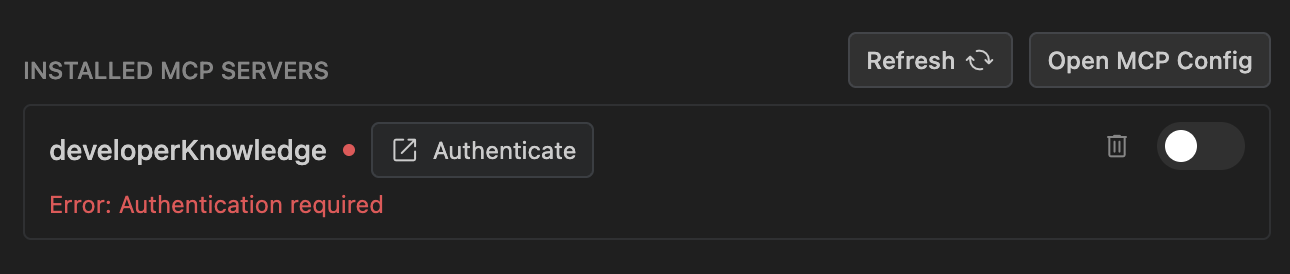
Navigate to the Customizations tab and click Authenticate next to the server.
-
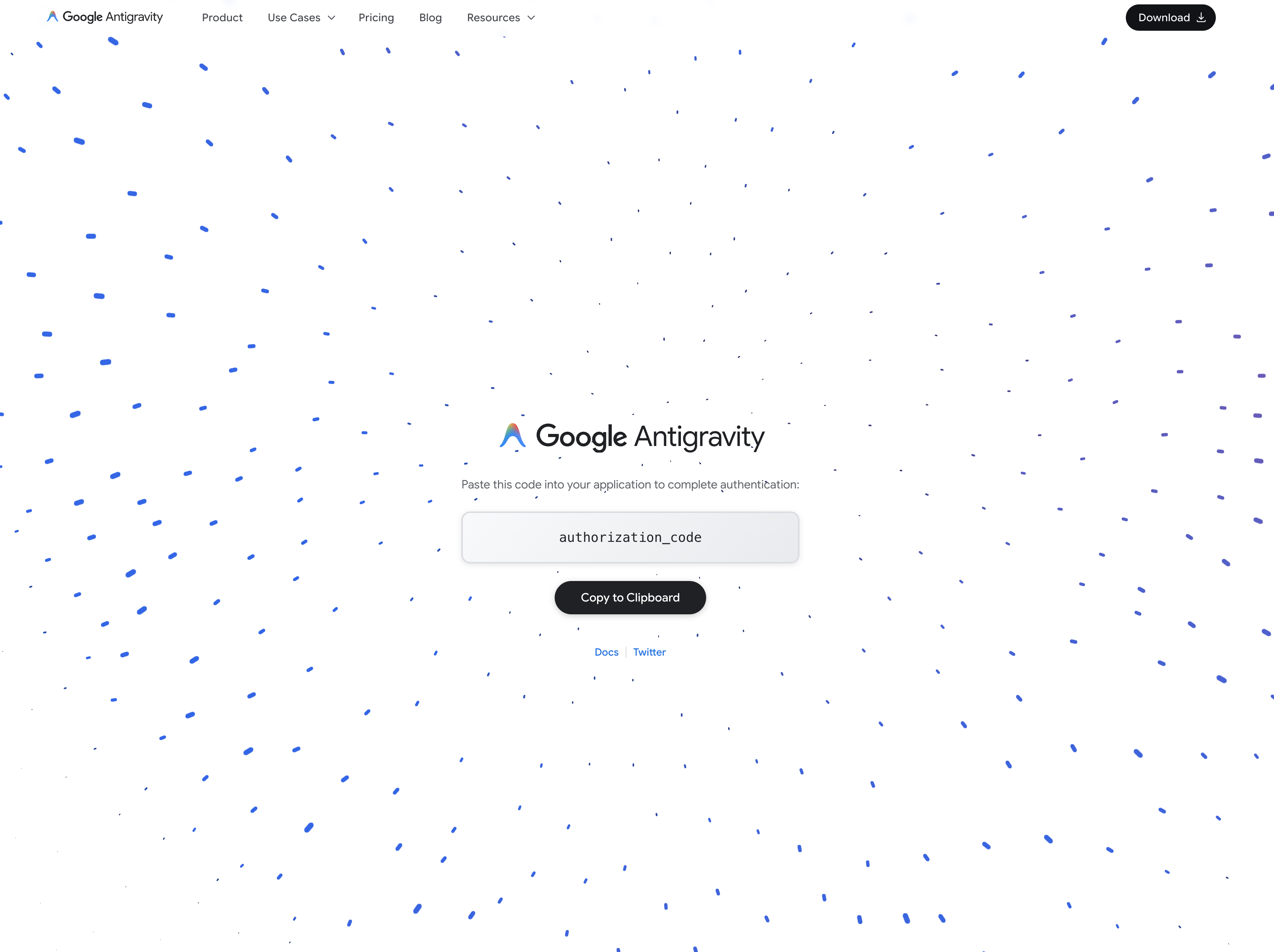
Complete authentication in your browser and copy the authorization code.
-
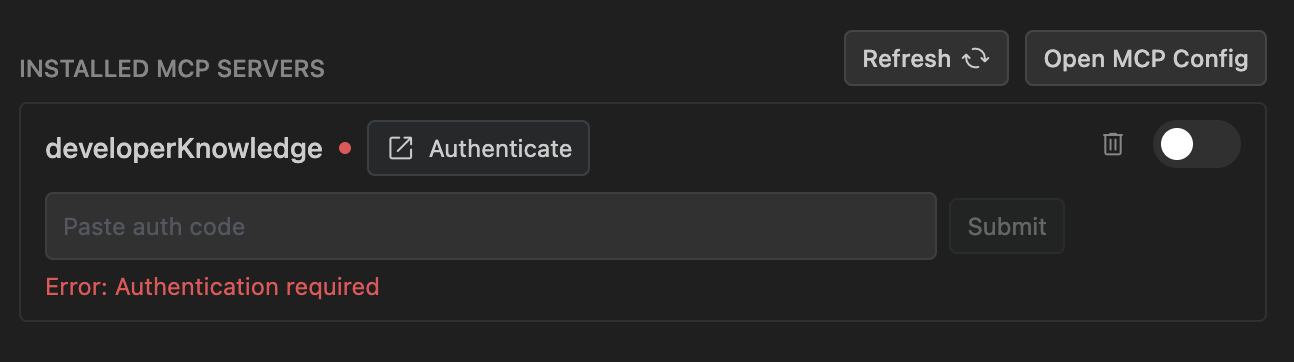
Paste the code back into the settings panel and click Submit.
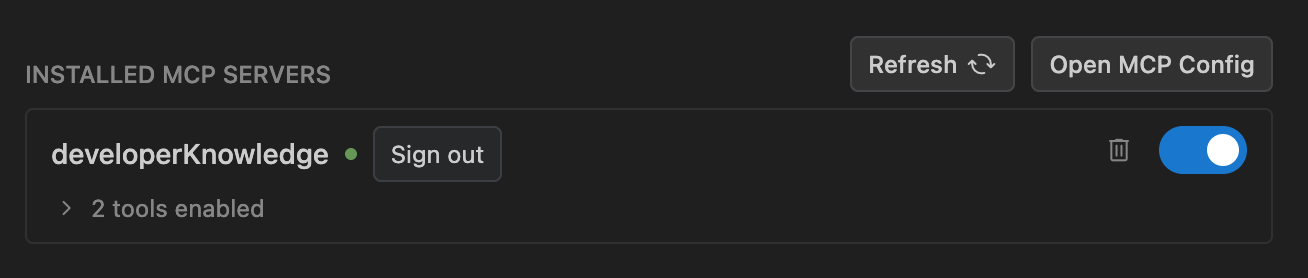
Once authenticated, the server reconnects automatically.
Access tokens are stored in ~/.gemini/antigravity/mcp_oauth_tokens.json. Expired tokens are refreshed automatically, and invalid tokens are removed.
Custom headers
Section titled “Custom headers”For remote servers that require custom HTTP headers (such as API keys or bearer tokens), add them to the headers object. For example:
{
  "mcpServers": {
    "my-remote-server": {
      "serverUrl": "https://api.example.com/mcp/",
      "headers": {
        "Authorization": "Bearer YOUR_API_TOKEN"
      }
    }
  }
}
MCP permissions and access control
Section titled “MCP permissions and access control”Access to Model Context Protocol tools and resources is governed by Antigravity’s permissions system. By default, unconfigured MCP tools run in Ask mode, requiring your approval before execution. You can allow specific tools or entire servers in your policy configuration:
mcp(server/tool): Matches a specific tool on a specific server.mcp(server/*): Matches all tools on a specified server.mcp(*): Global wildcard matching any MCP tool across all connected servers.
Supported MCP servers
Section titled “Supported MCP servers”The MCP Store features direct integrations for a wide variety of developer platforms, databases, and productivity services:
Databases and storage (15 servers)
Developer tools and CI/CD (17 servers)
Frontend and design (8 servers)
Security (4 servers)
Analytics, AI, and cloud (32 servers)
- Airweave
- Antimetal
- Arize
- Cloud Audit Manager
- Courtroom5
- Daloopa
- Docusign
- Exa
- FactSet AI-Ready Data
- Finnhub
- Firebase
- Fiscal.ai
- Google Cloud Quotas
- Grafana Cloud
- Guidepoint
- Harvey
- iManage
- LegalZoom
- Looker
- LSEG
- NetDocuments
- Notion
- Parallel Search
- PayPal
- Perplexity Ask
- PostHog
- Relativity
- S&P Global
- Salesforce
- Sequential Thinking
- Stripe
- Windsor AI