

Antigravity CLI features
Section titled “Antigravity CLI features”Plugins
Section titled “Plugins”How plugins work Plugins are namespaced bundles that can contain skills, agents, rules, MCP servers, and hooks as a single deployable unit.
When you install a plugin, the CLI stages the files in your home directory under ~/.gemini/antigravity-cli/plugins/<plugin_name>/. The Antigravity agent automatically discovers and loads these staged customizations.
~/.gemini/antigravity-cli/
├── plugins/
│   └── <plugin_name>/
│       ├── plugin.json         # Required marker file
│       ├── mcp_config.json     # Optional MCP server definitions
│       ├── hooks.json          # Optional event hooks definition
│       ├── skills/             # Optional skills
│       ├── agents/             # Optional subagents
│       └── rules/              # Optional rules
└── import_manifest.json        # Tracking manifest
Manage plugins with /plugin (Marketplace and installed)
Section titled “Manage plugins with /plugin (Marketplace and installed)”Trigger the interactive Plugins Manager in the CLI using the /plugin slash command (alias /plugins), and press Tab to switch between the Installed tab and the Discover tab:
-
Discover tab: Browse and install available plugins from the catalog:
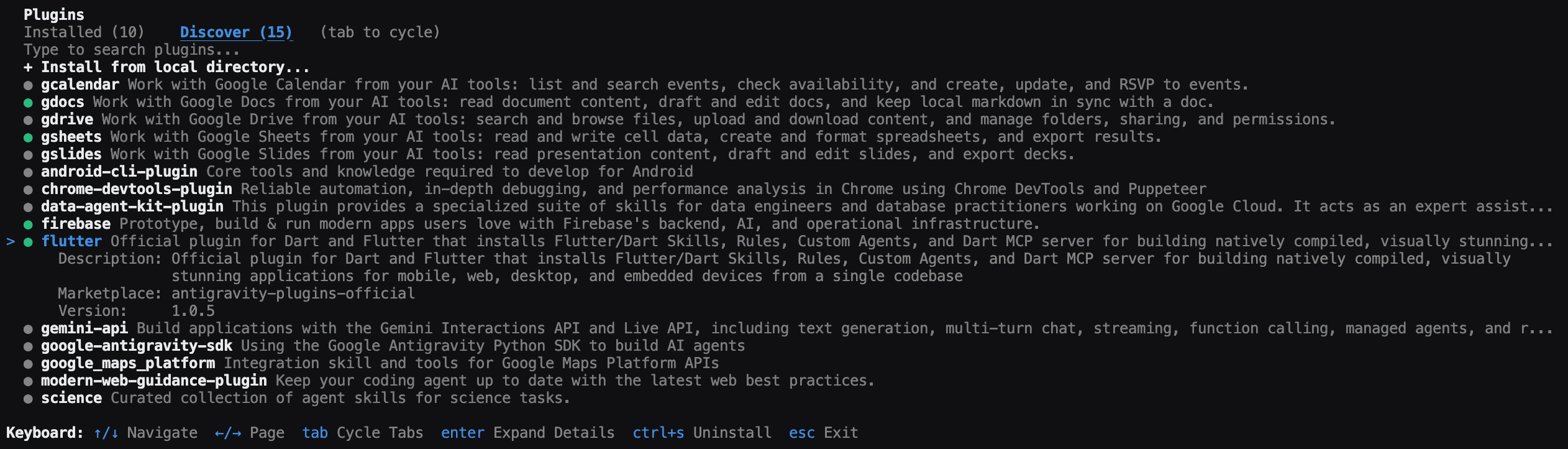
- Type to start searching for specific plugins.
- Press Enter to select Install from local directory and provide a local path for plugin installation.
- Press Enter on a plugin to expand its details view (includes description, components such as MCP and skills, marketplace, and version).
- Press Ctrl + S on an uninstalled plugin to install it (or Ctrl + S on an installed plugin to uninstall it).
- After installation: A green dot (
●) appears beside the plugin name in the Discover tab denoting its installed status, and the plugin name appears in the Installed tab.
-
Installed tab: View and configure your installed plugins:
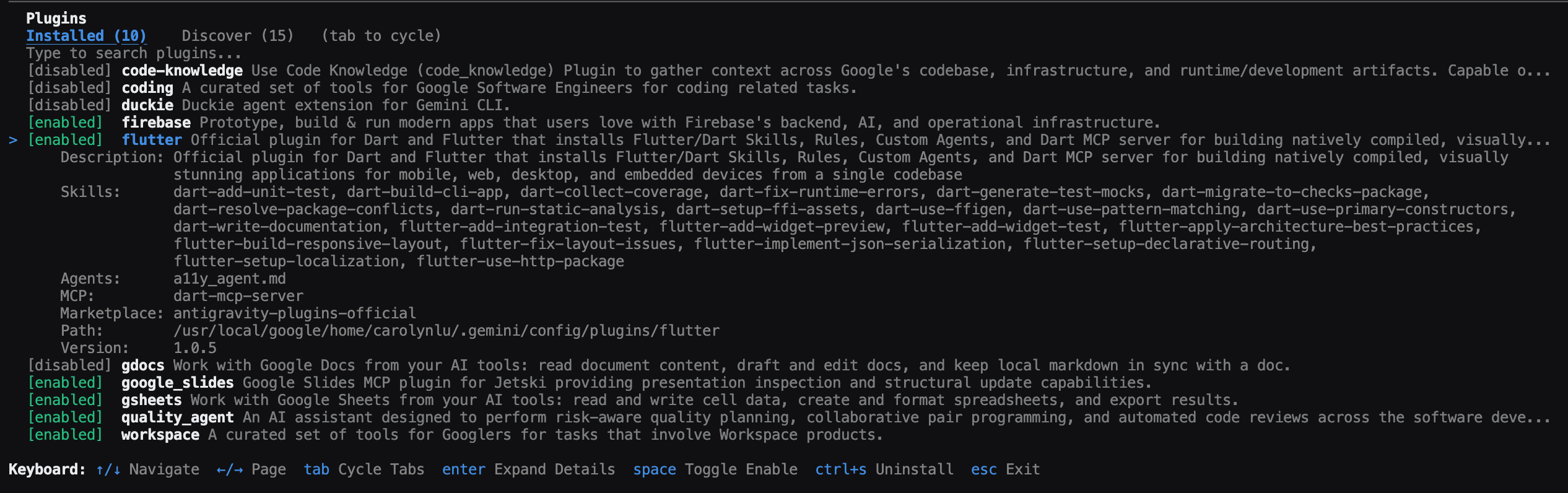
- Type to start searching for installed plugins.
- Press Space to toggle enabling or disabling a plugin.
- Press Enter on an installed plugin to expand its details view (includes description, skills if applicable, MCP if applicable, marketplace, local installation path, and version).
-
Inline commands: Manage plugins directly from the prompt without opening the interactive panel:
/pluginprovides inlineinstall,uninstall,enable,disable, andlistsubcommands without needing to open the interactive Plugins Manager panel.- To install inline, run
/plugin install <plugin-name>@<marketplace-name>or/plugin install <local-path>. For example, running/plugin install firebase@agent-marketplaceoutputs:Successfully installed plugin "firebase" from "agent-marketplace"
Accessing plugin components Once staged and loaded, you can interact with the plugin components inside the CLI using slash commands.
Terminal sandbox
Section titled “Terminal sandbox”The terminal sandbox is a lightweight security isolation mechanism that protects your host system from potentially destructive file manipulations or unauthorized outbound network requests when the agent executes local shell commands.
Rather than running heavy virtual machines or containers, the CLI uses native operating system features (nsjail on Linux, sandbox-exec on macOS, and AppContainer on Windows) to enforce strict containment boundaries with zero startup overhead.
Configuration
You can configure the sandbox behavior in your settings.json file (located at ~/.gemini/antigravity-cli/settings.json):
{
    "enableTerminalSandbox": true
}
The configuration supports the following option:
enableTerminalSandbox(boolean, default:false): Enables general execution containment barriers on all local agent processes.
Interactive approvals When the agent proposes a terminal command that requires your confirmation, the CLI prompt adapts dynamically based on your settings:
- When the sandbox is enabled: The confirmation prompt includes a specific option to Yes, and run without sandbox restrictions if you need to temporarily bypass the containment boundary for a single trusted command.
- When the sandbox is disabled: The prompt includes an option to Yes, and run in sandbox if you want to force a specific, potentially risky command to execute within the safety boundary.
CLI slash commands reference
Section titled “CLI slash commands reference”The Antigravity CLI supports a variety of slash commands typed directly into the prompt box to manage conversations, configure settings, and inspect agent capabilities.
Core slash commands
Section titled “Core slash commands”| Command | Category | Purpose |
|---|---|---|
/resume (alias /switch) | Conversation | Open the conversation picker to resume or switch sessions. |
/boost <task> | Reasoning | Multi-agent deep reasoning for complex bugs, race conditions, and algorithms. |
/teamwork-preview <task> | Reasoning | Launch collaborative multi-agent teams for long-horizon projects (paid plans). |
/rewind (alias /undo) | Conversation | Roll back conversation history to a previous checkpoint. |
/rename <name> | Conversation | Rename the active conversation thread for easier tracking. |
/permissions | Configuration | Select agent autonomy level (request-review, always-proceed, or strict). |
/model | Configuration | Select the default reasoning model (persists across sessions). |
/keybindings | Configuration | Open the interactive keyboard shortcut editor. |
/statusline | Configuration | Customize real-time indicators displayed in the CLI status bar. |
/tasks | Tools & Monitoring | Monitor, view logs for, or terminate active background tasks. |
/plugin (alias /plugins) | Tools & Monitoring | Open the interactive Plugins Manager to discover, install, enable, disable, or uninstall plugins. |
/skills | Tools & Monitoring | Browse local and global encapsulated agent workflows. |
/mcp | Tools & Monitoring | Open the panel to configure and manage Model Context Protocol servers. |
/open <path> | Utility | Immediately open a file in your preferred external editor. |
/diff | Utility | Open the interactive diff viewer to review changes and steer the agent. |
/remote-control | Utility | Turn on or off Remote Control for the active terminal session. |
/usage | Utility | Open the inline interactive help manual inside the terminal. |
/logout | Account | Log out of your Google session and clear cached credentials. |
Advanced customization using settings.json
Section titled “Advanced customization using settings.json”For power users, several slash commands support deep customization using your ~/.gemini/antigravity-cli/settings.json configuration:
- Fine-grained permissions: Instead of global levels, define specific allowed or denied commands:
"permissions": { "allow": ["command(git)", "command(npm test)"], "deny": ["command(rm -rf)"] } - Custom status line and window titles: You can pipe live agent metadata (JSON format containing the current working directory, active model, token usage, state, and more) directly into your own custom shell scripts to generate dynamic status bars or terminal window titles.
Subagents in Antigravity CLI
Section titled “Subagents in Antigravity CLI”Antigravity CLI features an asynchronous subagents framework that allows the main agent to delegate parallel work, perform background research, and run system tests without blocking your active conversation.
What are subagents? Subagents are independent, concurrent agent sessions designed to tackle specific background tasks in parallel with the main conversation:
- Purpose: The main agent automatically spawns subagents to perform background operations such as looking up documentation, running builds, or validating a fix.
- Capabilities: Subagents have full access to tools such as code search, file editing, terminal commands, and web searches to complete their assigned tasks. The main agent decides what tools and permissions subagents get, including whether they can use MCP tools and whether they can write files.
Managing agents: the /agents panel
Section titled “Managing agents: the /agents panel”Antigravity CLI provides an interactive terminal UI to view, manage, and approve actions for running subagents:
- Access: Type
/agentsin the prompt to open the subagents panel. - Overview: The panel shows a list of active and completed subagents, including surface-level details such as their status (such as running, done, or killed) and the current step they’re executing.
Tool confirmations and approvals When a subagent needs to execute a tool that requires your permission (such as running a local command or writing a file), it surfaces the request. You can manage approvals in two ways:
- Detail view approvals: The subagent detail view features an interaction section containing all pending approvals, where you can selectively approve or deny requests.
- Fast-path alerts: To keep you in your flow, Antigravity CLI displays a fast-path alert directly above your prompt box when a subagent requests permission.