Explore our next generation products
Built for developers and teams in the agent-first era
Everything you need to stay up-to-date and get help
Voice mode in Antigravity

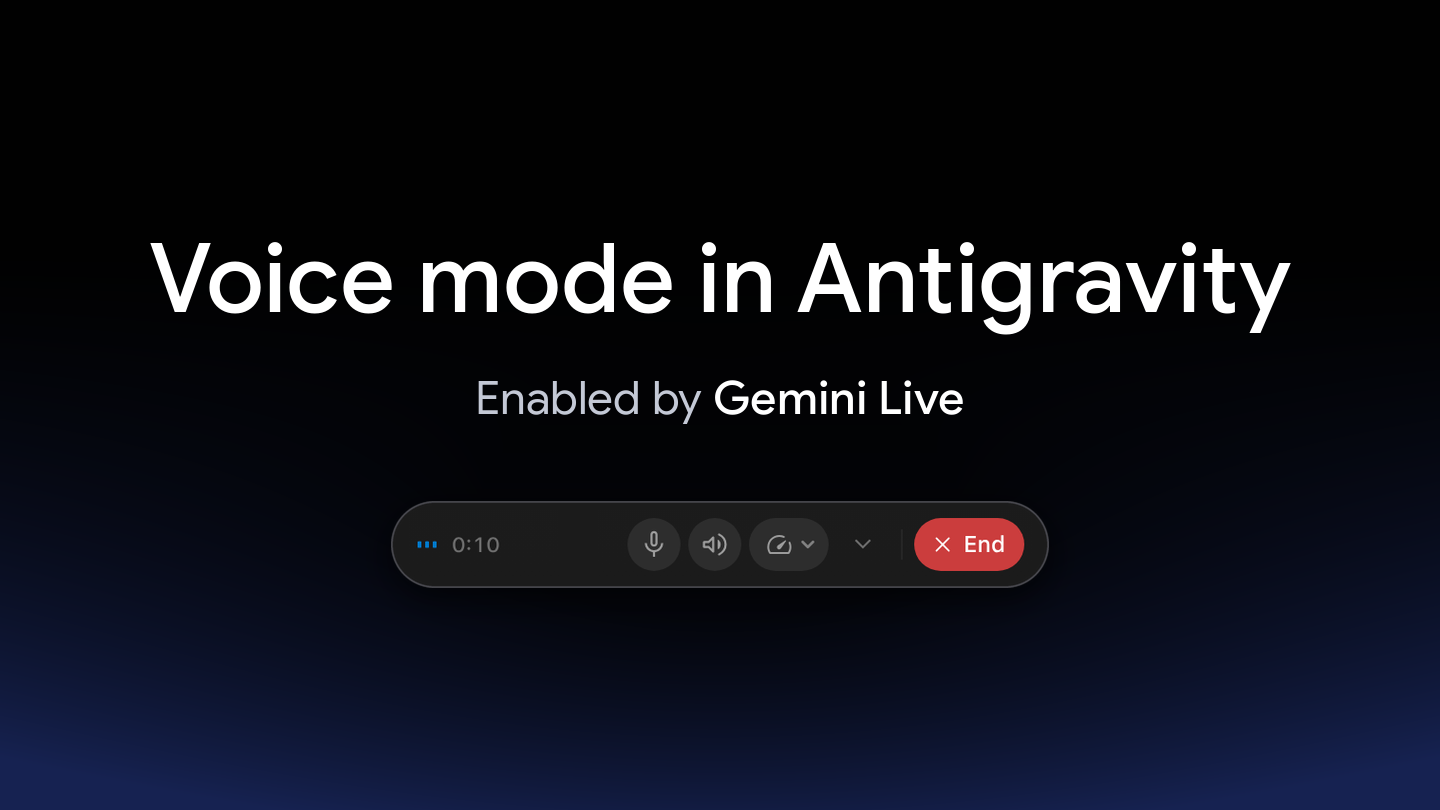
Some of the best engineering happens out loud. You talk a bug through with a teammate, think out loud in front of a whiteboard, or say “wait, try it the other way” halfway through a pairing session. Working with an agent has mostly had a different rhythm: you type a prompt, the agent works, you read what it did, and you type again.
As agents take on longer tasks, more of that loop is steering. You remember a detail that you forgot to mention, answer a permission prompt, or wonder what the agent is doing right now. Each of those moments pulls you back to the keyboard and away from whatever you were looking at.
Today, we’re introducing voice mode in Antigravity, enabled by Gemini Live. It’s available in the Antigravity App and the Antigravity CLI. Turn it on and talk with the agent the way you’d talk to a teammate on a call: give it a task, steer the work while it runs, and answer permission prompts without clicking. The agent answers out loud in real time, and its work appears in the conversation as usual.
What is voice mode in Antigravity?
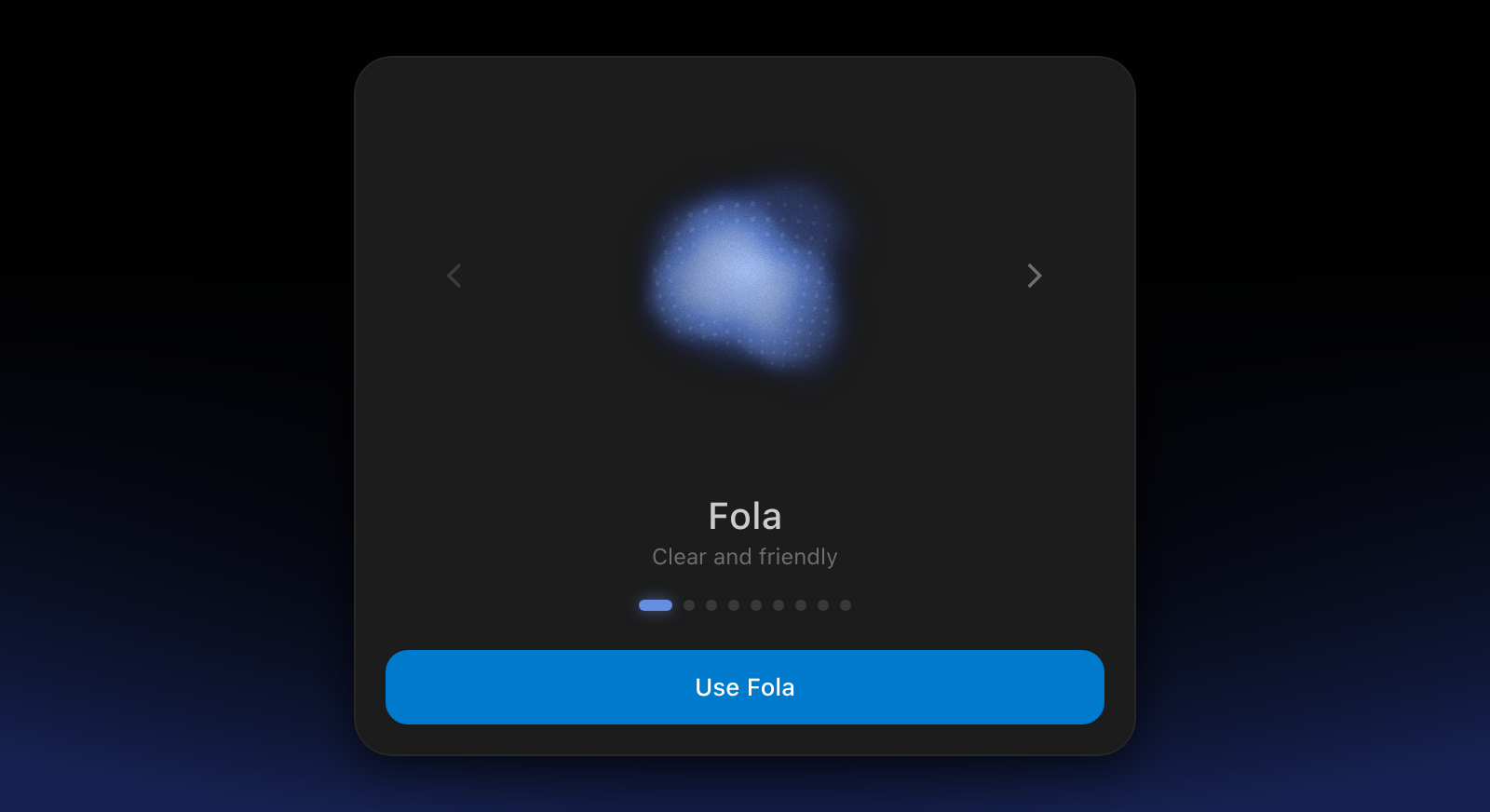
Voice mode turns a conversation in the Antigravity App into a spoken, two-way conversation with the agent. Click Start Voice mode in the message box, choose a voice the first time, and start talking. Voice mode continues the conversation that you’re in, so the agent already has the context of everything that came before, including the messages that you typed.
The agent still does the real work in the conversation. It reads your code, edits files, runs commands, and shows you the results, so you can keep your eyes on your code while you listen, and read along whenever you want the details. While you talk, a panel above the message box shows what you’re saying, and then lights up the agent’s reply word by word as it speaks.
Voice mode in the Antigravity App: ask for a fix out loud, let the agent work, and hear the result. The video has sound.
Enabled by Gemini Live
Voice mode runs on the Gemini Live model. It hears your voice directly instead of a transcript, so a misheard word in the transcript doesn’t mean that it misunderstood you. It answers out loud in real time, and you can interrupt it at any time just by talking, the same way you’d jump in on a call.
What you can do with voice mode
Talk it through
Describe what you want the way you’d describe it to a teammate. For example, ask the agent to find the failing test and fix it, and it confirms what it’s going to do and gets to work. Quick questions about something it just said get an answer right away, and anything that needs your code, files, or tools becomes work in the conversation. When the work is done, you hear the result.
Steer while it works
You don’t have to wait for a task to finish to change it. Add a detail, correct course (“just check it, don’t change anything yet”), or ask “What are you doing?” to hear where things stand. Say “stop,” and the agent stops the task that’s running. Say “hold on” when you need a moment to read.
Approve by voice, with guardrails
When the agent needs your approval for an action, it reads the request out loud with its recommendation and waits for your answer. Say “allow it just this once,” “allow it for this conversation,” or “no, run the tests first,” and the agent confirms with a quick “Done.”
Your usual permissions still apply. Destructive actions, such as deleting files, running commands with elevated privileges, or force-pushing to a Git remote, can’t be approved by voice. For those, you click Allow on screen, so the riskiest actions always get a second look. You can still deny them by voice.
Quiet until you need it
An agent that narrates every step gets old fast. By default, the agent works quietly and speaks up only when it has an answer or needs your input. Want a play-by-play? Say “keep me posted,” and you hear a short update about every 30 seconds, or ask for a different interval, such as “update me once a minute.” Voice mode starts quiet again every time you turn it on.
Show it, don’t just say it
Some things are better read than heard. Ask the agent to show you a table or draw a diagram, and it adds it to the conversation and walks you through it out loud instead of reading every cell to you. When you do want an answer word for word, just ask.
Make it yours
Choose from nine voices, and set how fast the agent talks, from 0.75x to 2x, right from the call controls. Mute your microphone with Option+M on macOS or Alt+M on Windows and Linux, or mute the agent’s voice with Shift+Option+M or Alt+Shift+M and read its replies instead. If you switch to another conversation, voice mode keeps going in a floating dock, so you can keep talking while you look at something else.
Voice mode in your terminal
Voice mode works the same way in the Antigravity CLI. In a conversation, run /voice live or press F6, and start talking. A status row below the prompt shows how long voice mode has been on and whether the agent is listening, thinking, or speaking, and what you both say appears in the conversation alongside the agent’s work. Press F6 to mute your microphone, and press Esc on an empty prompt to hang up when the agent is idle.
Voice mode in the Antigravity CLI: start it with /voice live, ask for a fix out loud, and hear the result. The video has sound.
The rest is a command away: /voice speaker changes the voice, /voice speed sets how fast the agent talks, and /voice duplex on lets you interrupt the agent by talking. Working over SSH? Run agy mic-serve on your own computer and start the CLI with ANTIGRAVITY_MIC set, and voice mode uses your computer’s microphone and speaker.
Built on your conversation
Voice mode doesn’t replace the conversation; it gives it a voice. In voice mode, the Gemini Live model can reach only the conversation that you started voice mode in, and work on your files, commands, and tools happens in that conversation, under your usual permissions. You can also type a message or attach a screenshot or a log file while you talk. The agent acknowledges it out loud and works on it like a spoken request.
When you’re done, say “Bye,” or click End. Everything that the agent wrote, edited, or drew stays in the conversation, along with a transcript of what you both said, and any task that’s still running keeps going after you hang up. To learn how Antigravity handles your voice, see How voice mode works.
Get started
Voice mode in Antigravity is available in the Antigravity App and in the Antigravity CLI version 1.5.0 and later.
To use voice mode in the Antigravity App, do the following:
- Start a new conversation or open an existing one.
- With the message box empty, click Start Voice mode. If the Antigravity App asks for access to your microphone, allow it.
- Choose a voice, and start talking.
To use voice mode in the Antigravity CLI, do the following:
- Start the Antigravity CLI in your project.
- Run
/voice live, or pressF6. - Start talking.
To learn more, see the voice mode documentation. Let us know on X what you build when you can just talk it through.