Explore our next generation products
Built for developers in the agent-first era
Everything you need to stay up-to-date and get help
Improving the version control experience
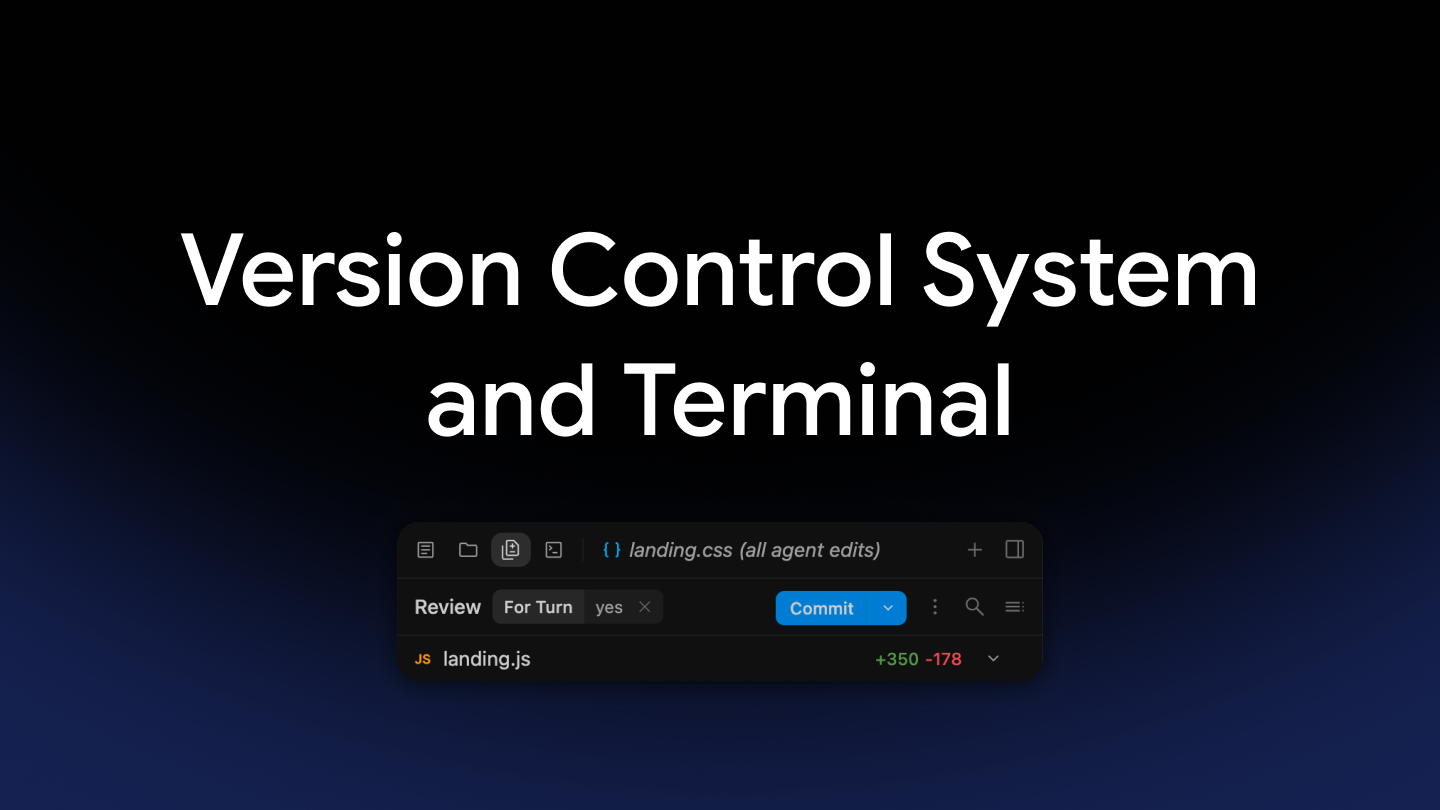
When pairing with an AI coding assistant, reviewability and trust are everything. You need to know exactly what changed in your workspace, how it changed, and what state your repository is currently in.
We used to switch between Antigravity 2.0, our terminal, and any separate version control system GUI we were running as well. With this update we’ve introduced Git Version Control System (VCS) Controls directly in the Antigravity right-side panel, giving you a first-class UI for doing version control operations. We also added a terminal tab so any other commands you want to run are just a click away and you are able to maintain your workflow instead of switching apps.
What exactly changed?
We updated the agent sidebar to now show more than Agent edits (changes made from the editing tool), but also to show any changes that were made against your current branch. These include things like a Python script making changes to your files, editing in a separate text editor, and side effects from a Bash script editing files.
When the side panel only tracks agent tool edits, your UI gets out of sync with
your working directory. You end up constantly switching back to your terminal
to run git status and git diff. We simplified that by adding in a VCS diff
tracker into Antigravity 2.0 and additionally offering a terminal tab as well.
Giving you more flexibility to track your changes to your repository and to
launch command-line tools as needed.
Interactive experience: try the VCS side panel
Test out the workflows directly in this interactive simulation:
- Switch views: In the top left corner, use the dropdown at the top to toggle between Agent Edits, Uncommitted, and Branch to see how Antigravity categorizes changes.
- Inspect diffs: In the right sidebar, click modified files, toggle Split vs. Unified Diff in the
...menu, or use the search tool for diffs. - Use the terminal: In the top left corner, click the Terminal icon in the activity bar to run commands like
git statusorgo test ./.... - Stage and commit: Click Commit to open the commit dialog and preview auto-generated commit messages.
What’s new in the Antigravity side panel
With the new VCS integration located in the right-side panel, Antigravity connects directly to your Git working tree. You get a single, unified view of all changes across your branch and workspace.
VCS integration in the review pane
See true, VCS-grounded diffs for your current working directory. The panel
reflects changes on your branch relative to origin/main as well as any
uncommitted changes in your workspace, regardless of whether they were made by
an agent or another utility. Review these changes with Git-native precision. The
sidebar provides a dedicated view for your staged changes, making it
effortless to review what is staged and primed for your next commit. Perform
relevant Git actions directly from the UI based on your repository state:
- Stage and unstage changes: Select and stage modified files right from the list.
- Commit: Craft your commit message and commit your changes directly from the sidebar without switching contexts.
An embedded terminal for everything else
Access to your terminal embedded right in Antigravity 2.0 gives you access to many more of your command-line tools that you would need to switch to before. You can now maintain your focus by having your devtools a click away in the terminal. Use the terminal to run tests, linters, build tools, perform package management, and any other command-line tool that you need to use.
Summary and what’s next
While full visibility into your Git working tree solves a major visibility gap, the real benefit is completing the development loop end-to-end within Antigravity 2.0. By combining working tree diffs, an embedded terminal, and direct Git operations in the right-side panel, you can inspect changes that the agent is making, run commands, and push commits without context switching.
We’d love to hear how you’re using the new VCS controls! Try out the side panel in your daily workflows and let us know what you think on X (@antigravity).