Explore our next generation products
Built for developers in the agent-first era
Everything you need to stay up-to-date and get help
Introducing IDE extensions
When we launched Google Antigravity, our goal was to prove what software development looks like when built from the ground up around autonomous agents. With Antigravity 2.0, we established our flagship standalone application optimized for end-to-end multi-agent coordination and have since expanded it to support multi-root workspaces and scoped permissions.
As AI models become more capable, we believe software development will increasingly take place inside agent-first surfaces like Antigravity 2.0 or the CLI. That being said, there are always moments when you need to drill down into the implementation details, inspect specific lines of code, or step through complex logic with an interactive debugger inside an IDE.
That is why we are introducing Antigravity Extensions for your favorite development environments: Visual Studio Code, Visual Studio, Zed, JetBrains, and Xcode.
Supported IDEs
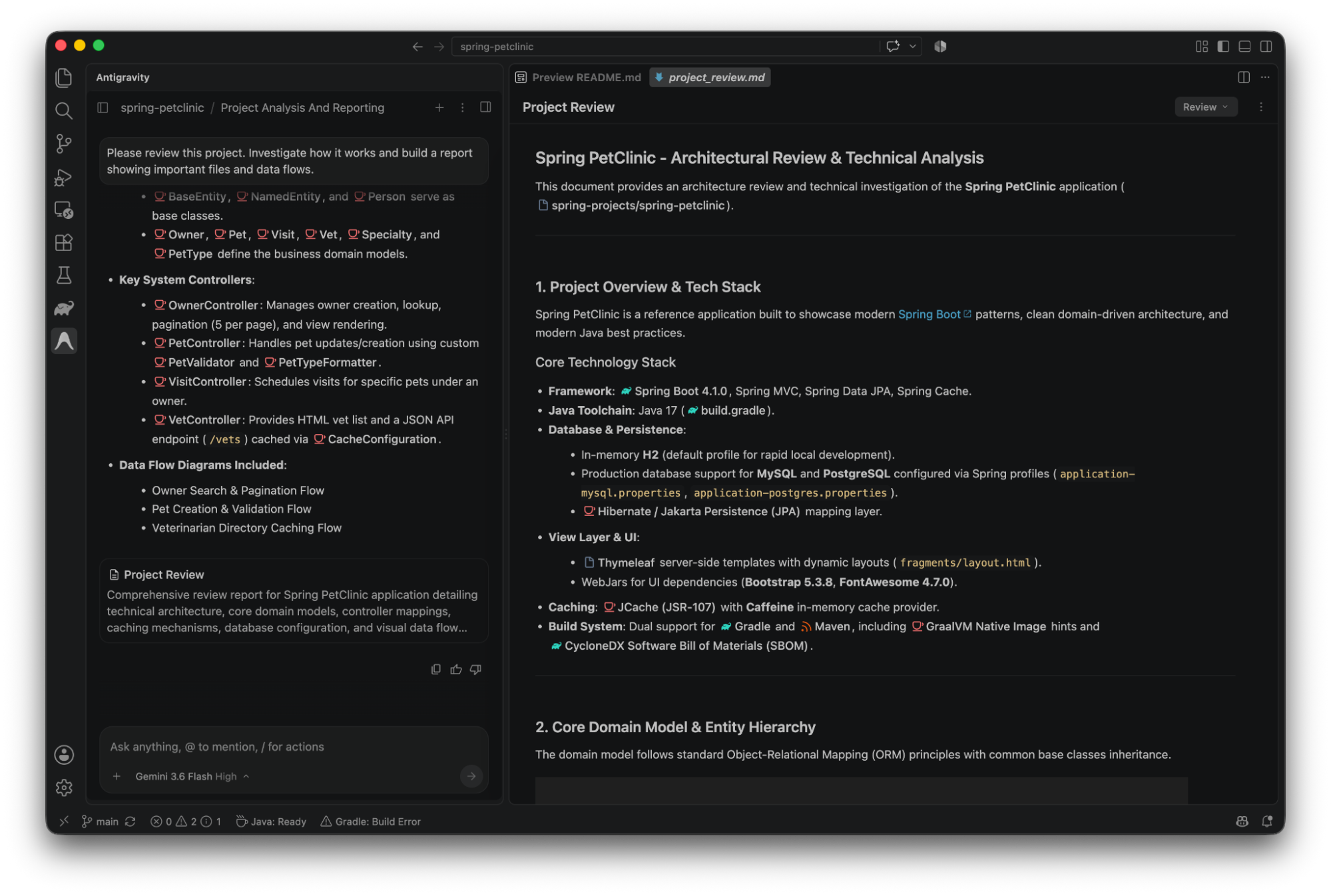
In an agentic development paradigm, your primary workflow shifts from manual typing to orchestrating agents that read code, run tests, and synthesize entire features inside Antigravity 2.0.
However, the editor remains an essential tool. Just as developers rely on debuggers for deep inspection rather than working directly with raw machine instructions, you still need your editor when you want to inspect specific code paths, review compiler diagnostics, or make localized adjustments.
Rather than trying to turn traditional editors into heavy multi-agent hubs, we built lightweight, high-performance integrations across all supported editors. Developers can easily install Antigravity to gain access to conversations, customizations, and multi-agent orchestration that shares context with the rest of the Antigravity ecosystem.
Visual Studio Code
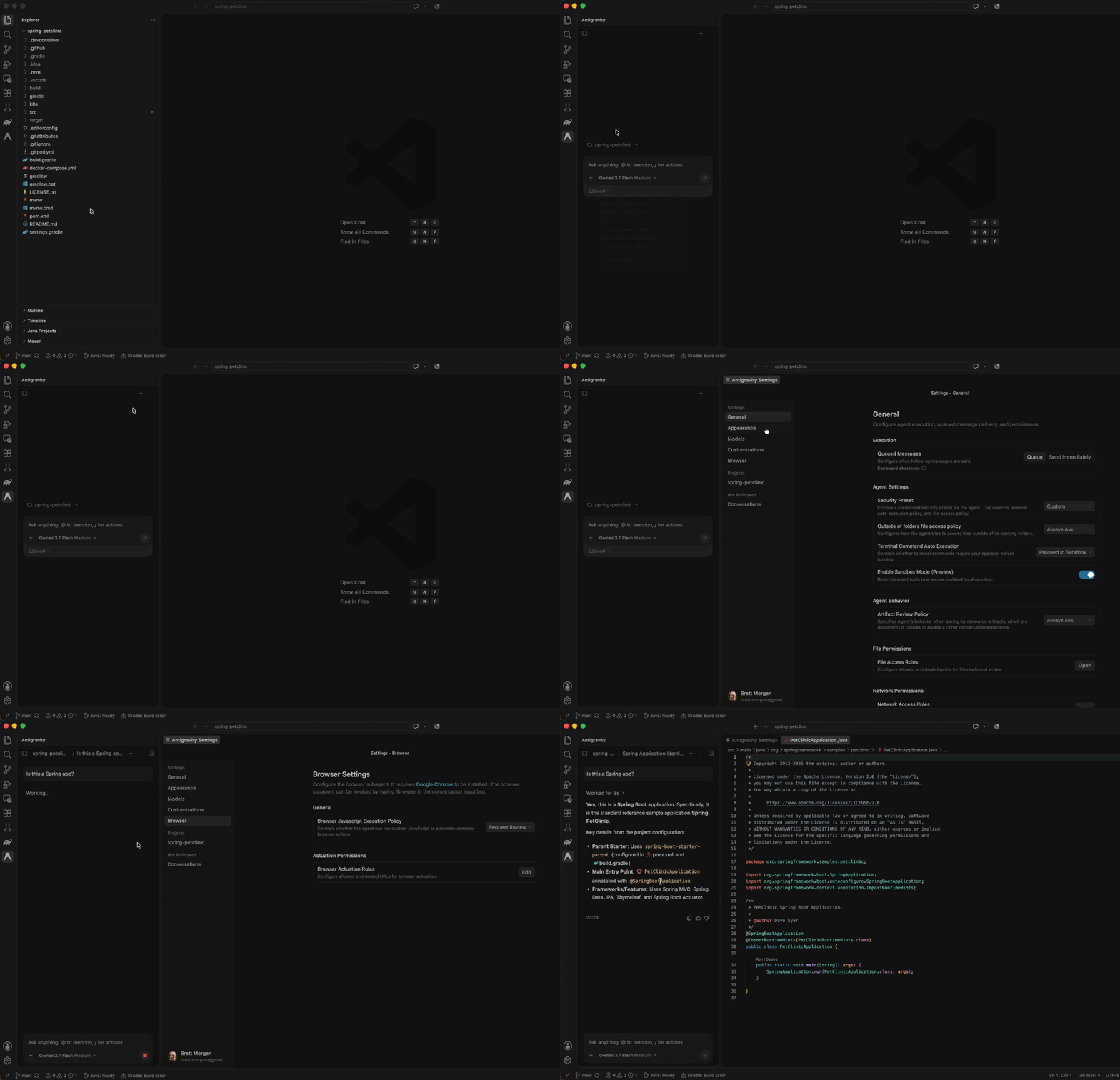
For Visual Studio Code, Antigravity is available as a lightweight extension in the Visual Studio Code Marketplace. Follow these steps to install it:
- Open the Extensions view in Visual Studio Code (
Ctrl+Shift+X/Cmd+Shift+X) or visit the Visual Studio Code Marketplace. - Search for Google Antigravity and click Install.
- Click the Antigravity icon in the Activity Bar to sign in and begin setup.
Visual Studio
For Visual Studio, Antigravity installs through the Visual Studio Marketplace or directly within the IDE’s extension manager. Follow these steps to install it:
- Open Extensions > Manage Extensions inside Visual Studio or visit the Visual Studio Marketplace.
- Search for Google Antigravity and click Download.
- Restart Visual Studio to complete installation and launch Antigravity from the main toolbar.
For detailed setup instructions, keyboard shortcuts, and configuration options across all IDEs, check out our documentation.
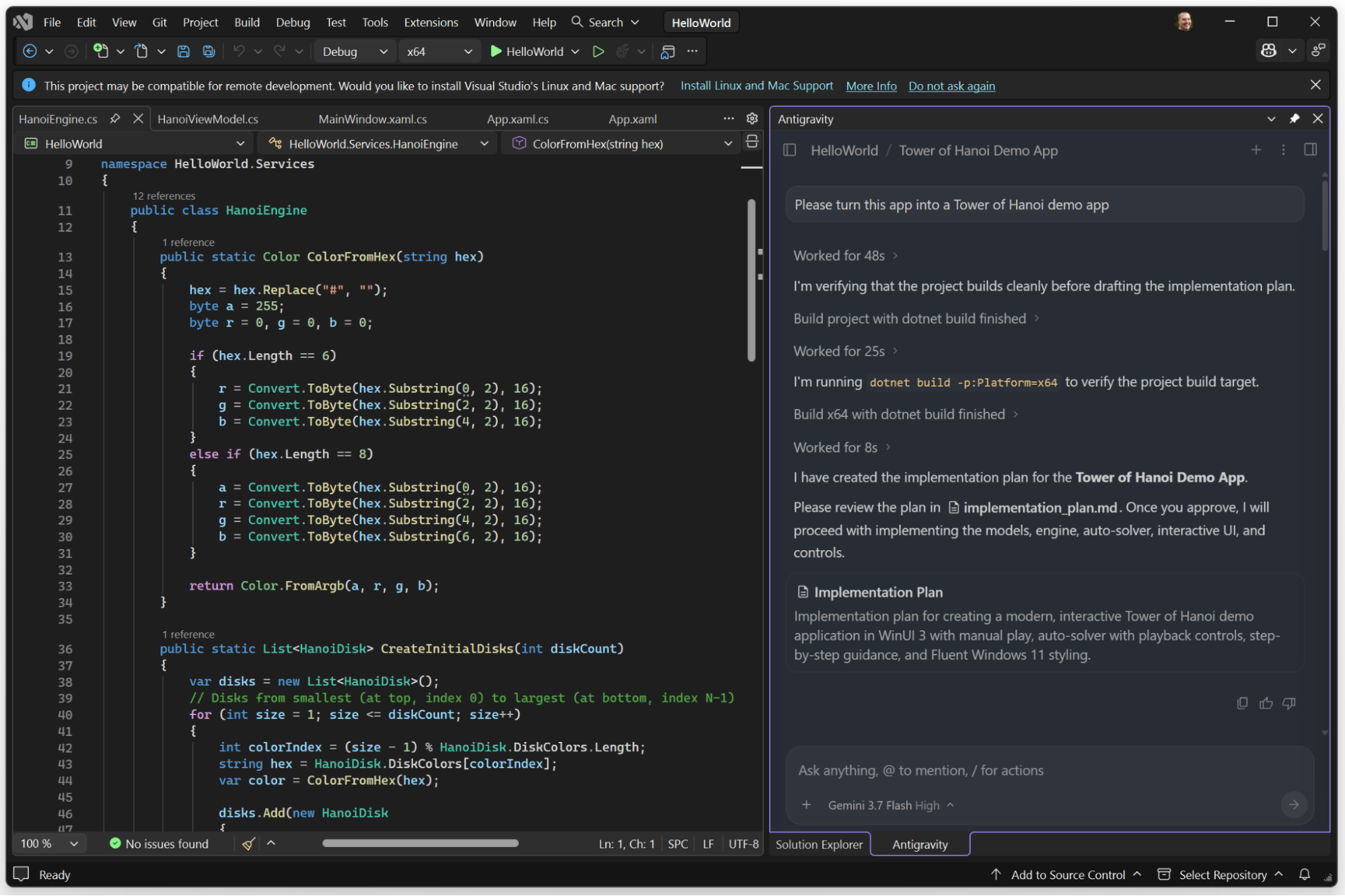
JetBrains
Antigravity supports the full suite of IntelliJ-based IDEs (including IntelliJ IDEA, PyCharm, WebStorm, GoLand, CLion, Rider, and more) starting with version 2026.2.1, with one-click installation directly inside the IDE (Enterprise support is currently in Preview).
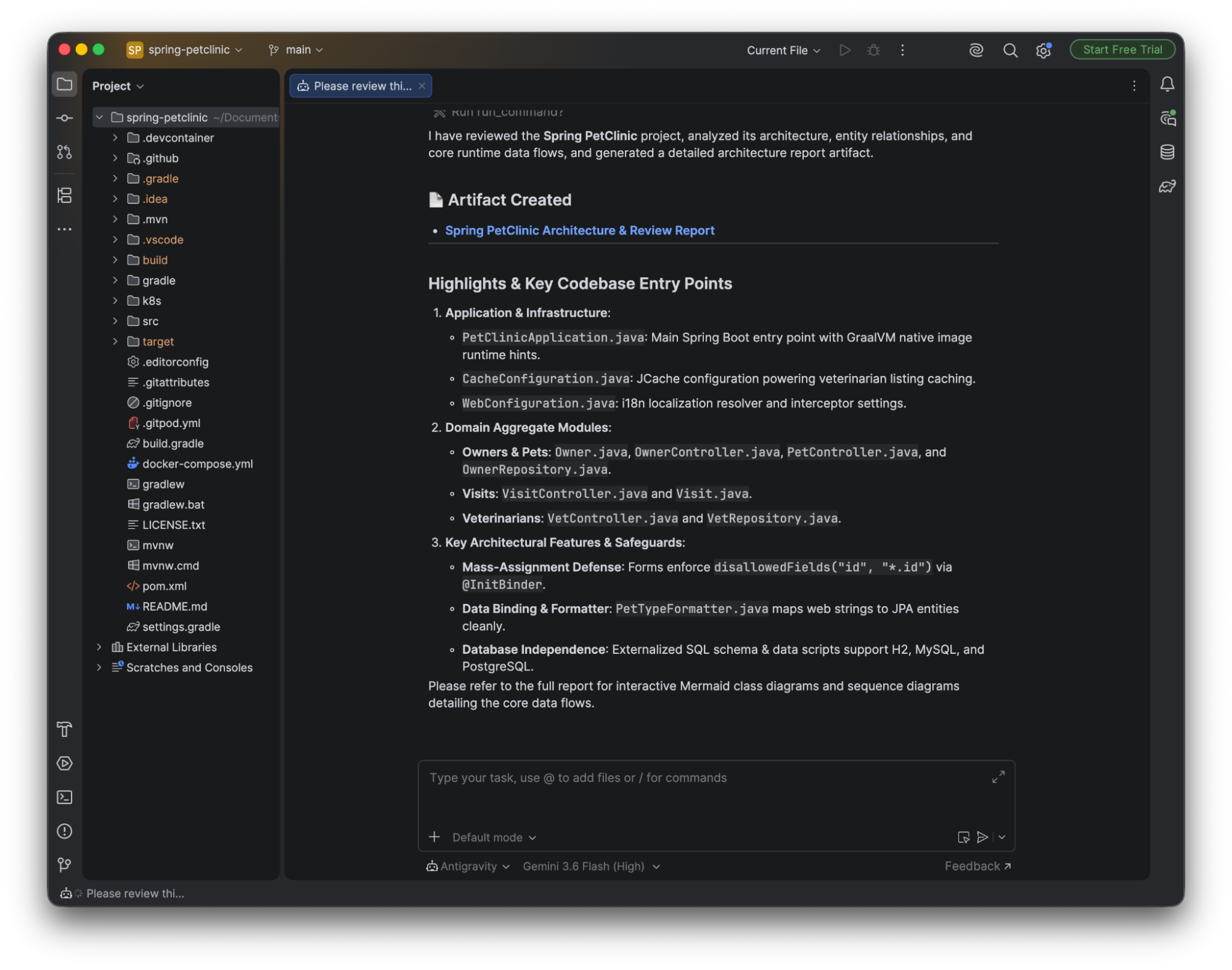
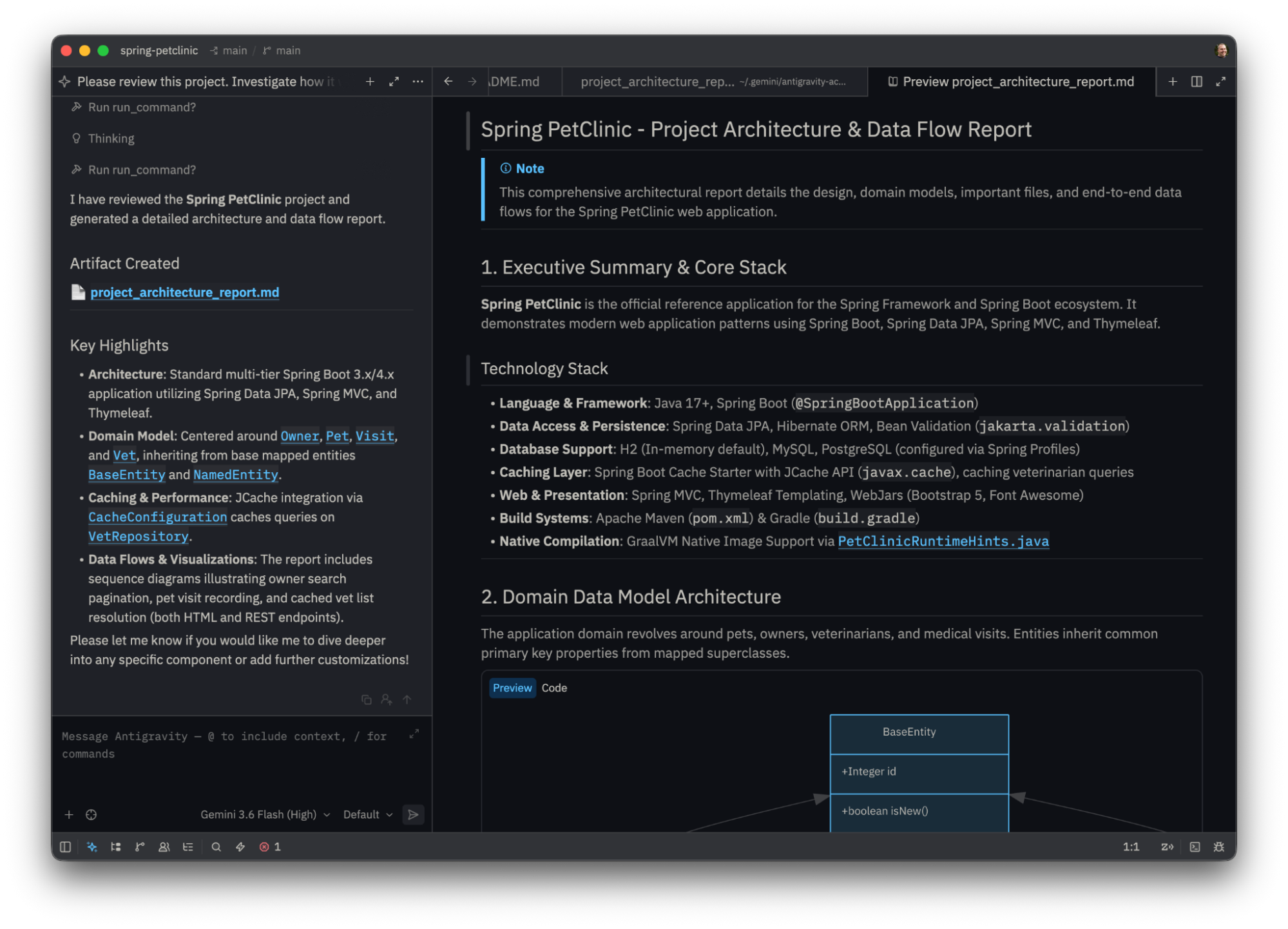
Zed
Antigravity integrates directly into Zed for high-performance, agentic editing within your native workflow, available through a one-click install directly inside the editor (Enterprise support is currently in Preview).
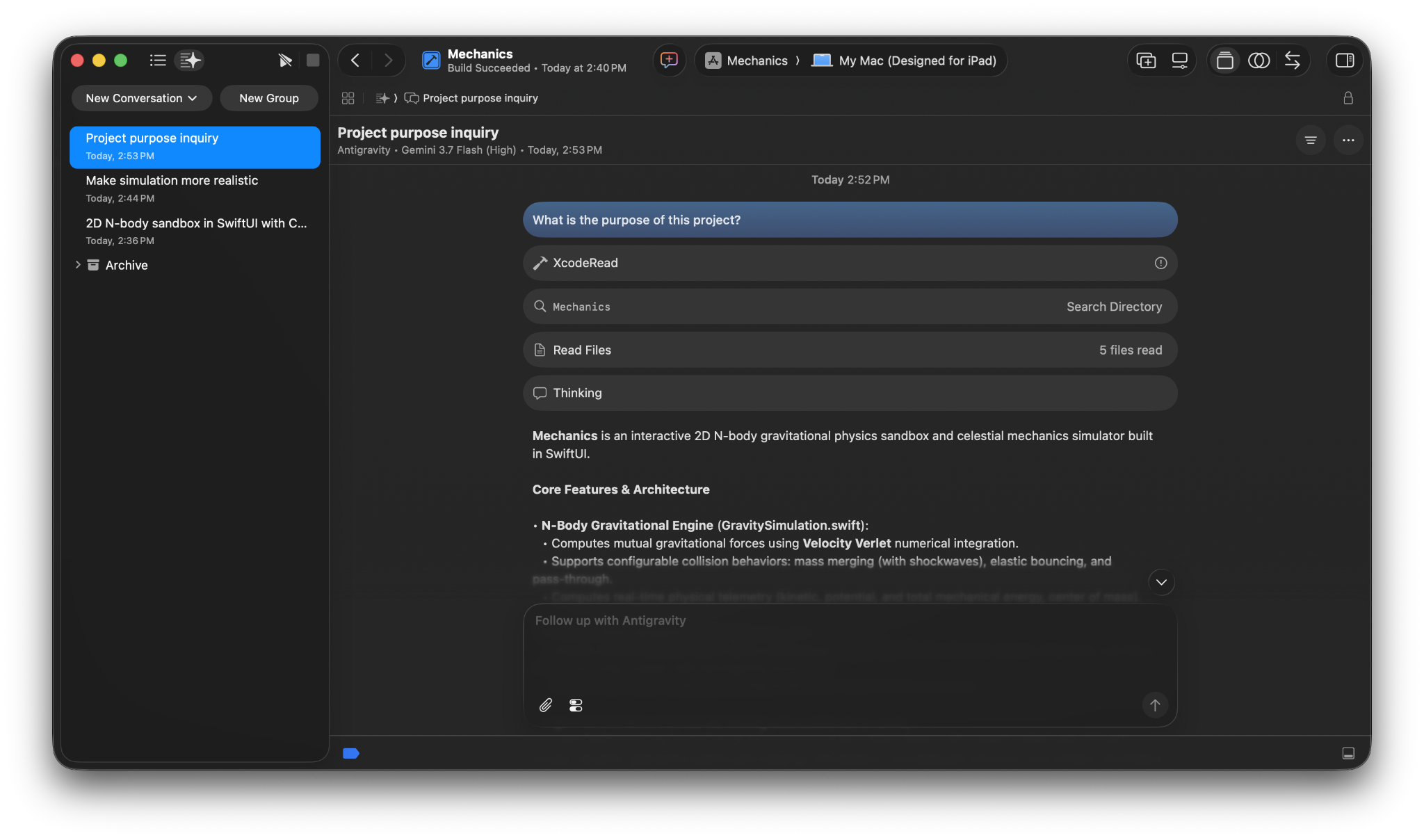
Apple
You can now access Antigravity directly inside Xcode to build across Apple’s ecosystem (such as macOS, iOS, and iPadOS) without leaving Xcode. To get started, onboard through the Intelligence settings panel in Xcode 27 beta 6 or later.
Built for individual developers to Enterprise
Antigravity IDE Extensions support the full security, compliance, and governance tiers of the Antigravity platform.
Individual developers
Sign in with your Google account with any Antigravity plan from the pricing page (including the free tier).
Enterprise teams
Sign in with Gemini Enterprise or your Google Cloud project credentials (support for JetBrains and Zed is currently in Preview). Sessions operate under the Google Cloud Terms of Service—your data is never used to train foundation models, and all interactions respect your organization’s IAM policies and VPC Service Controls.
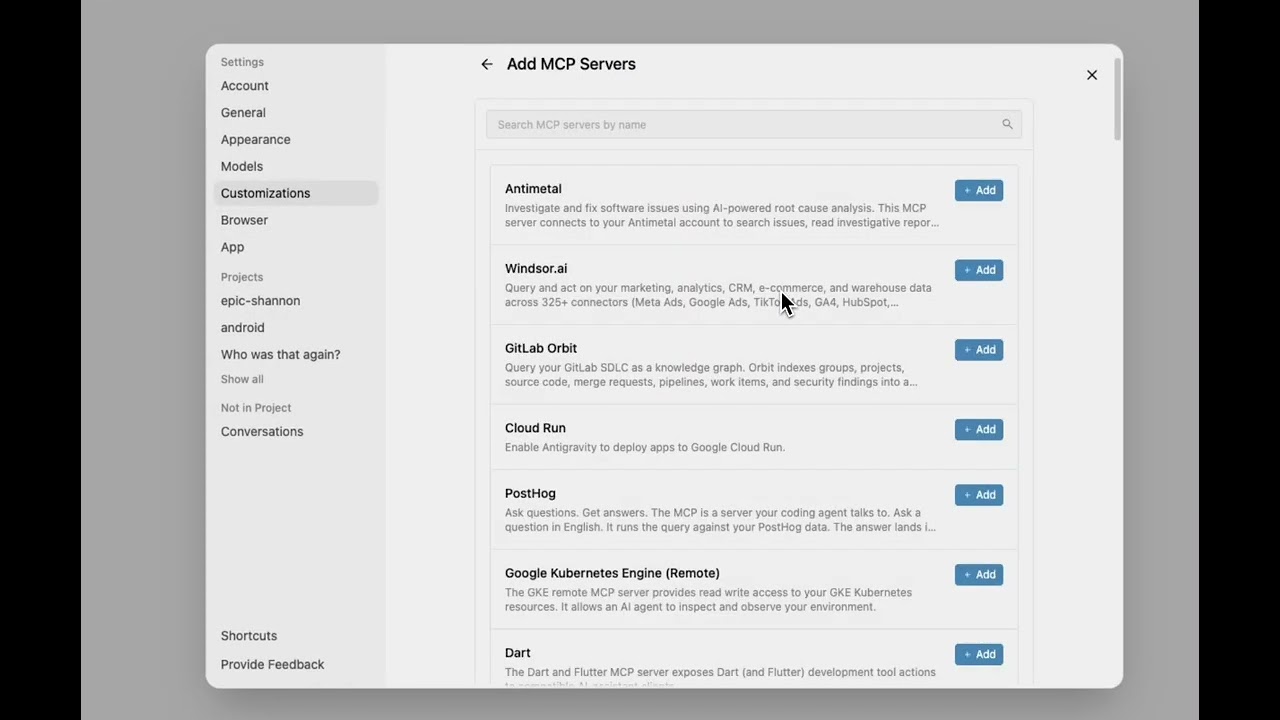
Antigravity in Gemini Enterprise - Client Login and Settings
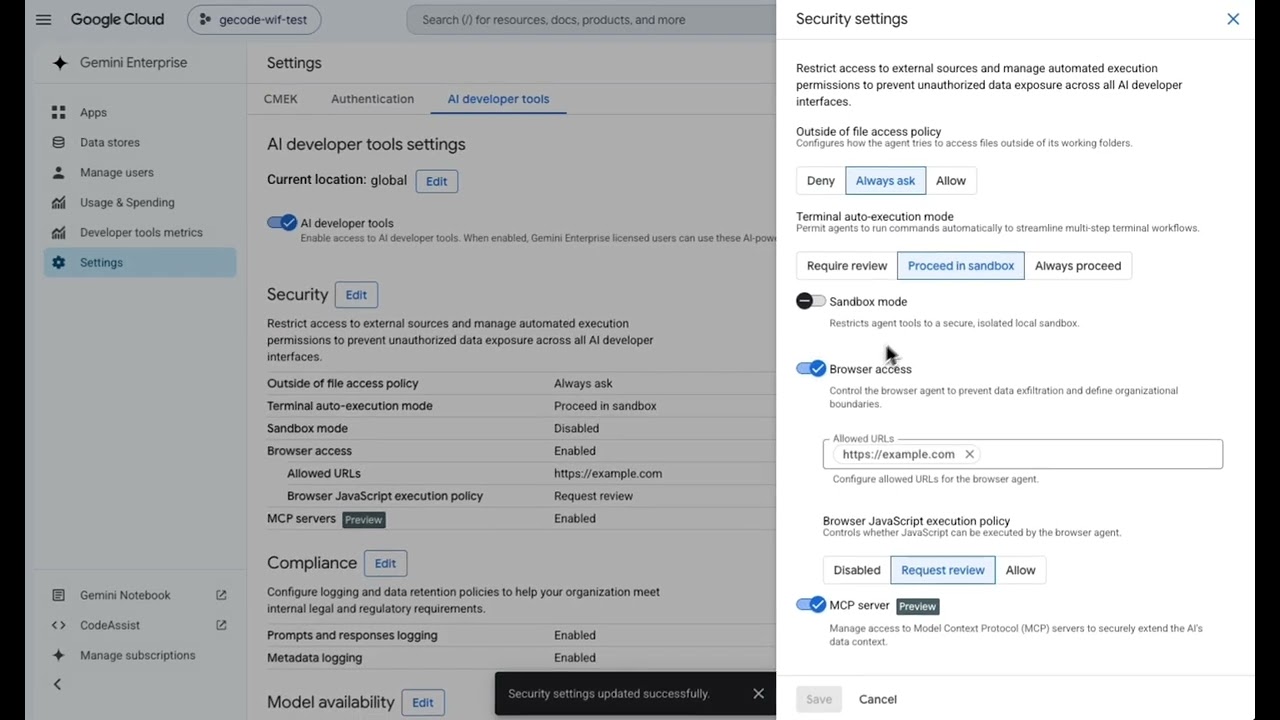
Antigravity in Gemini Enterprise - AI Developer Tools Settings